

Roku's Backdrops Mode Can Make Your TV An Art Display
We may receive a commission on purchases made from links.
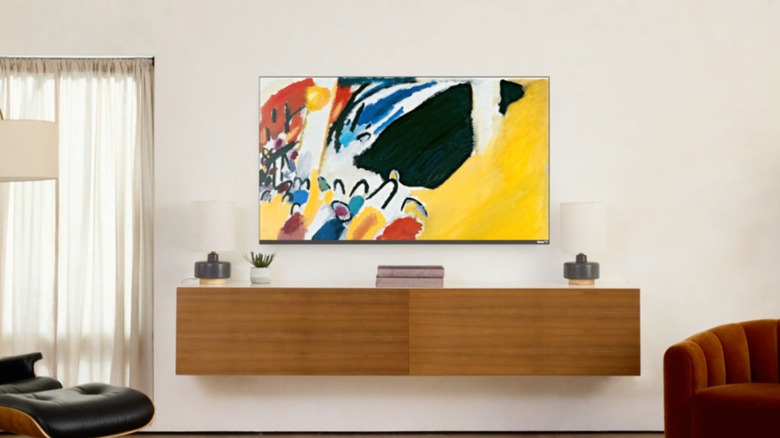
Roku streaming devices and smart TVs offer a dizzying amount of features and customizations. They have some hidden features every Roku user should know about, as well as some great ways to watch local channels for free, but what if you're just looking to improve the cosmetics of your Roku experience? On top of the many theme packs and screensavers built into the Roku platform to choose from, there's a feature called Roku Backdrops that's tailor-made for showing off fine art and personal photos.
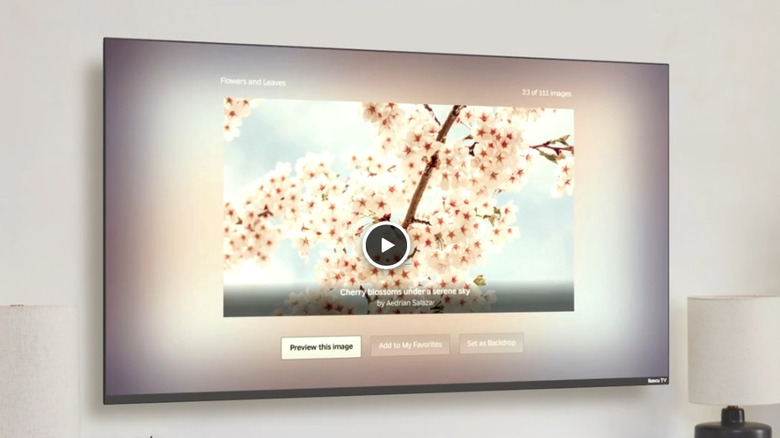
The Backdrops app is completely free and can be searched for in the Streaming Store like any other Roku app. Once installed, you'll first need to enable Backdrops by going to Settings > Home Screen Menu > Backdrops > Open Backdrops app. You'll then be tasked with figuring out what kinds of artwork you'd like to display.
If you'd like to show off an entire collection (Roku gives the example of "Claude Monet"), open the app and choose one of the available options. Click Set as Backdrop to designate it as your collection, followed by Start Backdrops to begin exhibiting. You can also show off a single image by selecting the picture, then clicking Start Backdrops. To keep displaying the same image, go to the Backdrop Options menu and click Image Duration > Don't Change.
Roku Backdrops used to be Roku Photo Streams
Adding your own photos to the Backdrops app is relatively straightforward. To get started, go to the home screen on your Roku device. Open the Backdrops app, then click Add your photos >Upload photos. Scan the QR code that pops up on your TV screen, and follow the instructions to start uploading images. You'll be able to create up to 10 albums and can upload 20 photos at a time (capped at 100 photos per album). Accepted formats include JPG, PNG, HEIC, and WEBP.
You can also link your Roku account to a Google Photos account. All you have to do is open the Backdrops app and click Connect Google Photos, then scan the QR code that pops up and follow the onscreen instructions.
Are you stuck on whether to invest in a Roku Streaming Stick or a Roku-powered smart TV? One of the conveniences of using Backdrops with a Roku TV is that you'll be able to use the remote power button to start and stop the app. Simply quick-press to start, and long-press to completely turn off your TV.