

The 5 Most Common Problems With TCL TVs (And How To Fix Them)

If you've been dying to replace your old TV, you might have come across recommendations for TCL. Many users rave about the brand, mainly because it offers solid performance at a budget-friendly price. Yes, TCL TVs are so cheap thanks to their in-house production and high-volume manufacturing, but they're still known to perform well enough for casual use.
But even with its general reliability, TCL TVs aren't completely free from trouble, and you might run into a couple of issues here and there. Five of the most common problems with TCL TVs include lag, an unresponsive remote, random shutdowns, and issues with the audio or picture.
Normally, your first course of action is to do a quick restart. Unplug the TCL TV from the outlet for a minute or so, and then plug it in again before turning on your TV using the power button on your remote. Updating the firmware can also help resolve common bugs. To do so, open Settings > select Device & Software > go to About > hit Check for Updates. After you download and install the latest updates, reboot your TCL TV. If a reboot and update don't help, there are other troubleshooting techniques, depending on the specific issue. We'll walk you through some of the simple solutions you can try before taking your TCL TV to a service center.
Your TCL TV is sluggish
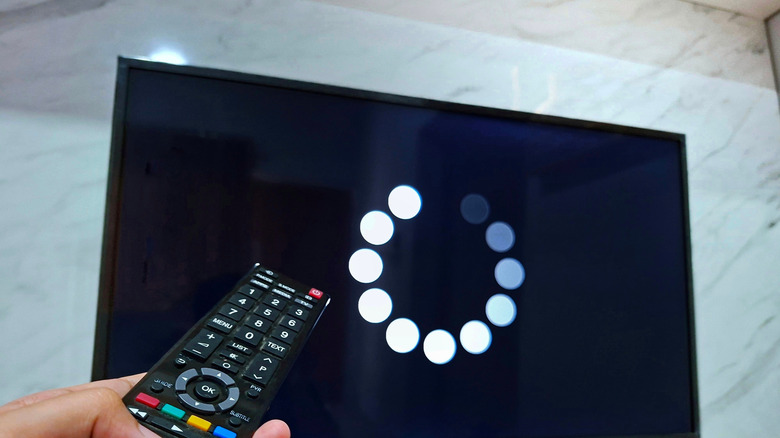
Nothing is more frustrating than your TCL TV slowing down or freezing on you when you're about to watch your favorite show. Typically, you can solve this with a quick restart. Alternatively, if you can still get into the Settings, navigate to System and select Restart. Upon boot-up, your TCL TV should be responsive to remote commands again. If that doesn't work, you can proceed with some basic maintenance:
- Update all your apps:
- On a TCL Google TV, launch the Google Play Store and click on your profile icon. Then, go to Manage apps & games > Updates > Update all.
- On a TCL Roku TV, highlight the app you want to update, press the Star button on your remote, and select Check for updates.
- Update the system:
- On Google TV, head over to Settings > System > About > System Update.
- On Roku TV, select Settings > System > System Update > Check now.
- On Fire TV, open Settings and click on Device & Software > About > Check for Updates.
- Close background apps:
- In the Settings of your Google TV, press Apps.
- Click any app under Recently opened apps.
- Go to Force stop.
- Hit OK.
- Clear cache:
- Open the TV Guard/Safety Guard app.
- When prompted, go to Device Manager.
- Click on System Optimize or Quick Speed Up, whichever is available.
If nothing works, you should do a factory reset.
- On Google TV, find the Factory Reset option under Settings > System > About > Reset.
- On your Roku TV, go to Settings > System > Advanced System Settings> Factory Reset> Factory Reset Everything.
- On Fire TV, choose Settings > Device & Software > Reset to Factory Defaults.
From here, you need to set up your TCL TV again.
The TCL TV remote is unresponsive
Remote issues are one of the most common problems with smart TVs, and the TCL TV remote is no exception. It's especially annoying when your remote stops working while your TV is mounted on a wall, making it hard to reach the physical buttons. A simple fix for an unresponsive TCL TV remote is to replace the batteries with a fresh set. If you don't have any spare batteries, see if reseating the current ones fixes the problem. Restarting both your TV and remote might also do the trick. To do so, take the batteries out of the remote. Then, reboot the TV from the Settings and insert the batteries again once the TCL logo appears on the screen.
If you have a Bluetooth remote, you can try pairing the two again. On your remote, long-press on the Home and OK buttons simultaneously (or just the Home button in some models) while holding the remote three feet or less from the TV. You should also make sure to get rid of anything blocking the TV's infrared (IR) receiver below the TCL logo. IR signals need a clear line of sight, so you have to keep the space free from obstructions.
Your final resort is to reset the TCL TV remote. To do so, take out the batteries and hold down on number 1 for about a minute. Then, reseat the batteries in the remote and check whether it's now functional. The process might look different for different models, though, so check your user manual.
Your TCL TV is randomly shutting down
Random shutdowns can be a frustrating experience, and there are several potential reasons why this happens. For one, it might be due to a temporary software glitch, which can easily be fixed with a simple restart. The shutdowns might also come from a jammed button or low batteries on the remote. Replace the batteries with fresh ones, and give the remote a good wipe down to free the button that might be causing a misfire. You can try these other troubleshooting techniques, too:
- Disconnect from your home network, as some automation triggers or voice commands may be turning off your TV.
- Disable power-saving and sleep modes that can turn off your TV to save power:
- Open Settings.
- Select System > Power.
- Toggle off Power Saving Mode, Sleep Timer, Eco Mode, or Energy Saver, whichever is available on your TCL TV.
- Turn off the HDMI-CEC setting, which can accidentally shut down your TV when a device connected to its HDMI is turned off or malfunctioning:
- Launch Settings.
- Click on Display & Sound.
- Select HDMI-CEC.
- Disable CEC.
If your TV randomly reboots, it might be a power issue. Make sure the TV's connection to the outlet is stable and secure. A loose power cable, faulty outlet, or fluctuating power supply can randomly turn your TV off and on again. See to it that the TV has proper ventilation and clean vents as well. When it overheats or is placed close to heat sources, it can act up. It's also a good idea to update to the latest software from the Settings. Look for System > select About > go to System Update.
The TCL TV audio isn't working properly

Sometimes, your TCL TV might display a clear picture, but there's no sound coming through. In such cases, one of the first things you can do is check the volume. It might be muted or was accidentally turned down too low for you to hear. Simply turn it up to a reasonable level using your remote. If your volume is already high enough but the TV still isn't playing any audio, try playing different content, or use another app, as there might be a technical problem with the source.
Audio issues with your TCL TV can also come from using external devices. Say, you paired the TV to a pair of Bluetooth headphones, or plugged in some wired speakers to the back of the TV. If you're using an external device, make sure you specifically select it for the audio output. Here's how to check:
- On your TCL TV, launch Settings.
- Open Display & Sounds.
- Select Audio Output.
- Set it to your connected external device.
Then, look at the cable to ensure it's secured and connected to the right port, and inspect the external device itself to confirm if it's powered on and configured to the right input source. If you're unsure whether the issue is because of your external audio output, try turning it off and disconnecting it from the TV (unpairing the Bluetooth device or unplugging it). The sound should come back and play through the TV speakers.
If nothing works, though, it might be time for an audio settings reset. In the Settings app of your TCL TV, navigate to Display & Sounds (or similar) and look for Reset Audio Settings to restore the original sound settings.
You're experiencing picture issues on your TCL TV
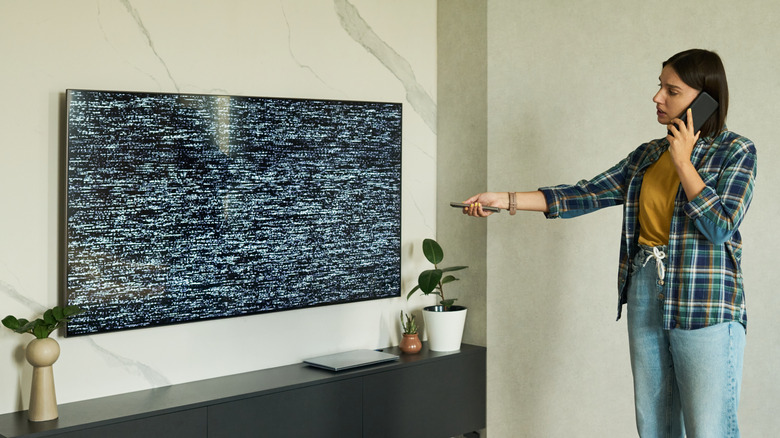
Picture issues on your TCL TV can show in different ways. You might experience color distortion, pixelated pictures, lines, or a blank screen. To fix this, start by setting the TV or the external source device (like a satellite box, Blu-ray player, or gaming console) to a higher resolution. Low resolutions can appear off on modern TVs, so go with the highest quality option whenever possible.
If you are using an external device, check the cable connection. Picture issues are one of the most common HDMI input problems, and often happen when the cable is damaged or loosely connected. Try unplugging and reconnecting it, using a different port on the TV, or swapping in a new HDMI cable. If your external device is an antenna, you might be dealing with poor signal reception or weather conditions. Adjust the antenna by aiming it at a window or lifting it to get a better picture quality.
If you're on a streaming service like Netflix or Hulu, the picture issue might stem from a weak Wi-Fi signal. See if moving the router closer to the TV fixes the problem. You can also check the picture quality settings on your TCL TV and change the options like tint, contrast, and sharpness. If you need help finding these settings, refer to your manual. Using a different source (like a new app or new HDMI input) can also help you isolate the problem. If all else fails, the issue might be due to a weak signal from your internet or cable provider. Reach out to them to check for signal issues or outages in your area.