

How To Access Android Auto's Secret Menu (And Why You Should)
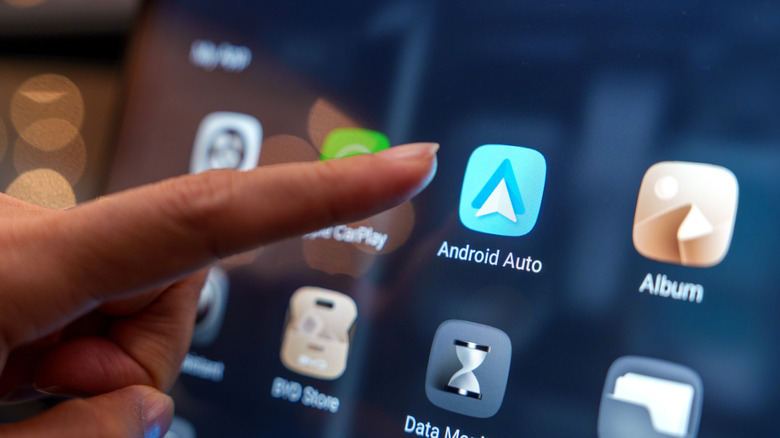
When it comes to in-car infotainment systems, Android Auto is a solid contender for one of the best. It's built into plenty of cars — though more cars are getting rid of Android Auto and Apple CarPlay — and all you need to do to use it is connect your phone either wirelessly or with a USB cable. Doing so links some of your apps between your phone and infotainment system, and you can easily go in and change some of the most important Android Auto settings, too. But what if we told you there is a secret menu in Android Auto that can give you access to even more settings that can make using the system better in the long run?
That's right. Just like Android has a hidden developer menu, so does Android Auto. Of course, accessing the menu is a bit trickier with Android Auto, as you don't need to go into your phone's general settings. Instead, you need to navigate into the specific settings for Android Auto within your phone. Depending on what kind of device you have, the exact settings might be named differently. However, if you're using a newer phone like the Google Pixel 10 or the Samsung Galaxy S25 Ultra, then you'll want to follow the steps below to access Android Auto's hidden menu.
How to find the Android Auto secret menu on your smartphone

The easiest way to find the settings is to open your phone's settings menu and then search for "Android Auto." If you prefer searching manually, then you can find it under "Connected Devices" on many phones. Once you've located the Android Auto settings, scroll down until you spot the "Version and permission info" section. Tap on this to expand it, then tap on it roughly 10 times. You'll know you've been successful when an acknowledgement window pops up asking whether you want to allow development settings. With the settings enabled, scroll up to the top of the Android Auto page and tap the three-dot menu and select "Developer settings." Now it's time to see what you can do.
While Android's built-in developer settings offer a slew of useful features, Android Auto's are a bit more barebones. However, there are two settings you should pay close attention to. The first is "Wireless Android Auto." When toggled on, this allows your device to wirelessly connect to Android Auto systems and third-party adapters. It should be on by default, but if it isn't, make sure you toggle it on if you plan to use the service wirelessly.
The other setting to keep in mind is "Unknown Sources." Much like Android's standard "Unknown Sources" setting — which allows you to sideload apps to your Android phone — this setting lets non-Google Play apps appear on the Android Auto interface. It's great if you prefer to use a deGoogled phone, as otherwise these apps won't be available on your Android Auto display. You can always toy around with the other settings here, too, though they mostly revolve around developer-heavy features that everyday users won't need.