

5 Clever Uses For Your Extra HDMI Ports
We may receive a commission on purchases made from links.
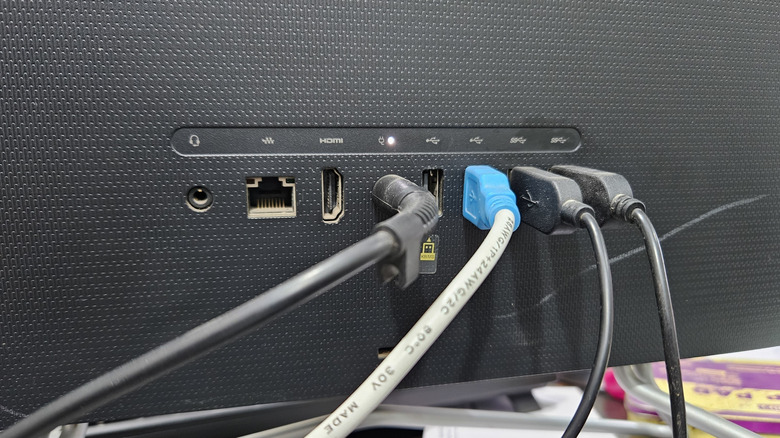
HDMI ports and cables have become the dominant means of transferring audio and video between sources and devices, largely supplanting separate visual and audio inputs. The mass adoption of this framework means that you likely have at least a few open HDMI ports on your PC, laptop, or TV. Even if one of those ports is occupied by a monitor or streaming stick, you can still put the others to work by connecting an extra display, upgrading your audio, or plugging in various additional devices.
The streamlining convenience of the HDMI format allows you to seamlessly link a variety of gadgets and upgrades to a single device, such as a PC or smart TV. Whether you're looking to make your home entertainment setup a little more interesting or use your device for professional purposes, like sharing presentations or livestreaming, using your HDMI ports with the proper HDMI cables can improve your setup.
Connect an additional display
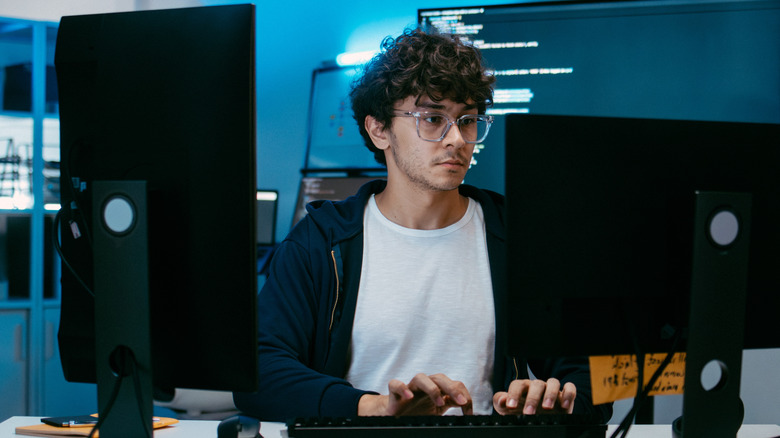
Arguably, the simplest thing you could do with an extra HDMI port on your PC or TV is to hook up an additional screen. Most devices of that nature are designed to automatically mirror their displays to any other devices connected via HDMI. For example, if a movie you want to watch is on your laptop but you'd like to see it on a big screen, you can connect the computer to your smart TV using an HDMI cable and watch it there.
Display mirroring isn't the only perk, however. In the specific case of PCs, you can connect an additional display via a second HDMI cable to expand your overall working space with a dual-monitor setup. Having two monitors on your desk operating independently can be very helpful for both work and leisure, allowing you to quickly switch between multiple windows and tasks without having to minimize programs. Or, you can play games on one display while you have a chat app open on the other. If your PC's GPU only has one HDMI port available, you may still be able to connect a second display if your PC has a traditional DisplayPort. All you would need is an adapter, like the Benfei 4K DisplayPort to HDMI Adapter available on Amazon.
Upgrade your audio setup
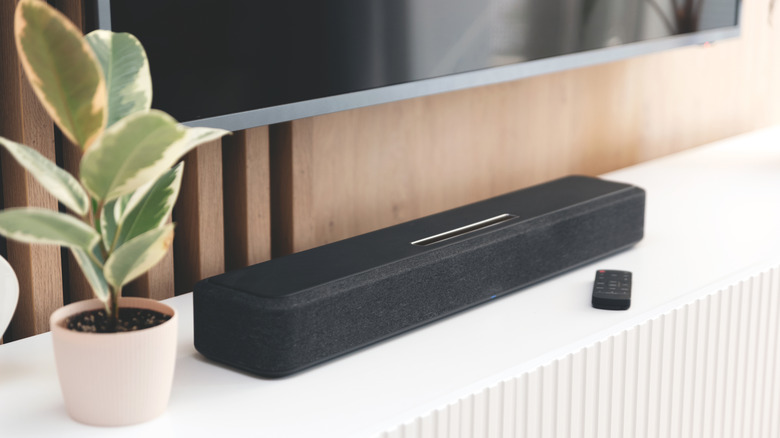
Part of what has given HDMI its staying power in the tech scene is its ability to transmit both video and audio signals through a single stream, as opposed to having a tangle of different cable types snaking behind your TV or PC. If you've got a spare HDMI ARC port on either of those devices, especially your TV, it might be a good opportunity to upgrade your sound quality with an external speaker or soundbar.
Newer soundbars like the Vizio V-Series 2.0 can be connected to a TV's HDMI ARC or eARC ports, which have an audio return channel, immediately improving the volume and quality of your entertainment over the TV's built-in speakers. Certain external speakers can be plugged in via HDMI ARC as well, though a soundbar would be the more convenient option, as multiple speakers would still need to be networked together through additional cables or wireless connections. A soundbar below your TV is a good space-saving measure, especially if your TV is perched on an otherwise cramped stand or shelf that couldn't safely hold larger standalone speakers.
Hook up a capture card
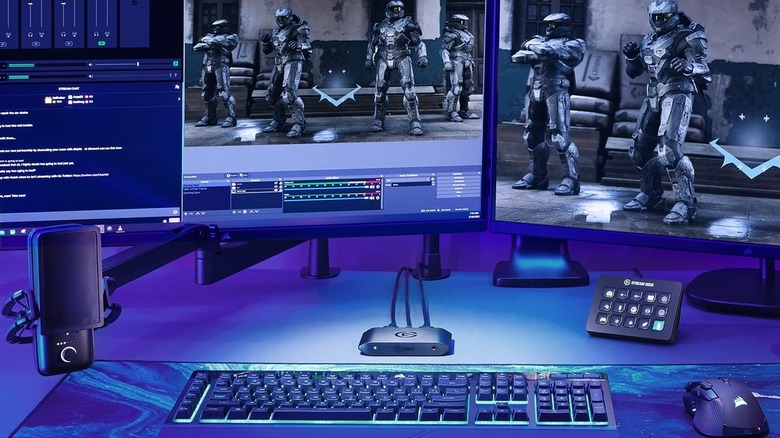
Livestreaming has become a popular form of consuming online content, with users on Twitch and YouTube regularly streaming their reactions to videos and video games to audiences. The greater presence of PC gaming has certainly made it easier to capture footage for streaming on the same device, but if you're playing games on a separate device, such as a game console, you'll need an extra connection device like an Elgato HD60 X capture card on Amazon. That's where that extra HDMI port comes in.
A capture card can be plugged directly into a video game console like a Nintendo Switch 2 or a PlayStation 5, then plugged into open HDMI ports on your PC, TV, or gaming display. This passthrough connection mirrors gameplay from the console on both your TV and your PC, the latter of which can be run through streaming software like OBS or Streamlabs and broadcast to a live audience, working alongside a webcam for showing your reactions or manipulating a virtual model. Even if you use a gaming PC rather than a game console, a capture card could be a linchpin for a dual-PC gaming and streaming setup, allowing your gaming rig to focus on running the game while the streaming PC handles the backend work.
Plug in a streaming stick
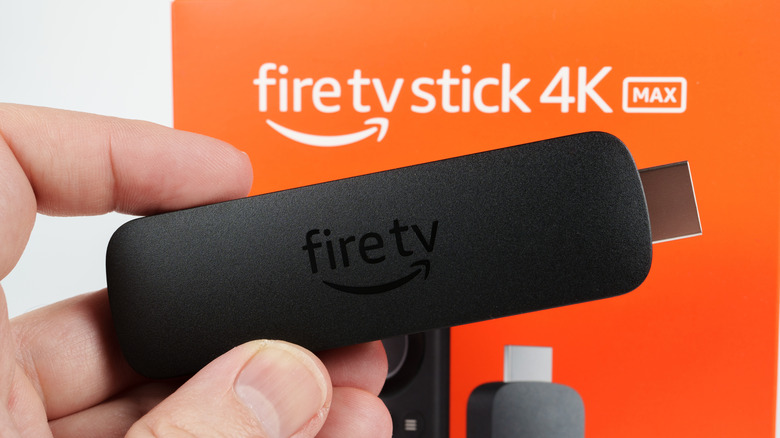
Streaming entertainment via apps and services has supplanted traditional cable packages for home television viewing, with smart TVs becoming the norm and complicating the process of buying a dumb TV. If you have an older flatscreen TV with no built-in streaming capabilities but at least one open HDMI port, you can plug a streaming device, like a Roku stick or Amazon Fire TV Stick, into it to watch your favorite TV shows and movies.
Of course, with smart TVs becoming so prevalent, the idea of plugging a streaming device into one may seem superfluous, as both can access the same services. However, depending on the operating system your smart TV is using, you can't access certain apps, just like the Roku TV can't have Twitch installed. If you plug in a streaming stick from another platform, like a Fire TV Stick, you could then access the Twitch app on the same TV. Plug the stick into a 4K-compatible HDMI port — they are not all the same, despite this being one of the most common myths about HDMI ports.
Add an HDMI switch or splitter
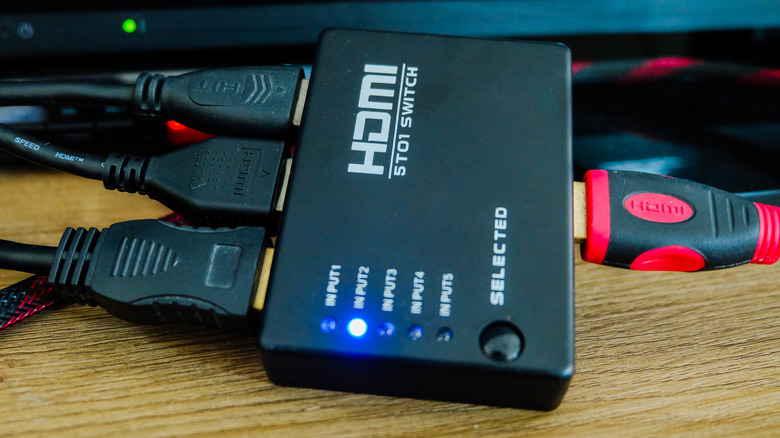
All of the preceding ideas come from the assumption that you actually have an open HDMI port on your PC or TV. If all of your HDMI ports are taken, you initially cannot add extra devices to the mix. However, if there's something else you absolutely need to connect to your source, you might be able to facilitate that with the help of an HDMI switch or splitter, such as the Gana Bidirectional HDMI Switch from Amazon.
Switches and splitters are accessories that add more HDMI ports to your smart TV or PC. Just plug one into an HDMI port, and the other end can connect two separate devices. The only catch is that only one device can be used at a time, with the switch allowing you to quickly swap on the fly between them. This still has plenty of applications: You could switch a PC between two monitors, or two game consoles could be plugged into a single TV.