

5 TV Settings That Can Completely Change Your Audio
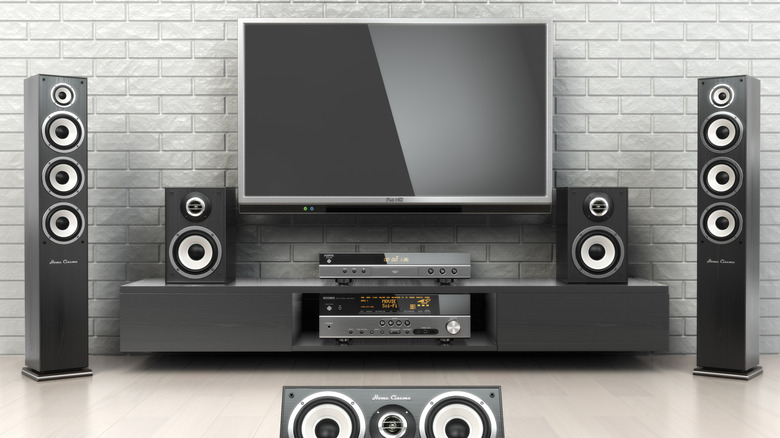
The ideal home viewing experience isn't just about how clear the picture comes in, it's also about how clean the sound is. Whether you're using your TV's built-in speakers or have a full external audio setup, you may need to make some tweaks in your TV's menus to get everything sounding nice and crisp. If you open up your audio settings, you can find all sorts of options to try, from preset sound modes to adjustable equalizers.
In most situations, a TV's internal speakers won't be as good as an external speaker setup with devices like soundbars. Before you go investing in more hardware, you should try to make a few adjustments in your TV's audio settings, just to see if you can fix the problem that way. Even if you do have an external setup, there are a couple of tricks you can try in the event things still aren't coming in as cleanly as you'd like, like adjusting your speaker placement or enabling proprietary features like Audio Return Channel (ARC).
Check for preset sound modes

The most common audio option you'll find on most modern TVs is adjustable audio presets. Everyone wants something a little different out of their viewing experience, whether you want to prioritize the soundtrack, make the dialogue easier to hear, or just smooth out loud or soft sounds. Your TV's audio presets allow you to experiment in broad strokes without getting into the nitty-gritty details, and they can be easily reverted if you end up with a sound profile you don't like.
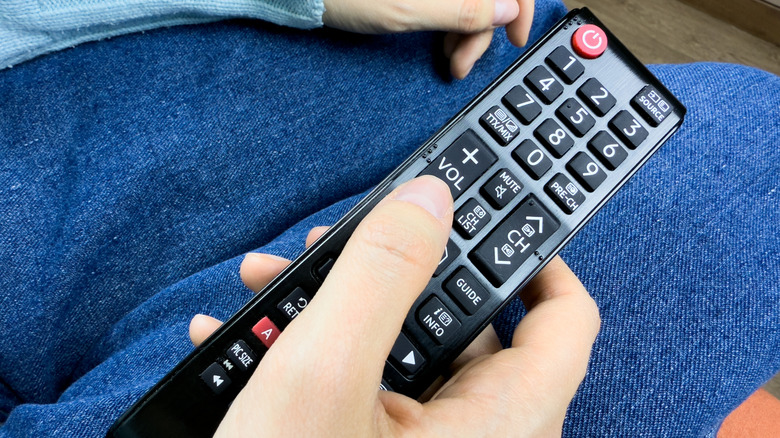
Using your remote, bring up your TV's settings menu and find the audio or sound section. Near the top of the list of options, you should see something to the effect of "sound mode" or "presets." Open that option, and you'll get a list of presets like "Music," "Movie," "Dialogue," and other similar specifications. Try them all and see what works for you; if you don't like any of them, there should be a reset to default option in the audio settings. In addition to the presets, there may be a few additional audio toggles you can tinker with, including bass boosts, surround sound boosts, or a night mode that reduces overall dialogue and sound. Try enabling or disabling these toggles in addition to the presets, and you might just find a setup you like.
Adjust the volume leveling
If you find that a single aspect of your TV's audio, like the music or dialogue, is overpowering everything else, and adjusting presets doesn't seem to help sufficiently, your TV's volume levels may be set strangely. This can be fixed by adjusting the volume leveling, a feature frequently known as dynamic range compression (DRC).
Using DRC features on your TV allows you to adjust the difference in volume between different audio elements. If one element is overpowering the others, there may be a large disparity in volume; decreasing that disparity and bringing the loudest and quietest elements more in line with each other helps to create an overall smoother, more coherent sound profile. This is especially nice if you're watching a show or movie that seems to fluctuate frequently in volume between different kinds of scenes, like bombastic action or quiet dialogue. Volume leveling can also be helpful to use alongside a night mode if you're looking to keep things quiet for other people in your home. Relying on presets alone may not prevent sudden bursts of noise from commercials, for example; using DRC helps keep the full experience uniform across whatever you're watching.
Adjust the equalizer

Tinkering with your TV's audio experience isn't just about making things louder or quieter. If volume alone doesn't get you what you want, you might need to open the proverbial hood and take more direct control over the kind of sound your TV is putting out. This can be accomplished through an equalizer board, which allows you to fine-tune the bass and treble output of different sound frequencies produced by your TV. Keep in mind that not all TVs will have a virtual equalizer in their settings for you to use, as this kind of customization is more frequently found on higher-end models. If you don't see it in your basic audio settings, check in the advanced settings menu.
A TV's virtual audio equalizer presents you with an array of sound frequencies, with one end of the spectrum controlling bass and the other end controlling treble. For an overall improvement in sound quality, try reducing the bass a bit and increasing the treble roughly the same amount. This can help to soften loud, overpowering noises, and make incidental audio like sound and dialogue a bit clearer. Equalizers will usually have a reset button, so don't worry if you accidentally make your audio sound off or strange.
Enable Audio Return Channel
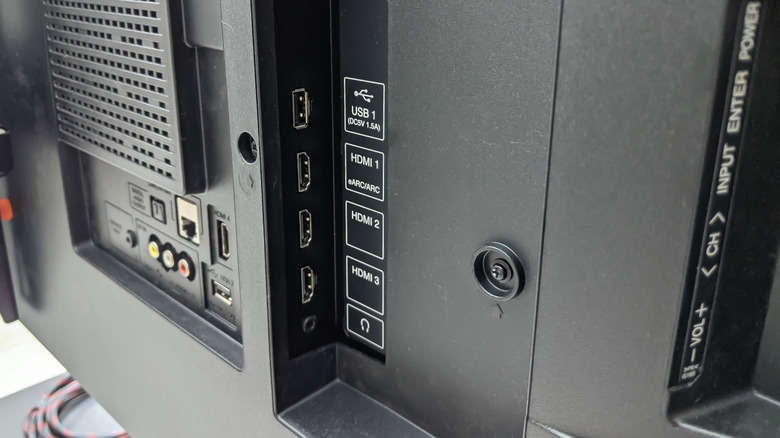
Connecting external speakers like soundbars or set of subwoofers to your TV is generally a good way to improve overall audio quality, but it's not an absolute fix. For example, if your external setup is connected to your TV via a multitude of composite cables, the overall sound profile could come in random or disjointed. If you want to unify your audio through an external speaker, that's a job for the Audio Return Channel, or ARC.
ARC is a feature present on many mid-range and higher-end TVs that allows you to unify audio output through a single high-speed HDMI cable. Using a single HDMI cable both eliminates the need for optical cables and helps create a more seamless sound experience. If you check the HDMI port on your TV and see a little ARC symbol next to it, that means it's got ARC functionality. Some TVs will turn ARC on automatically when a compatible cable and device is connected, but otherwise, check your advanced audio settings for audio output toggles, then look for a toggle with ARC or Audio Return Channel in the name. It's a little different for every TV brand, so you might need to search around a bit. It's definitely worth using devices like soundbars with ARC if you can, though.
Adjust speaker placement and size settings
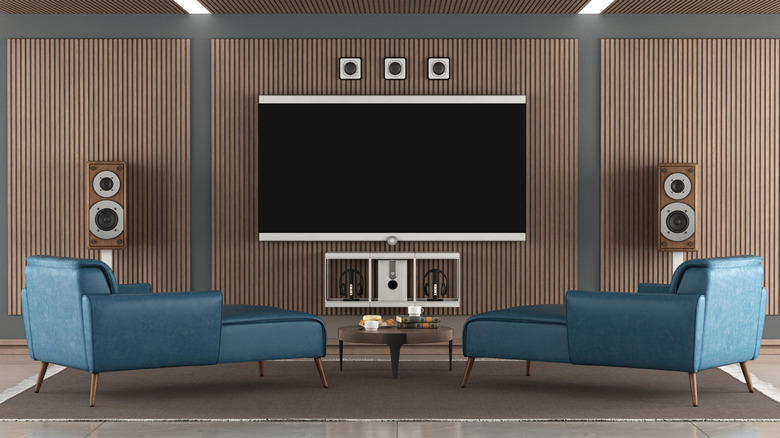
Speaking of external speakers, there's no such thing as a uniform standard of external speakers for TVs. Everyone's got something a little different, whether it's speakers, subwoofers, or the highest-quality soundbars, and an audio preset that works well for one setup might not work well for another. You may be able to get sound more in line with what you're looking for if your TV knows which kinds of speakers you're using, exactly.
Larger and smaller speakers have different ranges of sound, and if you're trying to use small speakers like large speakers, it's naturally going to come out weird. Check your advanced audio settings for "small" and "large" speaker settings to adjust which kinds of sounds are sent where. If you don't see these settings on your TV, you may need an external AV controller to access them, though these controllers do often come with their own interfaces you can access through your TV via HDMI or on a companion smartphone app.