

This Must-Have App Turns Your Old Phone Into A DIY Webcam For Free
We may receive a commission on purchases made from links.
These days, video conferences and online meetings are pretty much part of everyone's day-to-day life. That's why you always have to be ready with virtual meeting apps like Google Meet, Zoom, and Microsoft Teams, and reliable hardware like a webcam and microphone. But there are some instances when you're on a desktop with no built-in webcams and your external camera stops working, or simply doesn't look good enough.
In such cases, you can turn to one handy gadget: your phone. No, you won't transfer your meeting to your mobile just to use its camera. Instead, you can actually use your phone as your computer's external webcam with the help of a nifty app called Iriun. This app is free to download and use, and it's also multi-platform, with support for Windows, macOS, Linux, Android, and iOS. The best part is that Iriun can run on old devices (Android 6.0 and iOS 13.0), so it's one of the great ways to repurpose your old Android or iPhone. We'll show you how to get started with using Iriun on your computer and an old phone.
How to set up your old phone as a webcam
Iriun is a generally straightforward app, so you should have it up and running in no time. Here's how to configure it on your computer and old phone:
- On your computer:
- Download Iriun from its official website.
- Install the app as you normally would.
- Open Iriun.
- On your old phone:
- Connect to the same Wi-Fi network your computer is using.
- Install Iriun from the Play Store or App Store.
- Launch Iriun on your mobile.
- Give the app the necessary permissions.
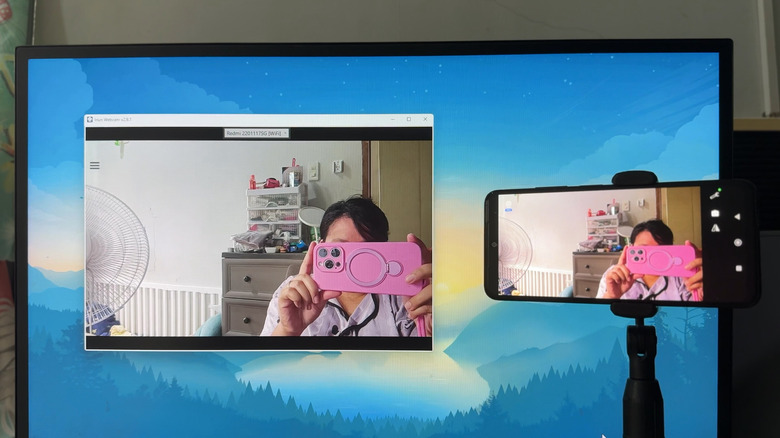
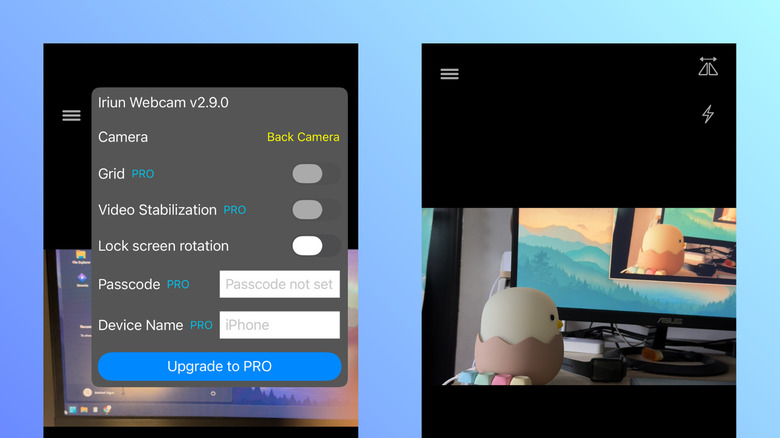
After allowing Iriun access to your camera and microphone, it will automatically look for a computer on the same network that it can connect to. Then, you should see a video stream of the phone camera on the Iriun app on both devices. While running, you can edit the settings on Iriun to fit your needs. On your computer, click the menu icon in the top-left corner and set the Video output to your preferred resolution. On your mobile, go to the wrench icon on Android or menu icon on iPhone. Then, change the Camera to either back or front; the Display orientation to Landscape, Portrait, Reverse Landscape, or Reverse Portrait (for Android only), and the Lock screen rotation to on or off (for iPhone only). If you subscribe to Iriun Pro, you also get options like showing a grid overlay, enabling video stabilization, and setting a passcode for the connection.
How to use Iriun as a webcam for your computer
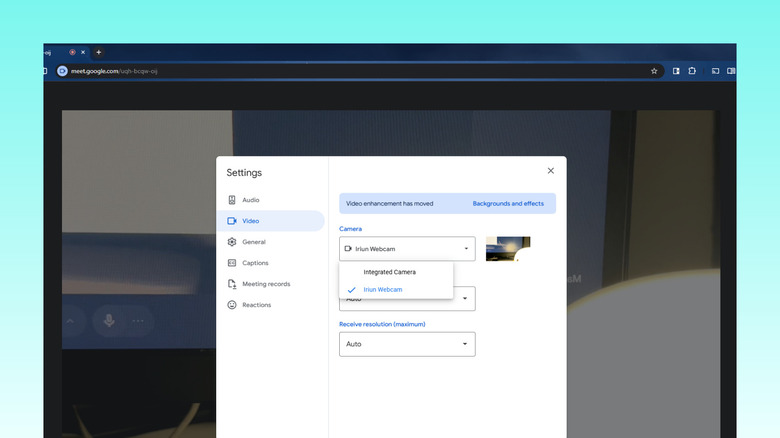
Once up and running, you're ready to use Iriun as the webcam. To start, you need to assign it as the camera for your conferencing apps. Configuring this can vary per app, though. On a Google Meet meeting, click on the More icon and select Settings. Go to Video. Then, set the Camera to Iriun Webcam. On a Zoom meeting, hit the up arrow next to the video icon in the bottom-left corner. Choose Iriun Webcam and hit Start Video. On Teams, hit the down arrow beside Camera in the top-right corner. Under Camera, choose Iriun Webcam.
After setting up your software, you need to get your phone in position. Naturally, you wouldn't be holding it for the entirety of your meeting. That's why you'll want to use a stand or holder of sorts — it's one of those cheap Amazon finds that make life easier, so you might already have one at home. If you're okay with positioning your mobile on your desk for a face-level angle, a phone stand like Cooper ChatStand or Lisen Cell Phone Stand should work just fine. For flexibility, pick one with an adjustable height and a rotatable mount. If you prefer to prop your phone on top of your monitor like a traditional webcam, you can go with monitor mounts like the Stouchi Continuity Camera Mount or Belkin iPhone MagSafe Camera Mount.