

The 5 Most Common Steam Deck Problems (And How To Fix Them)
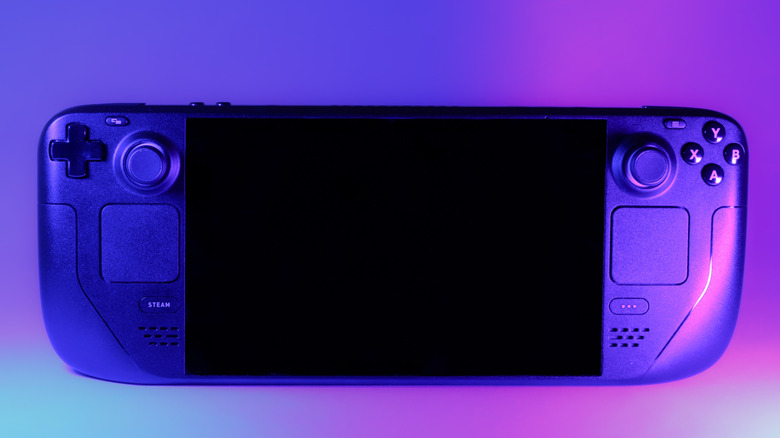
Valve's Steam Deck has become a banner-holder for the burgeoning portable gaming PC market thanks to some smart design decisions and its surprisingly varied uses, even beyond gaming. Of course, no piece of technology is completely immune to problems. As popular as the Steam Deck has become, it is still vulnerable to annoying problems like drifting sticks, power errors, and connection problems.
The problem with a portable gaming PC versus a traditional gaming PC tower is that, much like a laptop, it's more difficult to open up and diagnose physical problems. Still, the Steam Deck is made with considerations for more advanced users, so there are a variety of failsafes and tricks built into it that may be able to help you remedy the most common problems. Hopefully, you won't need to open your Steam Deck to fix these particular foibles, especially since doing so would void its warranty. Before you leap to modification, try these simpler solutions for the most common issues.
The Steam Deck won't turn on at all
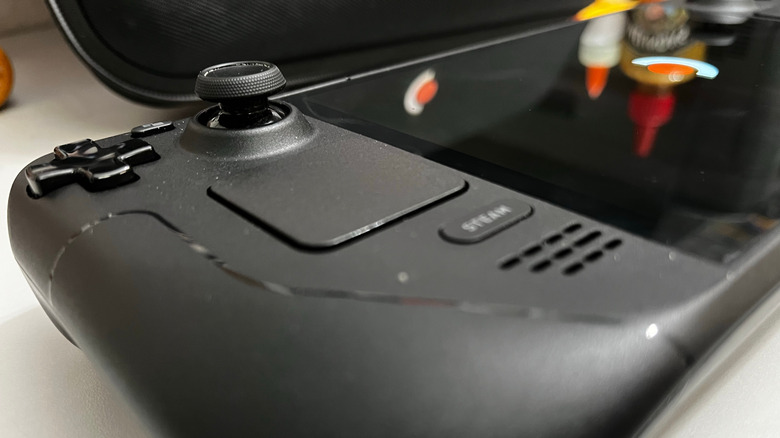
Obviously, playing games on your Steam Deck is contingent on the device actually powering on. If you press the power button and nothing seems to happen, that's pretty alarming right away, but it could just be a depleted battery or a quirk with the device's internal settings.
According to Steam Support, new LCD model Steam Decks must be charged for a few minutes using the included power supply before they can be turned on, while OLED models can power on right out of the box. If you've used your Steam Deck successfully already and the inability to power on is a new phenomenon, Valve suggests plugging it in and checking the LED next to the port. If the LED flashes when the power button is pressed, that means the battery is depleted and needs to be charged for at least 15 minutes.
If pressing the power button doesn't produce any obvious response, try holding it for 4-7 seconds for a soft restart, or 10-16 seconds for a hard restart. You can also try holding the power button with the volume increase button to boot to BIOS. If none of this works, there could be a physical problem with the device's battery or the SSD containing its OS, which could necessitate physical service.
The Steam Deck won't charge when plugged in
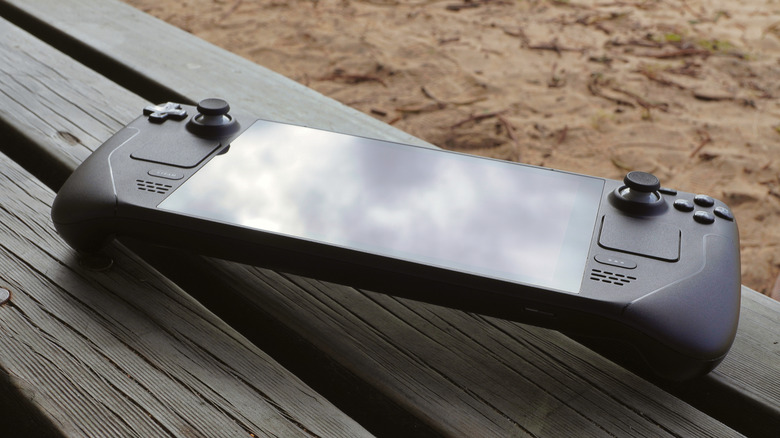
Speaking of the battery, even if the Steam Deck's power button is functioning fine, if the battery won't charge when it's plugged into its adapter, it won't be functioning for long. As with booting problems, a soft or hard restart could clear whatever quirk is occurring. You should also check the charging LED to see if it's actually receiving power. If the LED doesn't turn on at all, there could be a problem with your charger rather than the battery; test out a different charger if you have one, or use a different outlet in your home.
For software solutions, try booting to BIOS by holding the power and volume increase buttons, then switching your Steam Deck into Battery Storage Mode. This mode is technically intended for servicing, but enabling it also resets the charging circuitry, which can deal with simple charging glitches. In a similar vein, you should also check if your Steam Deck needs to install any updates, as fresh patches might just solve your problem. If you don't mind losing data, you could also try performing a factory reset and a fresh install of SteamOS.
If none of these software-centric solutions work, your battery or charging port may be faulty. You can attempt to clean the charging port with compressed air or a non-conductive tool if you think there's something wedged in there, but otherwise, you'll either need to open it up yourself or send it Valve for service.
The Steam Deck's buttons aren't responding
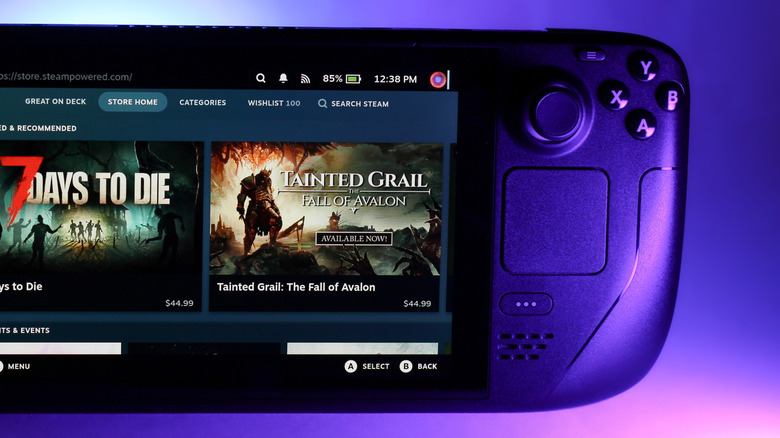
The Steam Deck has a set of typical face buttons and a D-pad for playing most games with. If you're playing something fast-paced or competitive, you naturally want your controls to be responsive, which is why it's incredibly irritating when they aren't.
If your button inputs feel delayed or sluggish, the first thing you should do, besides restarting and checking for updates, is running the Steam Deck's controller test suite. You can find this under Settings, Controller, and Test Controller Inputs. The device will run a quick diagnostic, testing all of the face buttons for functionality. If the test runs normally with no obvious problems, it could be a matter of compatibility with the games you're playing. If the game you're playing isn't perfectly compatible with the Steam Deck, it may not be automatically detecting your buttons, which you can circumvent by manually mapping them on the game's individual settings in your Library.
If the test shows a problem with one of your face buttons, or the button in question is just completely unresponsive, there could be a physical problem. If you've been rough with them, it's possible the buttons have simply worn out, though the culprit could also be lodged debris. Try wiping around the buttons with a microfiber cloth and some isopropyl alcohol to remove any outside contaminants. If you believe liquid damage to be the cause, that will necessitate a full breakdown and deep cleaning. Consider that a life lesson: if you're worried about your buttons getting damaged, you should invest in a protective accessory for your Steam Deck.
The Steam Deck's sticks are drifting
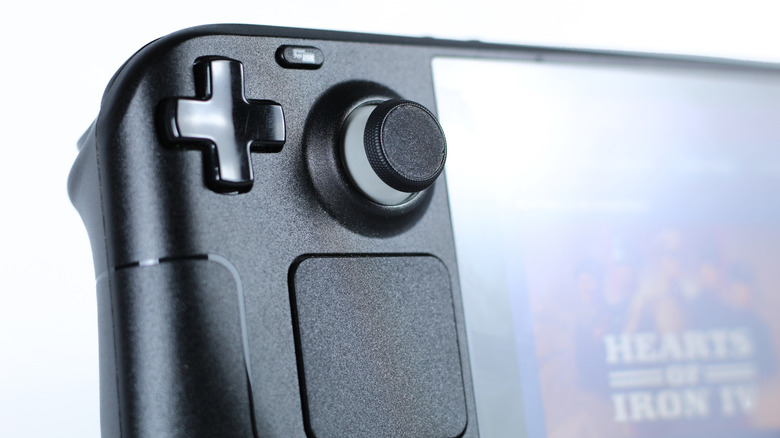
Within the current generation of gaming, drifting control sticks have become one of the most consistent scourges of seamless control. Sadly, no device seems completely immune to the phenomenon, Steam Decks included, but hopefully, you can solve it software-side.
After the customary restart and update check, the first thing you should do if you have drifting sticks is perform a stick calibration. It's a little easier to do this if you're in Game Mode, so switch off from Desktop Mode first if you're using it. Open your Settings, go to Controller, select Calibration and Advanced Settings, and select Joysticks. Follow the guide to test your input; if there's any drift going on, it should be readily apparent. Use the dead zone slider to increase or decrease the stick's dead zone, which should hopefully prevent the stick from overlapping with the section where drift is occurring. You should try this even if you're not experiencing drift; leaving your dead zone untouched could leave you with a suboptimal gameplay experience.
It's also possible that there's some small debris trapped within the drifting joystick. If you're lucky, it's only surface level, and you can fish it out with a toothpick. If the debris is deeper, you may need to open up the device for a deep clean. The entire analog controller may also be completely worn out, which happens frequently to all analog sticks after a while.
The Steam Deck won't recognize an SD card
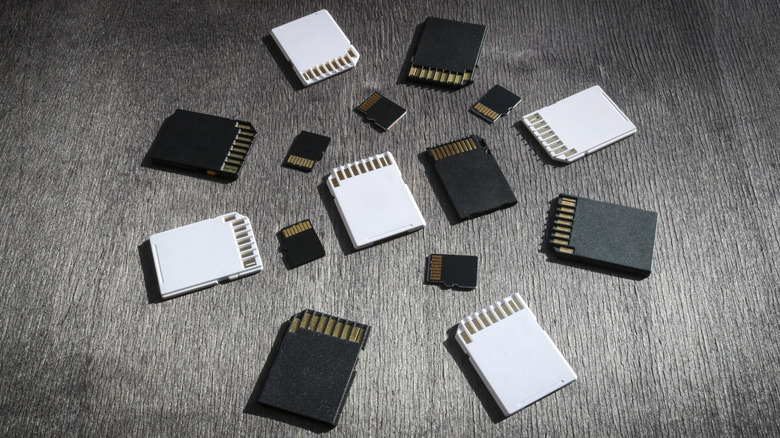
The Steam Deck has both built-in storage and external storage functionality via microSD cards. The device should immediately recognize a microSD card when it's inserted into the slot, but if it's not registering it or can't be accessed, there could be a problem with either the card itself or the slot.
The most frequent culprit in this particular problem is the microSD card's formatting, or rather, lack thereof. MicroSD cards need to be formatted properly before they can be used with a Steam Deck. To do this, simply insert the card into the Steam Deck's lower slot, go to your Settings, select System, and Format SD Card. The card will be formatted to work with the Steam Deck, after which it should be recognized normally. If this still doesn't work, the card may not be compatible with the Steam Deck. According to Steam Support, only UHS-I, UHS-II, and UHS-III SD cards are supported, with UHS-I being the preferred choice. The card could also simply be faulty; test it in a different device like a PC to see if it reads.
If the SD card should be working, there could be some debris in the Steam Deck's SD card slot that's preventing them from connecting. Look inside the slot with a flashlight, and if you see any debris, try to fish it out with a thin card without touching the contacts.