

5 Hidden Features Every Steam Deck User Needs To Know
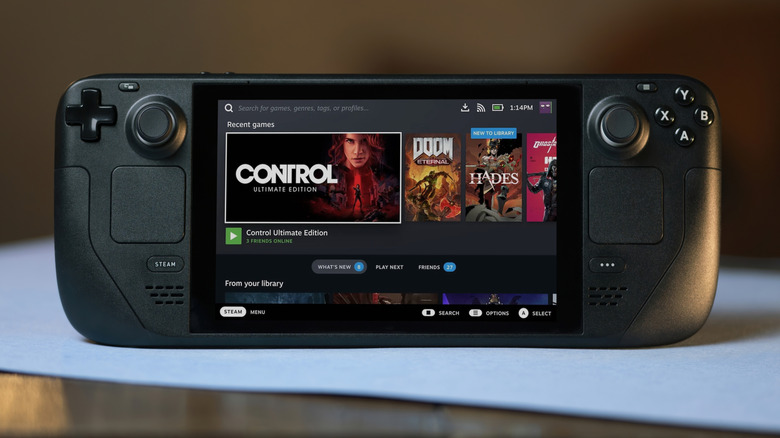
Valve's Steam Deck has become a standard-setter for newly-emerging portable PC gaming devices, offering a convenient means to take your Steam library on the go or play it on a separate display like a TV. While these are the primary functions of a Steam Deck, that doesn't mean all you can do is turn it on and run games. The Steam Deck is a surprisingly intricate little gadget, and if you know where to look, you can find hidden features and tricks like altering the functions of controller buttons or connecting external devices.
The Steam Deck isn't just a portable gaming console in the same vein as a Game Boy; it's a compact PC, complete with its own OS and complimentary features. Much in the same way that you can unlock greater functionality on your computer with a few keyboard shortcuts, knowing the right buttons to push and menu options to toggle on your Steam Deck can both improve the overall quality of your gaming experience and provide some nifty convenience and security perks.
Install games in desktop mode to turn the screen off
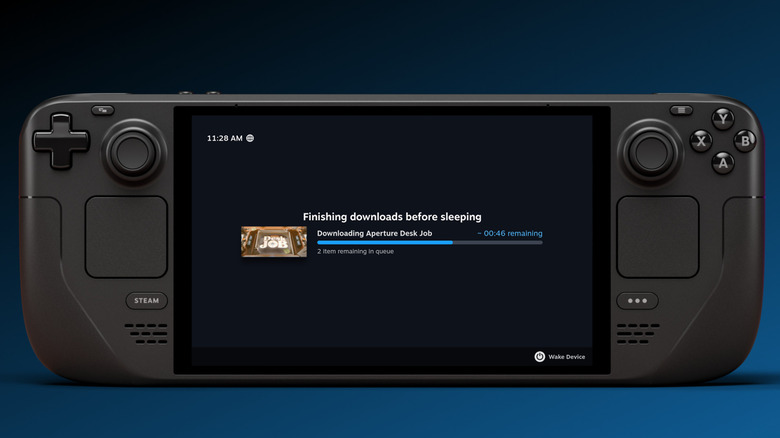
Since a Steam Deck pulls games from your virtual Steam library, you need to go through the download and install process before you can actually play them. In all likelihood, this means you'll queue up a download and go do something else for a bit while your Steam Deck does its business. However, this process can take a while, especially for larger games, and leaving the screen on for prolonged periods may increase your risk of unsightly burn-in. Luckily, there's a way to circumvent this and protect your OLED screen from burn-in; all it requires is desktop mode.
The Steam Deck has two modes, desktop and Deck UI. It's normally in the latter, as this mode is meant to quickly get you into your games and related utilities. You can switch to desktop mode by pressing the Steam button, selecting Power, and Switch to Desktop. You can still access your Steam library and install games, but here's the clincher: as Reddit users can attest, when you start a download and leave it idle in desktop mode, the screen will eventually turn off, but the download will keep going. In this way, you can let these lengthy installation processes run their course without worrying about wearing out that OLED display.
Turn the right trackpad into a mouse
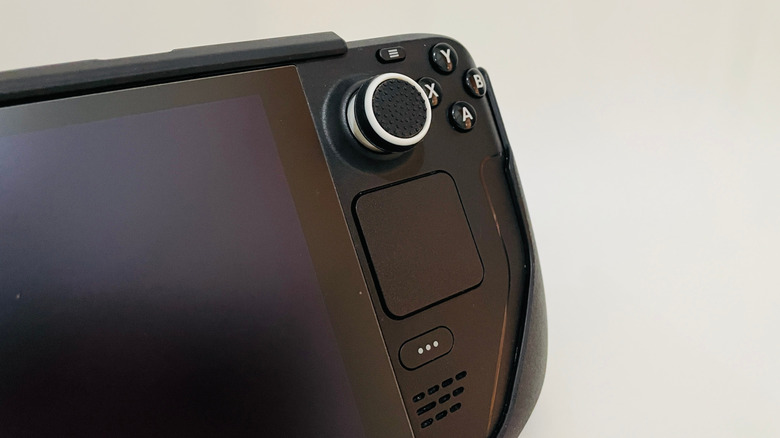
Newer PC games have controller layouts baked-in for easy navigation with control sticks and face buttons. However, some older titles may not have optimized layouts. If you're using a Steam Deck versus a gaming PC, that means you don't have a mouse nearby to quickly nudge for navigating menus that aren't responding to your controls. Don't worry, though, as the developers at Valve thought of this, and added a way to quickly assume mouse control whenever necessary.
If you're in Deck UI mode, you can switch to desktop mode's control scheme without having to switch to desktop mode. Just hold down the Steam button, and you can use the right-hand trackpad as a mouse cursor, alongside the left and right triggers for right- and left-clicking. This will work in all games, even if you haven't directly configured the trackpad to work as a mouse in the individual settings. It's also a handy feature if you're running software with a separate UI, which wouldn't normally be receptive to controller input. Having quick access opens up your Deck's potential by allowing you to use all kinds of essential Steam apps.
Quickly adjust screen brightness
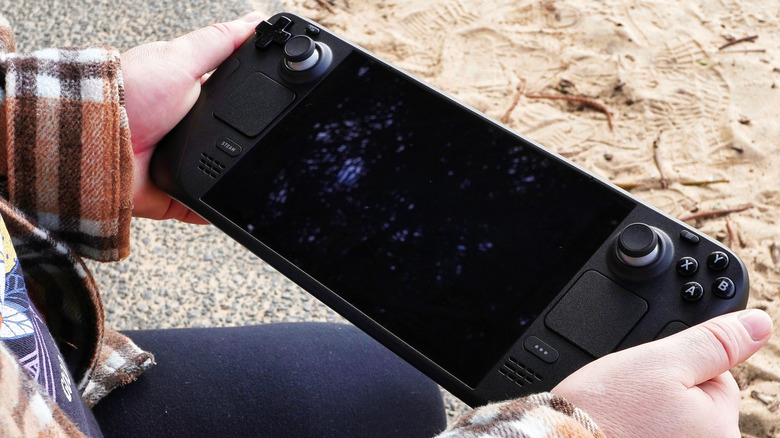
Anyone who has stared unblinking at a screen for long periods has likely learned an uncomfortable lesson about the importance of screen brightness. If you were on a PC, adjusting brightness would be as simple as tapping buttons on the bottom of your monitor. The Steam Deck doesn't have these buttons, unfortunately, and while many modern games do have digital brightness controls, it's not universal.
Though the Steam Deck doesn't have dedicated buttons for this, the function is still present. You just need to know the necessary command to access it. Simply hold down the Steam button on the left side of the device, and then move the left control stick up or down. Technically, you can also adjust the brightness by pressing the three dots button to open the quick panel and then selecting the gear icon for quick settings, but this takes more inputs than really necessary.
Connect your phone via Bluetooth
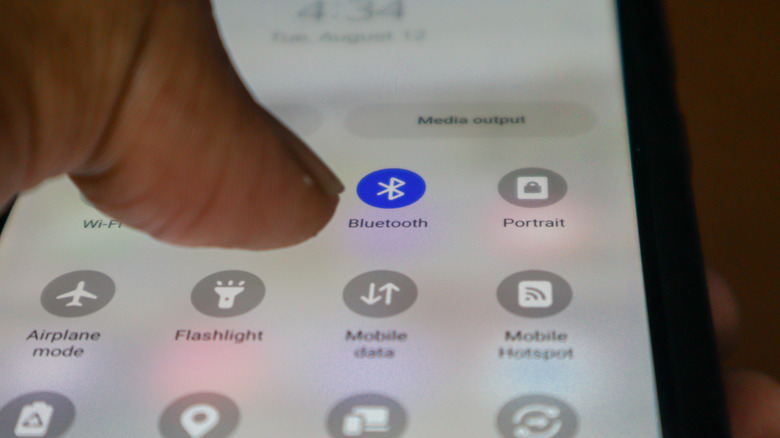
For those who like to play quiet, methodical games like Minecraft or Stardew Valley, it's a fairly normal practice to have some manner of audio on in the background like a podcast or YouTube video. While you could manage that easily enough on a PC, doing so with the Steam Deck is a bit more involved. You can install apps like Spotify or YouTube, but since they're not natively compatible with SteamOS, you'd need to do some more configuration to run them in the background. The Steam Deck can't solve this conundrum on its own, but you can assist it if you have your phone handy.
The Steam Deck can connect to nearby devices wirelessly via Bluetooth, including smartphones. Just go to the Bluetooth menu, toggle Show all devices, and select your phone. When a smartphone is synced to the Steam Deck, you can relay audio it's playing through the Steam Deck's speakers, or its audio jack if you're using headphones. In this way, you can run audio or video apps on your phone and hear the audio through your Deck alongside the game's audio. Besides eliminating the need for the aforementioned configuration, this hidden feature also frees up system resources and keeps your games from being slowed by concurrent apps.
Add a lock screen for wakeup
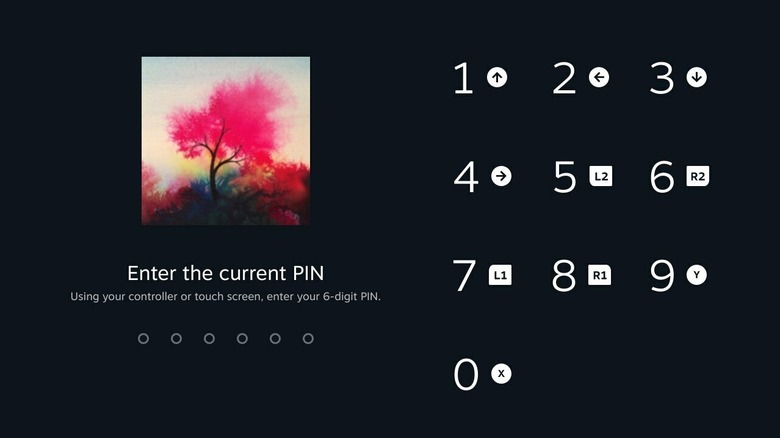
The Steam Deck is, first and foremost, a portable game console, meant to be taken with you on the go. Much like your smartphone, it can contain potentially sensitive information, from Steam login credentials to saved payment information. If you're going to take your Steam Deck on a trip with you, it'd be smart to have some security measures in place. One of the simplest bits of security you can enact is a lock screen.
In another smartphone similarity, you can enable a lock screen on your Steam Deck, having it appear whenever you wake the console from sleep. This feature can be activated by going to your Steam Deck settings and selecting Security, where you'll find the Lock Screen setting. When setting up a lock screen, you can either punch in a numeric code using the device's touch screen, or set up a sequence of button inputs using the face and shoulder buttons. Either way, once this is activated, no one will be able to wake your Steam Deck from sleep mode, at least without the PIN.