

What Does It Mean When A USB Port Is Colorless?
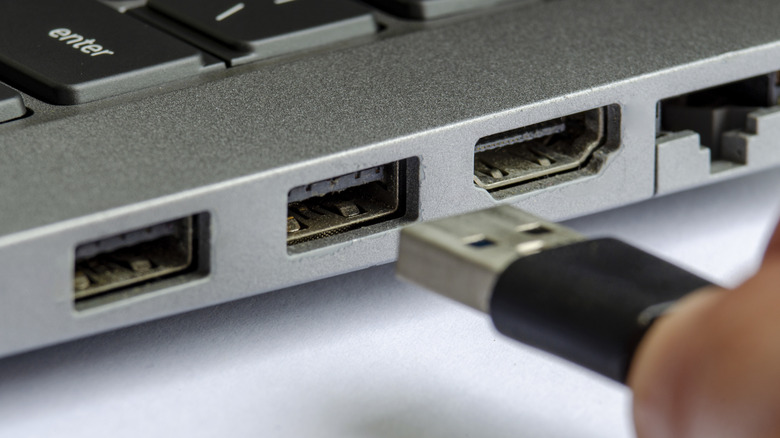
Staying true to the word universal in its name, USB ports can be found everywhere you look. From charging your phone to using peripherals with your PC, they're a part of everyday life. If you've ever taken a close look at one of these ports, you may have noticed that they typically have some form of color. USB port colors can mean different things, often showing the technology used and the supported data transfer rates. This standard isn't enforced, though; manufacturers have simply adopted it as a convention due to its popularity. While most people know what a white, black, blue, or red port represents, there are tons more colors that don't follow any specific rule, like Razer's green or Huawei's purple.
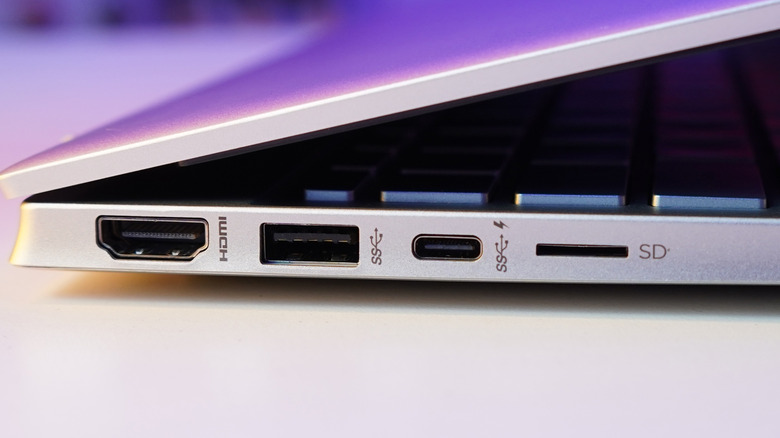
Often, you'll even find a USB port that's colorless, which might make you think it represents something as well. If you have a device or chassis that only features ports seemingly colored a light black, these could be using a neutral colorless grey rather than following any specific scheme. Unfortunately, there's no big reason behind why some ports are colorless or don't follow the USB color-coding that others do; it's just a decision made by certain companies for aesthetics and for branding purposes. This means a port that doesn't have color can be a slow USB 1.X connection or it can support high-speed USB 3.X.
If you're wondering why a USB-C port is colorless, it's simply because they don't follow the same color conventions as USB-A ones; they can either have no color or follow the company's own color scheme.
How to check the specifications of a colorless port
As colorless USB ports don't follow any standards, they can support either 2.X or 3.X connections. This can be an issue, depending on how you plan to use a port. Fortunately, figuring out whether a port supports faster data travel is relatively easy even without relying on color coding. Regardless of the color, there is a symbol denoting what technology each port supports beside it.
Unlike the colors — which certain manufacturers can choose not to follow — these symbols are universal, making them a more reliable way of figuring out what port it is. For example, a port with the SS or SS+ symbol will support a USB 3.X connection, whereas one with the Thunderbolt symbol will show its compatibility. Sometimes, the symbols are also replaced with a label of the type of port as well — USB 1.0, 2.0, or 3.0 — making it even easier to identify them.
If you have a chassis that doesn't have symbols on it, or if you're worried that there's been a mistake, the best way to ensure you have the right ports is by resorting to the manual. In the I/O section, you'll find the kind of ports that exist and what speeds they support. The information in these manuals can also be accessed through the manufacturers' official sites, so even if you've lost yours, you can get the answer with relative ease.