

4 Smart TV Settings That Can Fix Muffled Dialogue
Modern TVs sure do look awesome, and TV speakers are getting even better at projecting sound to every part of your living room. So, why is it still a struggle to hear what your favorite characters are saying? For years, out-of-the-box settings haven't been kind to dialogue and vocals, forcing many a frustrated TV owner to purchase a soundbar or speaker system. Inevitably, these audio solutions result in bigger and better sound quality, but not everyone has $200 or more they can part ways with in a flash.
That leaves the rest of us with nothing but our TV settings to work with. Fortunately, there's quite a bit you can do with the audio menus built into your OLED, QLED, or LED-LCD TV to improve muffled dialogue. To get started, grab your TV remote and navigate to your TV's settings dashboard. You'll want to find the audio or sound menu, which is usually one of the leading menu options. Now it's time to put that remote control to work. We're going to suggest a number of in-menu tweaks you can make to improve dialogue clarity. While we're in menu-land, it might also be a good idea to toggle on the HDMI enhanced mode setting to ensure you're getting the best visuals, too.
Use a different sound preset
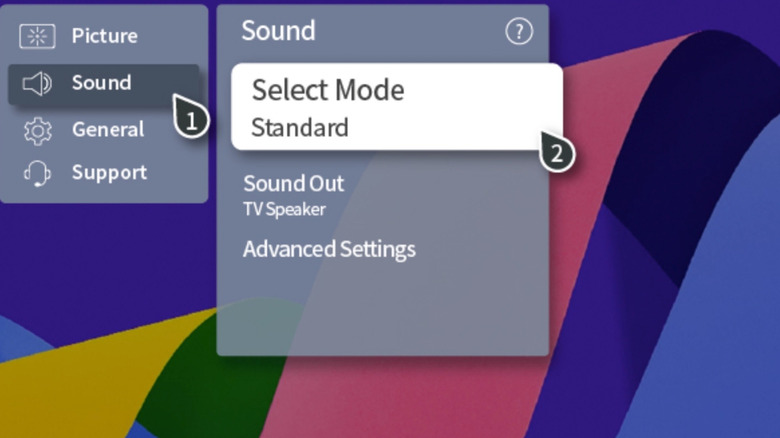
Your TV will likely have multiple sound modes — or presets — to choose from in its audio menu. Common preset names may include monikers like Standard, Movie, Music, Custom, etc., and choosing a new one should be as simple as hovering over the option or pressing the Enter button on your remote. Depending on the smart TV brand you're using, you may also be asked to apply your new preset to just the input you're currently using or all inputs. Traditionally, presets like Movie and Music tend to have more bass baked into the EQ. Bass is often a chief culprit for reducing dialogue clarity, as those lower frequencies can flatten some of the higher frequencies needed for vocal articulation.
Generally speaking, the Standard preset (or something similar in name) keeps highs, mids, and lows as balanced as possible — and less low-end oomph often translates to improved dialogue. Your TV may have a dedicated Dialogue preset, built for the express purpose of amplifying human voices. You could also try switching to Custom, which may task you with raising and lowering your TV's bass and treble. Your best bet is to reduce the bass, increase the treble, then test to see how it sounds. It's also a good idea to test each new preset with a few different types of media. Spend a couple of minutes with a movie, TV show, video game, and a YouTube video to best wrap your ears around the new soundstage.
Turn on volume leveling

One classic TV-watching complaint is that commercials sound crystal-clear (and sometimes louder than we'd like), while the movies and shows we tuned in to watch are too quiet. The reverse may also occur, and this is because audio levels across sources and channels are often drastically different. TV and other AV device manufacturers are aware of this, though, which is why you might find a volume leveling option in your TV sound settings. When enabled, volume leveling works to reduce the extreme variances between audio sources.
Essentially, your TV imposes its own "balanced" EQ over all the sound it outputs, so you won't have shocking encounters with overly loud commercials. Likewise, the dialogue you once struggled to hear may get the volume boost you've been searching for. Not all TVs will have this audio option, but there's a good chance that at least one of your AV components has the capability. For instance, all Roku streaming devices have built-in audio settings you can adjust, including a volume leveling option. Some models even include Night and Dialogue presets for honing in on the spoken word.
Opt for PCM if possible
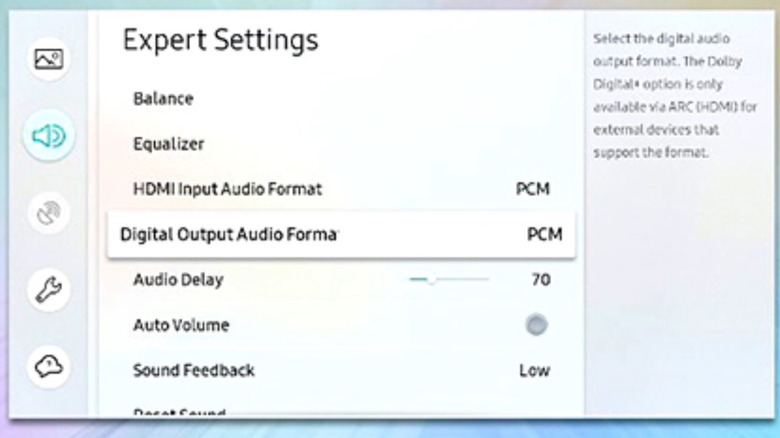
Let's say you actually own a soundbar or an AV receiver with surround sound speakers. If you're still having issues hearing dialogue clearly, and you've already checked every soundbar and receiver setting, there's one more TV setting you should try — switching from bitstream to PCM. It's a quick adjustment, but the option might be buried in a sub-menu somewhere on the audio dashboard (or it might not be there at all). We're willing to bet your soundbar or surround sound is hooked up either to your TV's HDMI ARC/eARC port or its digital optical output. Both of these connections are compatible with bitstream and PCM, but most TVs are set to bitstream by default. This is a multi-channel format that sends 5.1 surround sound (or greater) instructions to your audio system whenever possible. It's also a compressed format, and sometimes that compression can raise or lower parts of the mix that shouldn't be meddled with.
The PCM format only supports stereo audio, and sometimes forcing a two-channel signal onto your soundbar or speakers can give you a boost in dialogue. PCM is also an uncompressed format, so there's no chance of the dialogue levels being altered. This isn't a foolproof method, though, and you may actually find that switching formats only makes your dialogue situation worse. In that case, it's best to keep your TV set to bitstream; that way, your soundbar or surround sound will deliver the multi-channel experience the creatives wanted you to hear.
Calibrate your TV's sound
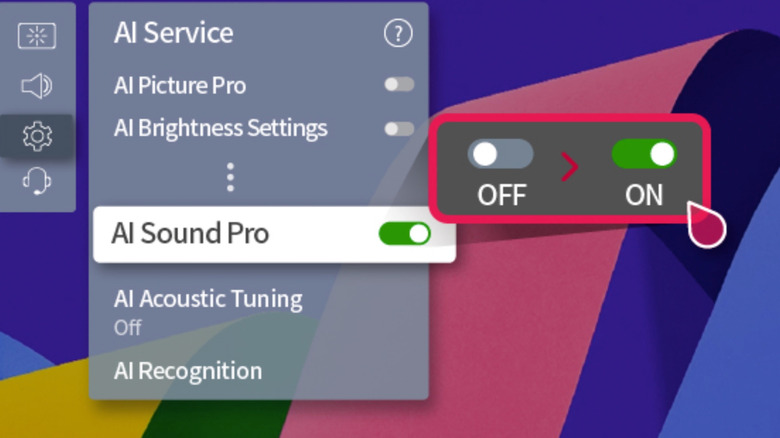
We decided to save this tip for last because the methodology isn't as widely available as the other pointers on our list. That said, if you happen to own an LG TV released after 2019, your TV should have an audio calibration feature called AI Acoustic Tuning (it may be called One Touch Sound Tuning on older models). When activated, this leverages the built-in microphone on your LG Magic remote to measure the acoustics of your listening space.
After the test is complete, you'll be able to switch to the optimized sound mode your LG TV created. Oftentimes, the calibrated results will put a greater focus on dialogue and front-of-the-room sound, especially if you were struggling to hear it before. This type of acoustics correction tool looks to be exclusive to LG TVs at this point, but if you're routing audio through a soundbar or speakers, there's a decent chance that your system has some kind of calibration function.