

4 Common Mistakes People Make With USB Flash Drives
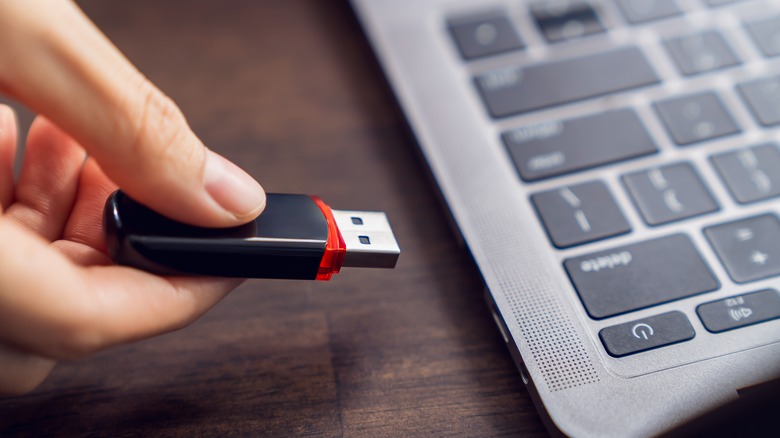
USB flash drives are handy devices to have because of their usefulness. One obvious use case for a flash drive is, of course, storage. However, there are many extra ways to use your USB flash drive. You can use it to transfer files from one device to another, lock your PC or laptop, rescue your device from a virus, and even install operating systems. Given their versatility and low price, they're quite common, and you probably have one or two lurking in your drawers.
Flash drives don't require any technical knowledge to use; you just plug them into a compatible USB port, and you'll be ready to read stored files or transfer data. But while they are easy to use, rules for using them properly exist. And if you don't follow the best practices, you may damage your USB Flash drive by corrupting your stored files, or worse, causing a complete failure and rendering it unusable.
Some of these common mistakes aren't harmful in any way, but they might be the reason why you're not experiencing the full speed your flash drive is actually capable of. Regardless, if you're making any of these mistakes with your flash drive, you should avoid them at all costs for the best experience.
Not safely ejecting the USB flash drive
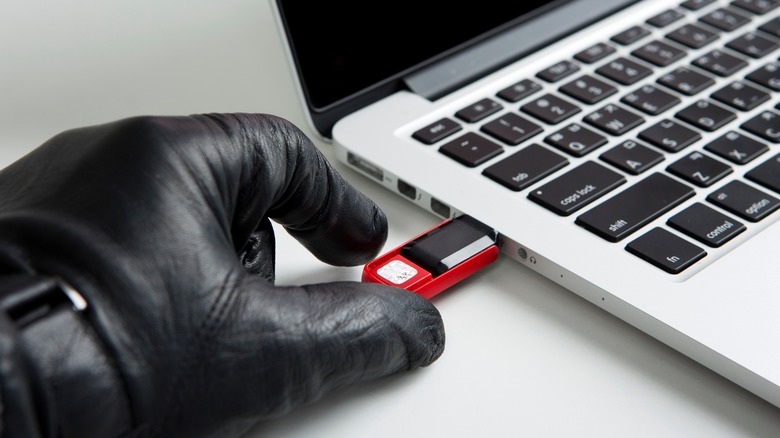
As previously noted, USB flash drives are easy to use. You simply plug them into a USB port, and you're good to go. But when you're finally done with whatever you were up to, don't just yank the disk out of your laptop or desktop. In most cases, it doesn't matter whether you safely eject your drive or not. But there are some instances where skipping this procedure can put your data at risk because of what happens when you yank out the drive without safely ejecting it.
For instance, if your drive is in active use (like transferring data), yanking it out might corrupt data, rendering it unusable. Also, when you transfer files, your computer may at times not send all the data at once. Instead, it might put some of it in a cache (a temporary storage) and schedule it for later transfer.
When this happens, removing the flash drive from the computer can lead to corrupt files since the transfer wasn't finished, even though it looked like it was complete. That's why sometimes you might try to eject a drive safely, but you're warned that it's still in use, although it seems like the transfer is finished. This is a common mistake people make that can, in the worst-case scenario, actually spoil your flash drive.
Using the wrong USB port
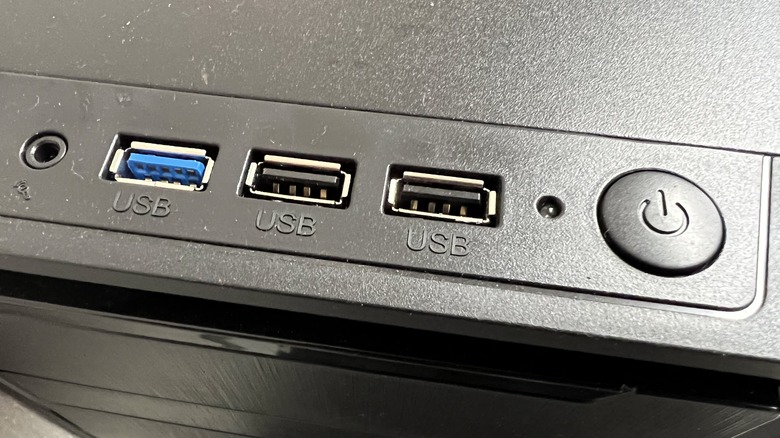
If your laptop or desktop has multiple USB ports, chances are they might not have the same capabilities even though they use an identical physical interface. One port might be using a newer standard of USB, like version 3.2, while the other might have an older version, like USB 2.0. For instance, while USB standards have continued to evolve, the physical interface of a USB-A port uses the same good old distinctive rectangular port. You might think then that plugging your flash drive to any USB-A port is fine, but it isn't.
Sure, it'll definitely work as long as the physical interface between the flash drive and USB port matches (for instance, if both the port and your USB drive use a USB-A port). However, doing so might compromise the transfer speeds. For the uninitiated, each USB standard has a different maximum data transfer rate. USB 2.0, for instance, can only deliver a maximum of 480 Mbps while USB 4 can deliver up to 40 Gbps. So don't make the mistake of plugging your flash drive into any port.
Make sure the port that you use is the one that offers the highest speeds for snappy transfers. Thankfully, for USB-A ports, you can tell which one is faster by the color of the inner strip. Black strip means USB 2.0, red is for USB 3.1 Gen 2 or USB 3.2, yellow is for either USB 2.0 or USB 3.0, blue and orange for USB 3.0 port, while white is for sluggish and much older USB 1.x versions.
Relying on USB flash drives for permanent storage
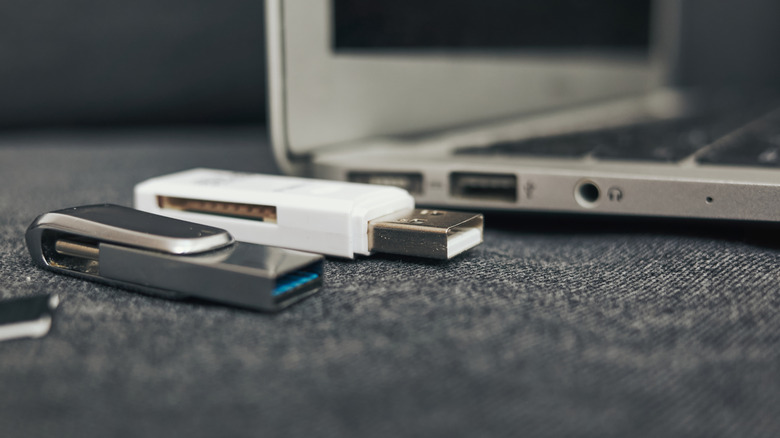
Modern thumb drives can have lots of storage capacity. Search online, and you'll find models with a terabyte or even two terabytes of storage. But just because you can find a flash drive that's spacious enough for your data doesn't mean you should use it as a long-term storage medium. Truth be told, USB flash drives aren't reliable enough to be used for archiving important data. This is not to say that a flash drive can't hold your data for long. In fact, it can safely store your data for at least 10 years.
However, because they use NAND flash memory for storage, you get a variety of factors at play that influence how long the data can stay on the drive. One factor is the write cycles, and flash drives do have a finite number. If a drive has been subjected to regular use, it wears out, and that can lead to data corruption. The way flash drives store data also makes them unsuitable for long-term data storage. As mentioned, they use flash memory, and this technology uses electric charges to store your data.
The catch is, this charge can leak if the drive is left unpowered for extended periods, leading to loss of data. With this in mind, you're better off using your flash drive as temporary or secondary storage and not as the main medium of storing your data. So even if you have the kinds of data that aren't suitable to store in cloud storage, don't use your flash drive or an SSD (since they typically use the same NAND flash memory). You're better off using a traditional hard disk drive.
Connecting to untrusted devices
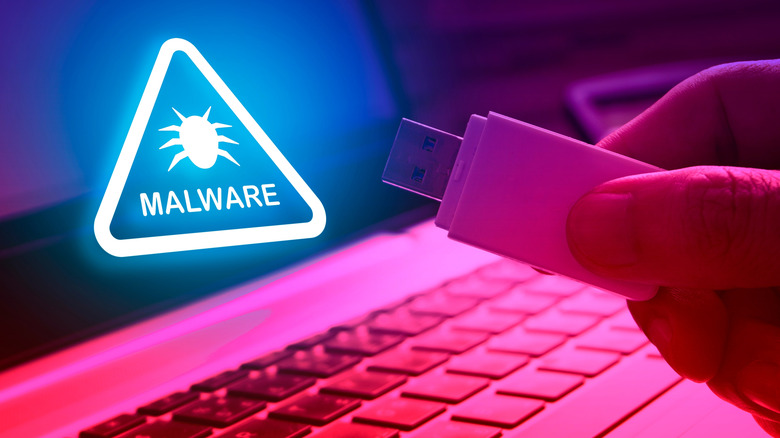
USB drives are really handy for transferring files from one device to another. What makes them the most convenient way for file transfer is that it doesn't matter whether one system is using this operating system and the other is using another (as long as the drive uses a universally supported format). But before plugging your USB stick into a computer that isn't yours to transfer files, ask yourself if you trust that system.
Plugging your USB drive into a computer that is infected with a virus can have dire consequences. This is possible because some malicious software (malware for short) can detect when a thumb drive is plugged into the system and infect it. Once it has infected your drive, it could corrupt the data already stored on the disk.
Or, alternatively, it could hide in the drive, then once you plug it into one of your devices, it infects your system, either damaging your files, stealing them, or worse, taking over your computer. This applies the other way, by the way, don't plug unknown flash drives into your computer either.