

5 Useful Amazon Features You're Not Using (But Absolutely Should)
Amazon is, no doubt, one of the biggest e-commerce sites in the world. It's known for a wide catalog of products, including both big-name brands and smaller, obscure ones. If you shop on Amazon, you know one of its attractive features is the sheer volume of products available, making it hard not to find what you're looking for. Besides its vast product catalog, Amazon offers features such as its Prime subscription, which enhances the shopping experience with fast, free deliveries, exclusive offers, and early access to limited-time deals, among others. But Amazon's Prime subscription with its attractive perks isn't the end-all and be-all. Amazon also offers an assortment of helpful features you might not even know exist — ones that can come in handy in various shopping scenarios, whether you're looking for a TV, a smartphone, a dress, or even a bathroom towel.
Some of these features, including Help Me Decide and Amazon Lens, could help you uncover more intricate details about a product you're interested in that are hidden behind technical or marketing jargon. Some of these extra features might even help you decide what to buy when you're torn between two products that appear to offer identical value. These features are built into the platform and are free, so it's high time you started using them.
Help Me Decide
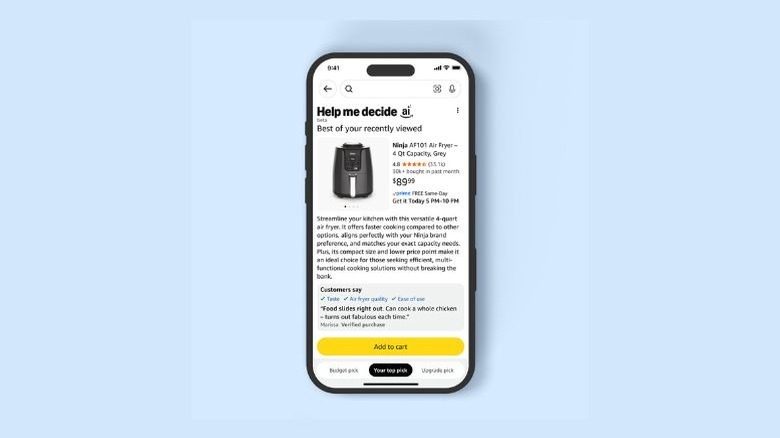
If you regularly shop online, we bet you've been in a situation where you know the kind of product you're looking for — whether it's a pair of headphones, a mirrorless camera, or even a laptop — but can't decide which to pick. That's what's called the paradox of choice. Shopping on Amazon can land you in this tough spot because of the wide variety of products available, but fortunately, the site offers a solution: a feature aptly named Help Me Decide.
Amazon's Help Me Decide feature uses artificial intelligence (AI) to help you make better decisions when you're stuck choosing between similar products. The tool is meant to help you make an informed purchase decision by analyzing your activity on the site, including searches, browsing activity, shopping history, and preferences, then recommending a single product that the AI feels is perfect for you. And after recommending a specific product, Help Me Decide highlights the reasons why that item stands out among the competition. Of course, you can still pick something else because, as you probably know, you shouldn't blindly trust AI just like the experts behind the technology.
If you'd like to use Help Me Decide, all you need to do is tap the Help Me Decide button, and Amazon will handle the rest. However, this button isn't visible at all times. It will only be displayed at the top of a product's detail page if you browse through several similar products but haven't made a purchase. Alternatively, you can find it by selecting "Keep shopping for" at the top of Amazon's homepage.
Rufus AI shopping assistant
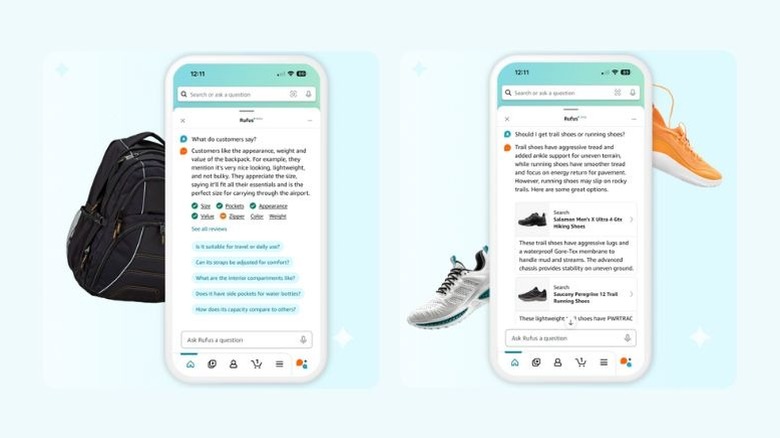
Rufus, Amazon's AI shopping assistant, is yet another handy feature on the site. Rufus is more like other popular AI chatbots, which let you pose a question and get instant responses. However, it's baked into the e-commerce site and acts as a shopping assistant to help make your shopping experience painless. If you haven't used Rufus before, you should, as it's quite handy for product research and decision-making.
For instance, while viewing a product's detail page, you can ask Rufus to help you understand the product better by breaking down the marketing mumbo jumbo into terms that help you as a potential buyer. What makes Rufus useful while shopping is that it doesn't just consider the product's specifications. It also digs into customer reviews and community Q&As to give you the full picture of what to expect from a product before you hit the buy button. Also, if you need to buy a specific item but have no idea where to begin your search, you can ask Rufus for help, and it will offer product recommendations based on your desired features.
This tool can also compare similar products and offer the best option based on your needs, helping reduce the risk of buyer's remorse. Rufus can also show the price history of a product over the last 30 or 90 days, which can help you avoid overpaying for an item. In addition to shopping-focused features, you can also use Rufus to check on your current or past orders and ask general questions. To use this AI assistant feature, you can either select the "Rufus" button at the top of Amazon's site or select one of the displayed buttons under "Ask Rufus" on any product's detail page.
View in 3D
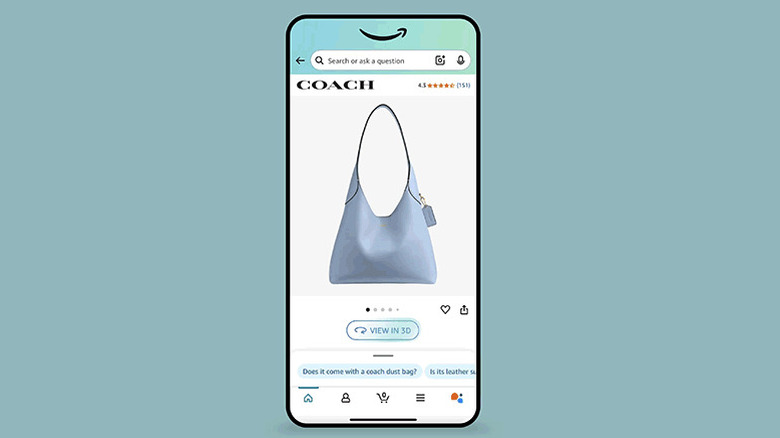
Shopping for some items online can be daunting. You look at the product's pictures, and none really satisfy you because they all miss a specific angle or section of the item you're most interested in. If you've ever found yourself in such a situation, Amazon has a feature that can help. Known as View in 3D, this feature lets you take a closer look at a product by offering a 3D image you can manipulate to get the full picture. You can zoom in or out and even rotate the item to view the product from all angles. Unfortunately, although Amazon claims the feature is available on "millions of products worldwide," don't expect it on every listing.
If you'd like to check whether a product you're interested in has a View in 3D feature, navigate to the item's detail page and look below the images (you may need to scroll down a bit if you're using a laptop or desktop). If you see a "View in 3D" button, then the option is available. On Amazon's desktop site, clicking the "View in 3D" button will open a pop-up window with a 3D model of the product. On mobile, the app will take you to a dedicated screen to view the 3D image.
Amazon Lens
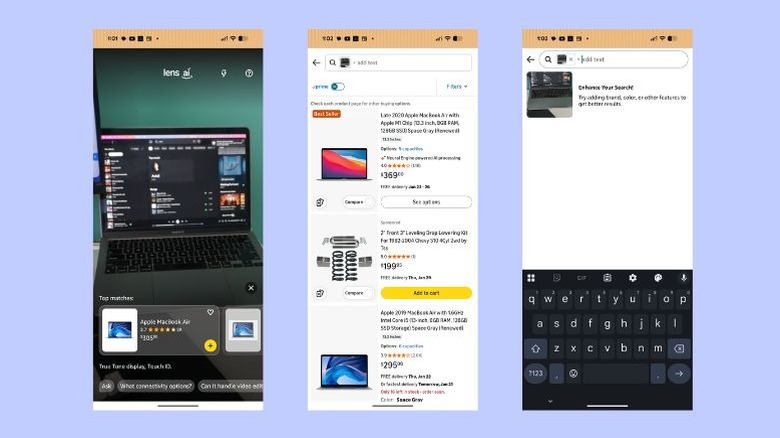
While scrolling social media or watching random videos on your favorite video platform, you might come across an interesting item that you instantly want to get. You may not even know the brand behind the product, so you're forced to ask the person who shared the picture or video for the item's name. But if you're an Amazon regular, you don't have to go through all that trouble. Amazon has a Lens feature for visual product search.
Amazon Lens can help you search for items from your existing images, but you can also point the camera at an item in front of you (or take a picture), and then Lens will find similar items on the e-commerce site. If a picture contains multiple items, the Circle to Search feature lets you highlight the specific product you're most interested in. If you have a picture of a model, for example, you might only be interested in finding the specific shoes that they're wearing. So you circle the shoes, and Amazon Lens will only search for similar shoes, ignoring any other items they're wearing.
After searching for a specific product, Amazon Lens also lets you add your custom text to further refine your search if you're not satisfied with the results. If a model is wearing white shoes, for instance, you can tell Lens to show you options that are, say, green or purple, depending on your preferences. You can use Amazon's Lens feature by tapping the "Camera" icon on the right side of the search bar at the top of Amazon's iOS or Android mobile app.
See It On Your Model
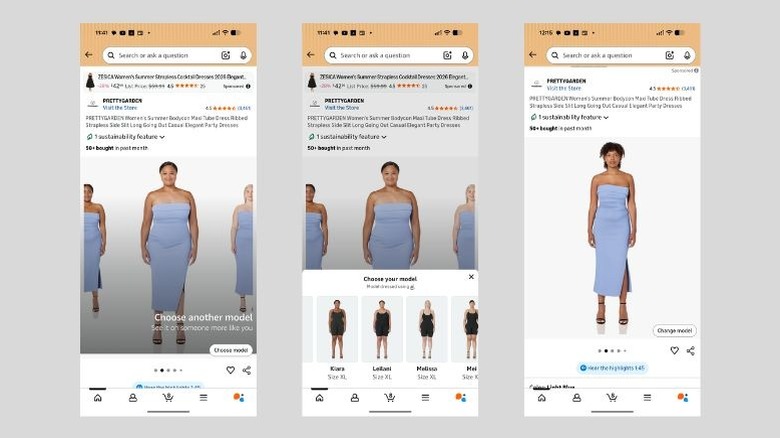
Amazon's clothing listings typically feature a model wearing the item. Even so, it might be difficult to tell how the given product would look on you since the model featured might have a different body type or even skin color from yours. To address this, Amazon offers a special feature called See It On Your Model that lets you select photos of different models with varying physical attributes while shopping for a clothing item, such as a dress.
So instead of basing your buying decision on how an outfit looks on a model with a very different body size, shape, or even skin tone from yours, you can choose one that resembles you more closely so you can make a better-informed decision. Like Help Me Decide, See It On Your Model uses AI to show you how a given clothing item would look on models of all sizes, from the smallest (XS) to the largest (4XL).
For clothing items that have this feature, you'll see a "Change model" option in the bottom-right corner of one of the product's images (you might have to swipe through a couple of images to see it). Tapping that button displays a variety of models with different sizes, skin tones, and body shapes. However, you must use Amazon's Android or iOS app or access the site in your phone's browser to use the feature.