

The Secret Fire TV Stick Hack That Amazon Doesn't Want You To Know About
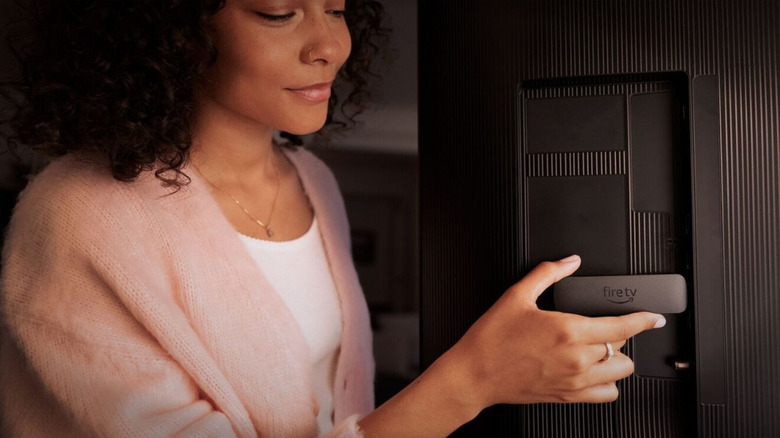
It's pretty standard for streaming devices to come complete with preinstalled apps for your convenience. However, that doesn't mean you're completely limited to what's already there. You can still add new apps through the built-in app store. The problem, though, is that the store itself doesn't always have every single app in existence. The Amazon Appstore, in particular, only offers roughly 40,000 apps, so there's a decent chance you won't find an official version of what you need for your Fire TV Stick.
This is where sideloading comes in handy. Sideloading is essentially installing an app via other means beyond the official app store. It typically involves using an APK — short for Android Package Kit — that serves as the installer file for Android apps. That means sideloading works on most, if not all, Android-based systems like the Fire OS on Fire TV Sticks. Yes, one of the hidden things your Amazon Fire TV Stick can do is sideload apps. Almost all models support this capability, except for Fire TV Stick 4K Select (2025). That's because instead of the Android-based Fire OS, it runs on the new Linux-based Vega OS, where you can't use APKs. So if you're looking to sideload apps on your Fire TV Stick, it's best to avoid this specific version.
While sideloading seems harmless, it actually carries a lot of risks. For one, it can make your device vulnerable to privacy and security threats. The APKs you use might contain malicious software that can expose your data, monitor your activity, or break your device. Since APKs downloaded elsewhere didn't go through the Amazon Appstore's review process, they might not work as expected, either. But if you really need to sideload an app unavailable on the Appstore, we'll walk you through the steps on how to do so, with suggestions on where to safely source APKs.
How to set up your Amazon Fire TV Stick for sideloading apps
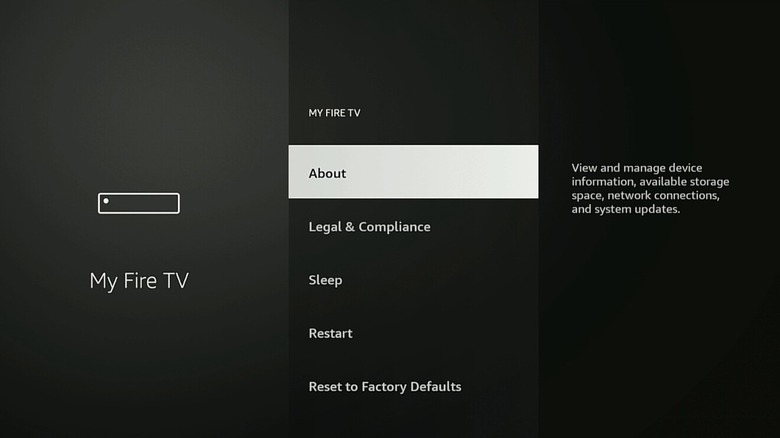
There are two steps to successfully sideload apps on your Amazon Fire TV Stick. First, you need a way to get the APK files (which are essentially app installers) onto the streaming device. You can either download them directly on the Fire TV Stick, or transfer them from your phone. Next, it's a must to enable Developer Options, which will allow you to install APK files acquired from outside the Amazon Appstore. To get started, install the app you'll use to download or transfer APK files on your Fire TV Stick:
- Go to your home screen.
- Click on the magnifying glass icon.
- If you want to download the APKs straight to the Fire TV Stick, search for Downloader (an orange icon).
- If you prefer to download the APK on your phone first, and then transfer it to your Fire TV Stick, type LocalSend.
- Install the app as you normally would any other Fire TV apps.
- (For LocalSend) Install the LocalSend app on your Android or iOS device.
- From here, you're ready to turn on Developer Options on your Fire TV Stick:
- Back on your home screen, navigate to the gear icon on the right.
- Click on My Fire TV.
- Select About.
- Highlight the name of your Fire TV Stick.
- Hit the center button on the navigation ring on your remote several times until you see a message saying you're now a developer.
- Go back to the My Fire TV screen.
- Choose Developer options.
- Press Install unknown apps.
- Highlight Downloader or LocalSend.
- Click the center button to toggle on your preferred app. This means you're allowing the app to install APK files.
Now, you can move on to actually getting the APK files and installing them on your Fire TV Stick.
How to manually add new unofficial apps to your Fire TV Stick
If you're using the Downloader to get and install APK files on your Amazon Fire TV Stick, here's what you need to do:
- Launch Downloader.
- Go to the Browser tab.
- Click on the search bar.
- Press Clear to delete the default URL.
- Type your search query (e.g., Roblox APK, Facebook APK).
- Hit Go.
- Select one from the search results. It's best to go with official sources, but if you can't find one, try APK Mirror, a trustworthy site which makes sure APK files are legitimate before they go live on the site.
- Download the APK from the website.
- Wait for the file to finish downloading.
- On the Install screen that automatically appears, hit Install.
Meanwhile, for LocalSend, follow these steps:
- Connect your phone to the same Wi-Fi network your Fire TV Stick is on.
- Download the APK file from your phone's browser.
- Launch LocalSend on both your Fire TV Stick and phone.
- On your Fire TV Stick, go to the Receive tab.
- On your phone:
- Tap on the Send tab.
- Go to File at the top.
- Look for and select the APK file you downloaded.
- Under Nearby devices, choose your Fire TV Stick.
- On your Fire TV Stick:
- Hit Accept to begin the file transfer.
- When prompted, click on Allow to give LocalSend access to your photos and media.
- Wait until the transfer completes.
- Go to History.
- Select the transferred APK file to open it.
- Press Install.
The app should install in a few seconds. Once it's sideloaded, you should be able to see and launch it from your Fire TV Stick's app drawer.