

The Annoying Reason Why Your TV Crops The Edges Of The Screen (And How To Fix It)
Overscan occurs when a picture is cropped and then blown up to its original size, resulting in a slightly incomplete, zoomed-in appearance on the display. The term originates from CRTs, where the scan lines that drew the image extended beyond the tube's viewable area. The overscan problem began when it became the legacy default option for CRT TVs during the analog TV era. Old, broadcast content used the very edges of the screen to cut off auxiliary data and test signals to avoid viewers from seeing them. Newer TVs will still overscan when that content is put on screen, even if you no longer use a CRT TV.
Another leading reason why overscan still happens is signal misinterpretation. Essentially, what happens is that a projected image scales improperly or incorrectly; you may sometimes see this when you connect a PC to a TV and notice that the edges are slightly cropped out. That's because the digital TV had received a signal at a resolution different from the native display resolution of that device.
However, when a TV's picture is cropped in an unwanted way, it can cut off information such as subtitles, the taskbar, or even some of the UI of installed Smart TV apps. Fortunately, app developers are encouraged to design key UI elements within the safe frame to avoid overscan. But if you are unlucky, losing 5-10% of the screen is still somewhat distracting when you're watching TV, playing games, or browsing through those apps. Luckily, Smart TVs have a way to combat this problem with their built-in picture settings and native software. Though not all TVs have ways to easily fix the cropped-off image problem. Some require manually adjusting the picture to either stretch or fit to the screen, like in the case when TVs are used like monitors. Instead, it requires tampering with the HDMI GPU scaling to fix it. Overscan can be fixed with a few simple tweaks.
How to fix the overscan issue on a TV
To regain your perfectly ratioed crisp picture quality on your TV, you will need to adjust your TV settings. Of course, the settings and method will primarily depend on the model. But for most TVs, you can fix the overscan problem by adjusting picture settings.
To fix overscan from your TV screen, open your remote, search for an option to access picture settings, or select the menu on your Smart TV's home screen. Look for the picture, aspect ratio, or screen settings. Once you've found the correct settings, select a new picture or aspect ratio, such as "Just Scan," "Screen Fit," "Dot by Dot," or another similar option. Basically, you need to rescale the screen or picture to something closer to full-screen or to a true 1:1 ratio. You should also avoid selecting any zoom settings, such as wide screen, 16:9, or the standard ratio, since those options can still stretch the image awkwardly, leading back to the overscan problem.
How to fix the overscan issue on a PC connected to a TV
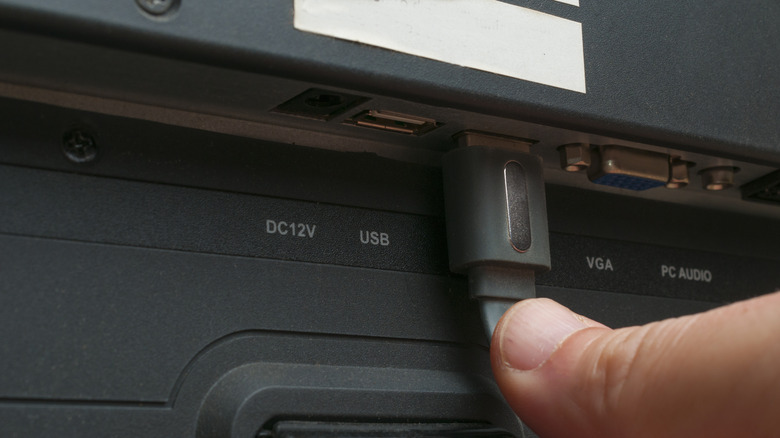
Overcan can also occur when a PC is connected to an external TV via HDMI, but changing the TV's actual settings doesn't always help. When you connect your PC display to a TV, it is treated like a monitor, and sometimes the image problem is because the actual content hasn't scaled to the TV properly. The way to correct it is to change your PC's internal settings. If you're using an Intel-based PC, open the Intel Graphics Command Center, then select Display in the Navigational menu, and find the monitor (the TV) it is connected to. From there, click the General tab, select Scale setting, and make sure to choose Custom from that dropdown menu. Adjust the sliders until the screen fits perfectly, and then close the window when you're done. AMD computers can adjust HDMI scaling by right-clicking the desktop display to open AMD Radeon Software. From there, select Display, find the correct display, and change the HDMI scaling slider underneath to apply the fix.
If you are using a Mac, you can adjust the display size by opening System Settings or System Preferences from the Apple menu. Once you've opened System Settings or Preferences, click Display, then find the TV in your Display Settings. Adjust the picture size from there to fix the cropping issue on your TV. It's also possible to fix overscan (and underscan) on an Apple TV. To do this on an Apple TV 4K or Apple TV HD, navigate to Settings > AirPlay (or AirPlay and HomeKit) > AirPlay Display Underscan. For 3rd- and 2nd-generation Apple TVs, select Settings > Audio & Video, then choose Adjust for AirPlay Overscan.