

6 Hidden Netflix Features You Need To Start Using
If you're paying $17.99 a month for a Netflix subscription (or $7.99 with ads), you really want to make the most out of what you're paying for. Sure, Netflix's main job is to serve up movies and shows, but the streamer has a bunch of features that make the experience more fun, interactive, and convenient.
First of all, make sure you're making the most of Netflix's algorithms. When you've finished watching a show, Netflix will ask you to select whether you liked it, loved it, or if you thought the show was "not for me". If you use these, then you're more likely to see things you're interested in turning up in your recommendations. If there's a show or movie you want to see that Netflix doesn't have, you might not know that you can request that Netflix add it to its catalog. While this probably isn't going to work for a lot of titles where other services hold the licensing rights, it's certainly worth trying — especially in cases where a title is available in one Netflix region and not in another. One social media site for fans of Korean actor Kim Soo Hyun encourages fans to request titles that are on Netflix in Korea but not in other regions.
We've put together a list of more Netflix features that you may want to check out. But first, although this doesn't strictly count as a feature, if you didn't know there was a Netflix shop, you absolutely need to check it out. We had no idea how much we needed a Hellfire Club shirt, a Squid Game dalgona mug, and a Lady Whistledown scented candle.
Netflix Secret Codes
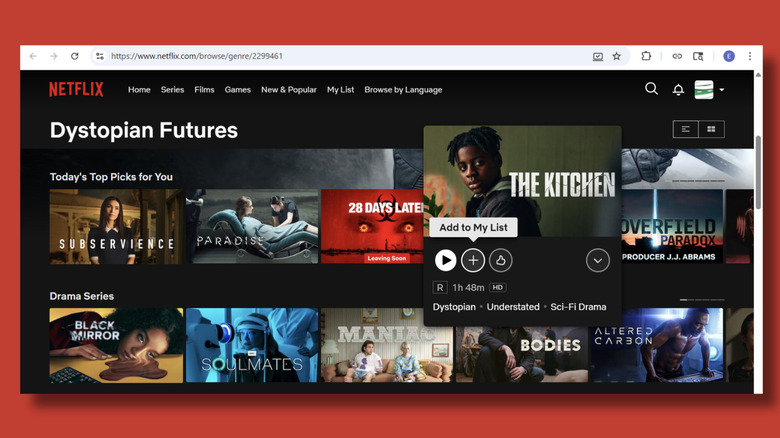
If you've become stuck in a rut with your streaming recommendations, using Netflix's Secret Codes can help you find content in genres you didn't even know existed. The Netflix catalog is huge, and the algorithm is working hard trying to find things it thinks you'll like, but that can get repetitive. You can break free with a workaround that lets you browse hyper-specific genres ranging from broadly useful to amusingly niche.
Using Secret Codes is simple, but it only works in a web browser. Type https://www.netflix.com/browse/genre/ followed by the code you want. So if you want to look at understated sci-fi and fantasy movies with the code 1449, type https://www.netflix.com/browse/genre/1449. This brings up a Netflix home page with titles that have been included in the genre you've chosen. You could watch them directly on your laptop, or save them to your list to watch on another device later. To do this, hover over the show you want and click the + icon.
There are thousands of options, including zombie horror movies (75405), cyberpunk (1964512), Oscar-winning dramas (51236), and "short ass movies" (81603903) for those who like to get their film fix in around 90 minutes. Netflix doesn't officially publish a list of secret codes — although it did acknowledge their existence in a blog post. You can find lists online — the most comprehensive one we found was on whats-on-netflix.com, with more than 4,000 codes listed. Not all codes work in all regions, so it can be a bit hit-and-miss.
Download titles to watch offline
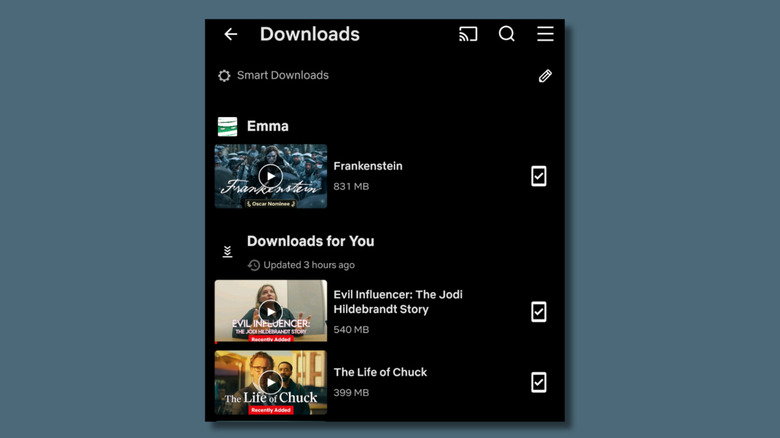
If you're going to be offline for a while, that doesn't mean you can't still watch a movie or two on Netflix. You just need to plan so you can download some content when you're connected to Wi-Fi. (You can do it without Wi-Fi, but it'll burn through your phone's data.) If you have an ad-free plan, you can have up to 100 downloaded shows and movies ready to go, and those on ad-supported plans can still get 15 downloads per month. Offline content is limited to smartphones and tablets.
To download a title, select the show on Netflix and tap the "Download" button that appears beneath the Play button. Remember that this function stores content on your device, so you'll need enough space. You can see what things you've downloaded by tapping Downloads under My Account.
There are a couple of smart download features on Netflix. These are Downloads For You and Download Next Episode. Both are only available on ad-free plans. If you activate Downloads For You by toggling it on in the settings on your My Netflix page, Netflix will automatically download shows it thinks you will like. However, when we tested this, we found that Netflix downloaded new shows it was heavily promoting. Download Next Episode also needs to be activated in your settings. Netflix will automatically download the next episode for you when you've watched the previous one — as long as you're watching from your downloads. It will also delete the old episode.
Record and share clips from shows
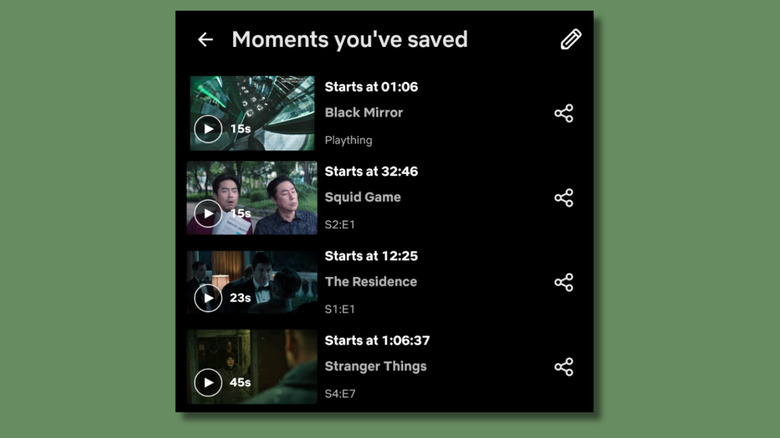
Although Netflix promotes its clip feature as a way to happily relive your favorite moments and share the joy with others, where it really shines is helping you win geeky arguments. If you're having a disagreement about the year Black Mirror's "Plaything" is set, and your friend is insisting that the date's never shown, one quick clip of the scene with the security camera will settle the matter.
Clips (previously known as Moments) only works on phones and tablets. To save a snippet, tap the "Clip" option that appears on the bottom left of your screen when you're watching something. The maximum length is two minutes, and you can adjust the length and the start and end points by moving the red and green arrows on the video timeline. When you're done, click save and the snippet will be stored in your My Netflix page. After saving, you will see share options for WhatsApp, X, or Instagram, or you can just copy the URL.
While it's easy to save and share clips, opening the clips people send you isn't so straightforward. This link to my favorite ever Stranger Things moment will work for some readers and not others. You'll need a Netflix account and be signed in to watch it. It also behaves differently depending on what device you're using. Opening links on my laptop activated the whole show, which automatically played from the clip's timestamp. There was no end time, so it just carried on showing the rest of the program long after my carefully curated 30-second vignette. If you open a shared clip on a phone or tablet, though, you'll just see the clip, not the whole episode.
Voice controls
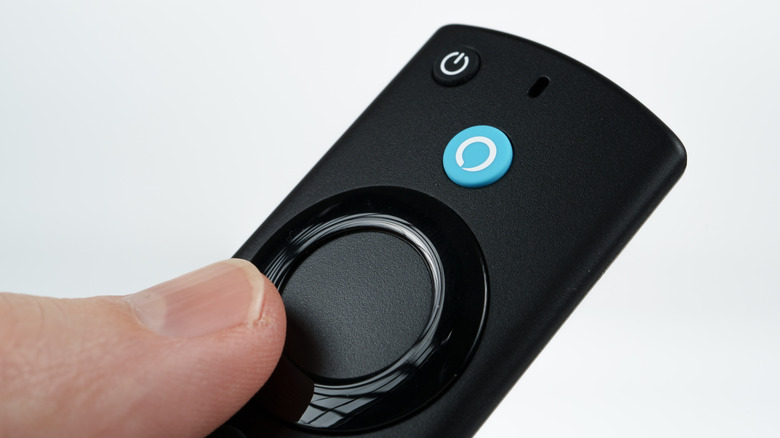
You don't need to press buttons on your remote control to open Netflix, play, pause, or search for shows. Netflix is compatible with various virtual assistants, like Alexa, Siri, and Google. So, if you've already installed a voice assistant in your smart home, it makes sense to integrate it with Netflix. That way, you can chat to your TV and say things like, "Show me movies with Timothée Chalamet on Netflix."
How you do it will depend on your device and voice assistant. Netflix provides guides on how to use it with popular products like Google Home and Amazon Echo. For example, to link Netflix to your Google Assistant, you'll need to link your TV or other device to the Google Home app. Once you've done this, you can link to Netflix in the settings, which will enable the Google Assistant voice controls.
If your TV or streaming device already comes with an assistant, then there's no setup needed. The Amazon Fire TV Stick has Alexa as one of its features, for example. You just need to press the blue button on the remote and tell it to play Netflix shows, do a search, or skip ahead 5 minutes. Although the voice recognition was good, it wasn't infallible. In tests, we kept trying to switch from English to Korean while watching "Squid Game," but Alexa kept misinterpreting it as a request to switch to a K-Pop radio station.
Party Games
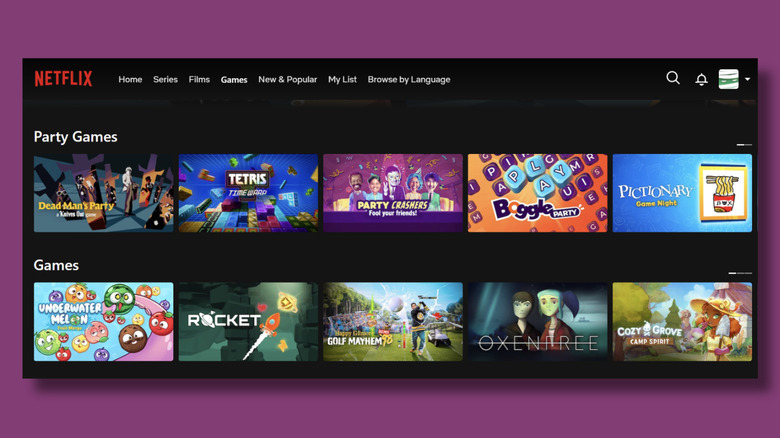
While you probably know that games are available on Netflix, you might not yet be aware of its new Party Games feature, which was only released at the end of 2025. Now, you can play as a group in front of the TV, without needing any complicated setup. It's currently in Beta and the selection of games is pretty limited, but Netflix will be adding more games throughout the year. Games include Pictionary, Boggle, Lego Party, and Dead Man's Party, a Knives Out-themed murder mystery game.
To play the games, select the games option at the top of the screen and look for the Party Games category. Select the game you want and follow the instructions onscreen. While some games can be played either alone or in groups, others have a minimum number of players. Dead Man's Party needs at least four players. Each player needs a smartphone — you'll need it to join the game and then it will act as a controller.
Each player needs to have the Netflix app on their phone, but apart from the host, players don't need to be subscribers to join. You start playing by scanning a QR code onscreen. This is the most fiddly part and has to be done every time you want to play. We tested Pictionary, Boggle, and Lego Party, and once we'd sorted out the login, it was quick and straightforward to start playing, as nobody wants to spend much time learning the rules when they're in a party mood.
Real-time voting
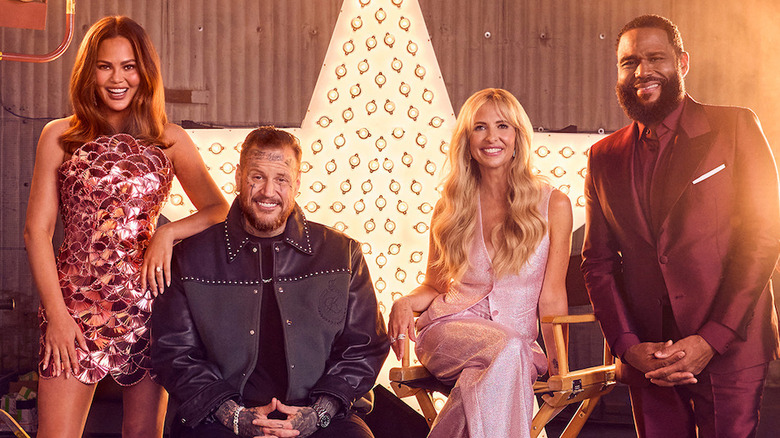
If you're currently watching Star Search, the talent competition reboot with judges Chrissy Teigen, Jelly Roll, and Sarah Michelle Gellar, then you already know about Netflix's real-time voting feature. Each episode, viewers have the opportunity to cast their vote, scoring the show's performers out of five. If you haven't been watching Star Search and you're keen to get involved, the show is screening live every Tuesday and Wednesday until February 4.
To vote, you must watch the show live. Results are counted immediately and revealed in the same episode, so the voting window is short. If you pause the TV to go to the bathroom, you could miss the limited voting window. You'll know when it's time to vote because a star rating prompt will appear onscreen. You can use either your TV's remote control or the phone app to participate — currently, it doesn't work on web browsers.
Each Netflix profile can only vote once, so if you're watching in a group, you will probably need to resort to violence or democracy to determine your vote. At the time of writing, Star Search is the only show with this feature. However, if you've missed it, don't worry. Netflix says that it's "just the first of more moments where members like you can influence live events together from wherever you're watching."