

The Easiest Way To Find Your Parked Car Using An iPhone

How many times have you parked your car in a busy lot, come out of a store or other venue, and forgotten where it was? It's happened to the best of us, but thankfully, there are smartphone tools that can help you "pin" the location of your vehicle so it's easier to find. It's like a digital set of breadcrumbs, and it's especially easy to do with an iPhone.
All you need to do is use the Maps app on your device to get directions to your parked car, which is logged automatically if you use CarPlay or Bluetooth in the vehicle. There are a few settings you need to activate first for this to work, but once set, it can help ensure you are never walking the lot, aisle by aisle, pressing your panic button in hopes of getting close enough to trigger it. If you don't have CarPlay, Bluetooth, or USB in your vehicle, don't worry as you can also save your parked car location manually using Google Maps.
Find your car in Apple Maps
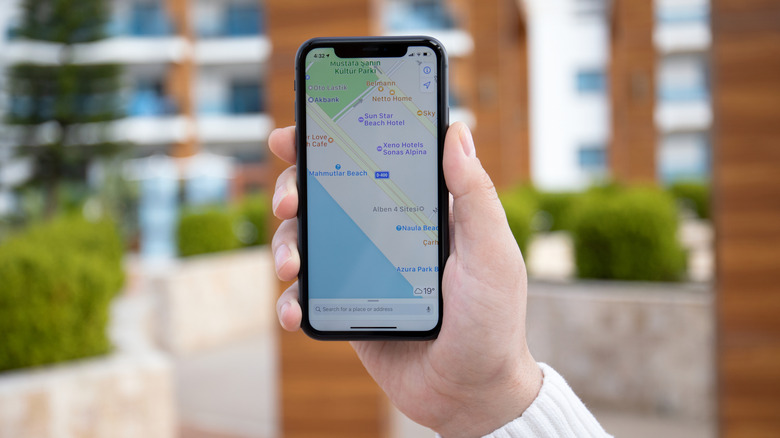
If you use CarPlay, Bluetooth, or a USB connection in your car, as soon as you unplug or disconnect your phone, a parked car marker will drop onto its location in Maps. Once you're ready to head back to the vehicle, open the Maps app and select Parked Car, which appears below Siri Suggestions. From there, you can select Directions and follow the phone to your vehicle. Before you leave, you can also add notes, like what door you entered into or the level of symbol that corresponds with the parking location in a garage, for example, or a very large lot.
Before this can work, however, you need to turn Bluetooth on and also ensure that Location Services is on in Settings, Privacy & Security. This includes for both Maps as well as System Services in that same menu. Under System Services, ensure that Significant Locations & Routes is turned On. Under Settings, Apps, Maps, also make sure that Show Parked Location is turned On. Keep in mind that your car won't be marked when you're at a familiar location where you obviously don't need help finding it, like at home or work. The feature works with an iPhone 6 and later models that have at least iOS 10 or later.
Manually save your location
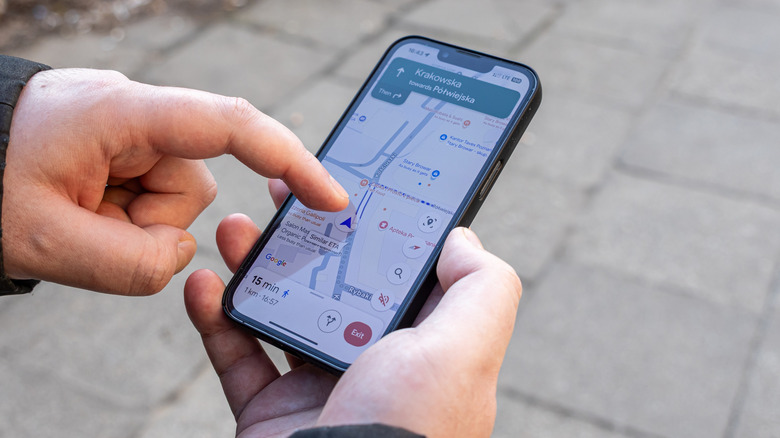
If your vehicle is older or you don't connect your phone in the car via CarPlay, you can still manually drop a pin that logs the car's location. Maps will always save the parked location using your phone's sensor, but you get more accurate results when connecting your device. To use motion instead of Bluetooth, first download the Google Maps app. Select your profile photo, Settings, and Navigation. Scroll down to Automatically save parking and turn this on. Then select Let Maps use your motion to save your parking. It will then use motion activity to log your parked information based on when it detects that you have been driving and have stopped for a length of time. The parking location will appear under a pin called "You parked here" or you can locate it in the search bar.
For an even simpler manual experience, simply Open Google Maps, select the blue dot that shows your location once you have parked, and select Save parking to drop a pin on that spot. Then just use directions to navigate back to that blue dot once you're ready to head home or to your next destination. There are so many ways you can find your parked car with an iPhone, with both Google Maps vs. Apple Maps, and automatically and manually depending on your setup and preference.