

5 Ways To Improve Your TV's Streaming Quality Before Upgrading Your Internet
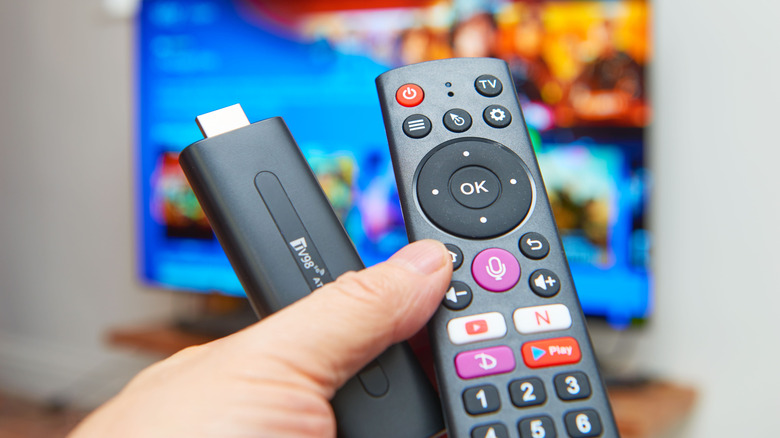
Streaming entertainment has become more or less overtaken traditional cable, with users enjoying various streaming apps from the comfort of their living room couch. The only immediate downside to streaming over cable is that the quality of your streaming video is directly proportional to the strength and quality of your internet connection. If you're getting less-than-stellar quality or consistent lag and stuttering, you might think you need to upgrade your internet, but there are a few checks and tricks you can try beforehand.
Upgrading to an entirely new internet package for your home can be expensive, not to mention time-consuming if you need new equipment installed or set up. Before you jump right to that kind of overhaul, you should double-check a few of the settings on your TV, ensure you're using your internet in an optimal fashion, and if all else fails, consider a less costly upgrade like just getting a new router.
Double-check your TV and streaming resolution
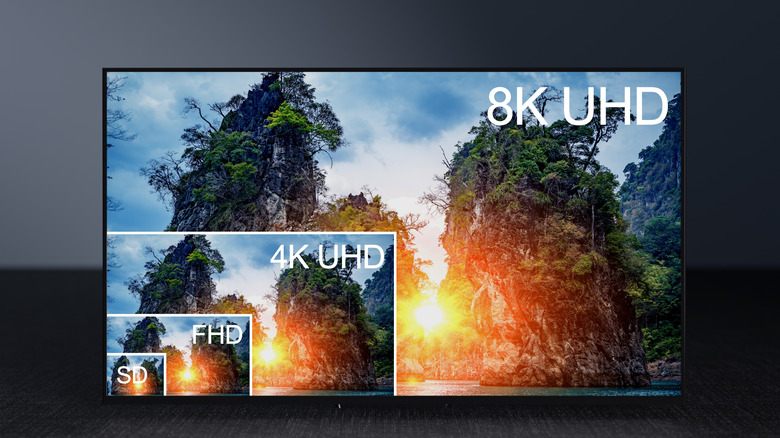
It's a fair assumption that, if you're going to be watching streaming content on your TV, it's going to be of a fairly high resolution, at least given how much streaming apps advertise it. However, watching streaming content on a TV doesn't automatically mean that it will be of the highest quality. If you're not getting the highest resolution that you think you should be, the problem could be with your TV's capabilities rather than with your internet connection.
If your TV is older or on the smaller side, it may simply lack the necessary hardware to show content in the highest possible resolution. If you wanted to watch content in 4K quality, for instance, your TV would need to have a refresh rate of at least 60 Hz. In that case, if you can't watch in 4K, it's not a problem with your internet; your TV just can't do it. On a related note, some streaming services also gate off higher-quality streams behind more expensive memberships. Netflix's Standard plan only gets you streaming quality up to 1080p, while 4K quality is reserved for those on the Premium plan. Upgrading the streaming apps you use most may yield better quality, though again, you should make sure your TV can actually handle that quality first.
Stream from a better spot in your home
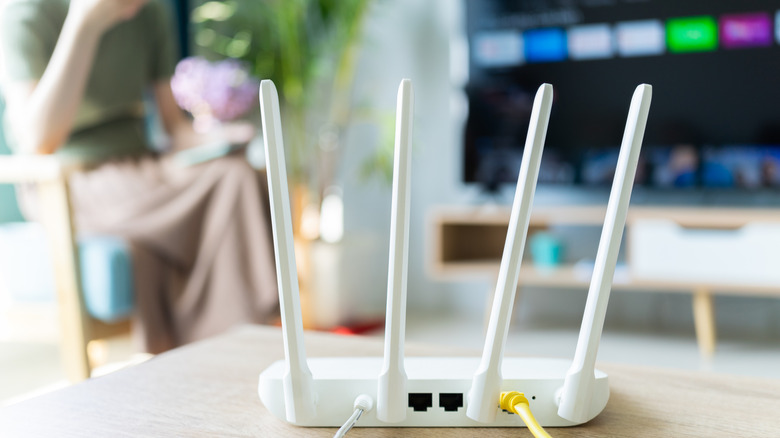
One of the major reasons that Wi-Fi has become the dominant internet format is that it can, in theory, reach just about anywhere in your home. While this is technically true, just because your home Wi-Fi signal can reach most of the rooms in your house doesn't mean it can do so without difficulty. If your home Wi-Fi router is all the way on the other side of a large house, beneath several floors and walls, then even if the signal can still reach your TV, it may be weakened to the point that it begins affecting your streaming quality.
If you're able to do so, try moving your TV to a different room that's closer to your router, with as few walls and floors in the way as possible, and especially without anything metallic getting in the signal's path. Alternatively, you could try moving your router a little bit closer to where the TV is. Obviously, the router is constrained to wherever your network hookup is, but you might be able to lift it a bit higher up and point its antennas toward the room your TV is in for a minor improvement.
Plug into an Ethernet port
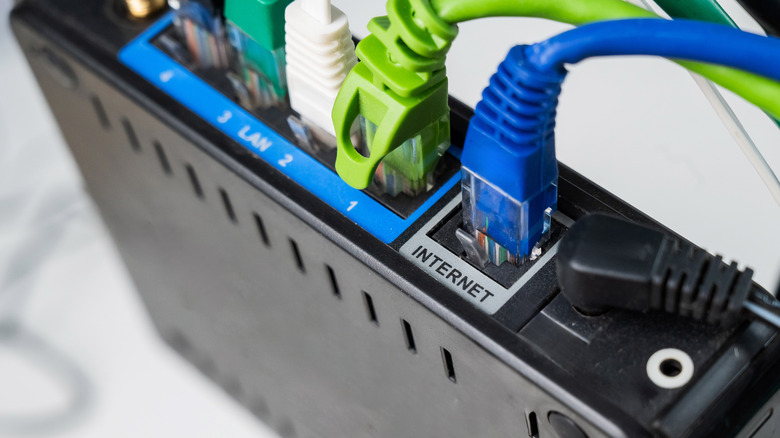
As convenient as Wi-Fi is, the simple fact of the matter is that Wi-Fi can never produce as consistent a network signal as a hardline cable. If you're experiencing a lot of stuttering when connected to Wi-Fi, even if there's nothing in particular between your TV and the router, you might be better served by using a physical Ethernet cable instead.
This is a bit of a circumstantial fix, as your TV or the streaming player plugged into it may not have the necessary ports to actually receive an Ethernet cable. Streaming sticks like the Roku Stick or Amazon Fire Stick, for instance, don't have Ethernet ports, so you can't connect them directly to your router. Some players, like the Roku Ultra, do have Ethernet ports, so you can link them up directly. If you're watching content on a smart TV, there may be an Ethernet port on the back near the other inputs, like the HDMI ports. If you've got an Ethernet port available, just plug a cable in and connect it to the router, and you should hopefully see an immediate improvement in connection strength.
Make sure you're using the right connection
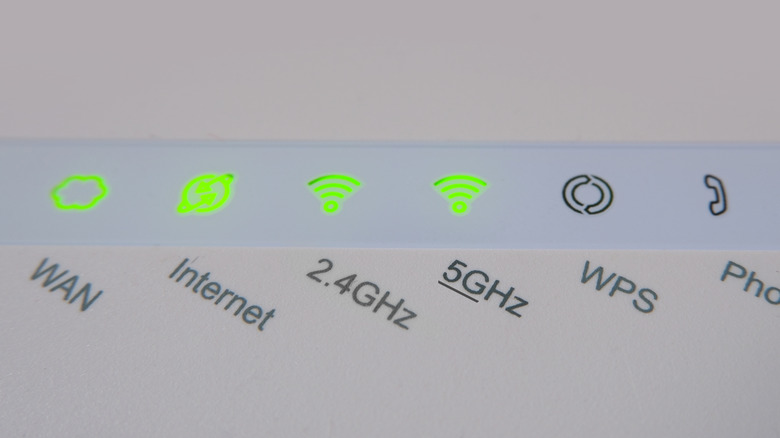
Many modern Wi-Fi routers deliver signals on at least two different frequency bands, 2.4 GHz and 5 GHz. This allows one router to cater to various kinds of devices from different distances away; 2.4 GHz is a weaker connection with a longer range, and 5 GHz is a stronger connection with a shorter range. Naturally, for the purposes of streaming, you'll want to use the stronger 5 GHz connection to ensure consistent quality.
When you first set up your TV and/or streaming player, did you let it automatically seek out your Wi-Fi signal in order to connect to the internet? If you did, there's a distinct chance you didn't connect to the best possible frequency your Wi-Fi offers. Go into your TV or streaming player's network settings and check which network you're connected to. The connection's frequency band should either be in the network's name or otherwise displayed in its settings. If you're connected to the 2.4 GHz signal, disconnect from it and switch to the 5 GHz signal. This is an easy way to speed up connections without spending more money. If you don't see a 5 GHz signal, it's possible that either your router doesn't have one, or your TV or player can't receive it.
Get a new router
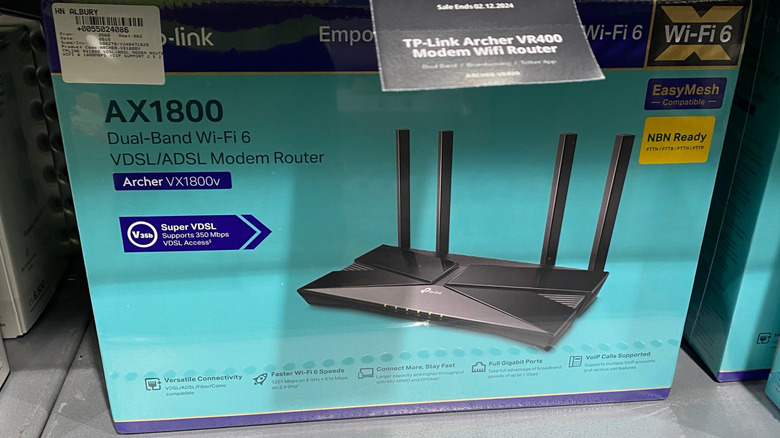
If you just can't seem to get an ideal streaming experience on your TV, you might not be able to get the kind of streaming quality you want without some manner of upgrade. However, before you upgrade your entire home internet setup and commit to higher monthly bills, there is a simpler upgrade you could try: getting a new router. Using an old, outdated router is a common Wi-Fi mistake that might be contributing to your lackluster streaming quality.
If you visit your network provider's website, you should be able to find a selection of both first-party and supported third-party routers with faster, more stable connection speeds. If your current router doesn't have a 5 GHz connection, that's a great impetus to upgrade to a new one that does, as your home's entire internet should see an improvement in addition to your streaming. Just make sure you get a router that's compatible with your provider, as not all third-party routers support all providers and hookups. If you're uncertain, visit your provider's nearest physical storefront, and someone should be able to help you out.