

4 Useful Amazon Fire TV Stick Remote Shortcuts Most People Miss
We may receive a commission on purchases made from links.
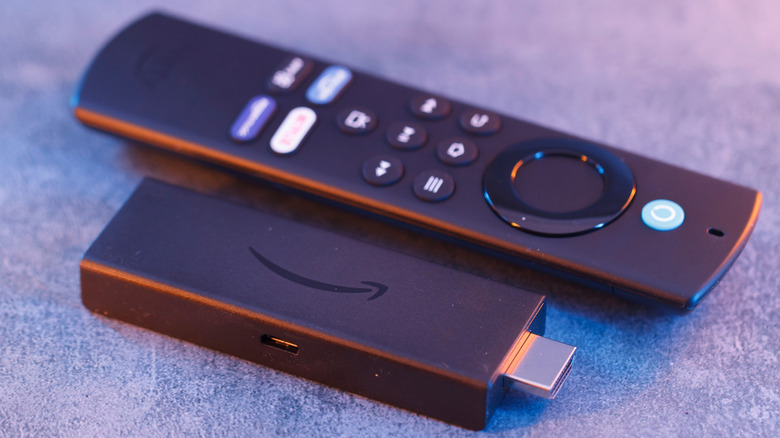
Amazon's Fire TV Sticks are pretty popular as value-for-money media streaming devices. Besides playing your favorite movies and TV shows on demand, Fire TV Sticks can do a number of cool things, including controlling compatible smart home devices and even showing the live feed from your Ring camera directly on your TV. However, it's not just the streaming device that does all the heavy lifting; the included Fire TV Stick Remote also has a lot of cool stuff hidden that you can't guess by just looking at it or its buttons.
One of the highlights of the current crop of Fire TV Stick remotes is that they include buttons to control your TV. For example, the Fire TV remote can change your TV's volume, mute it, or turn it off. However, beyond these functions, the remote has hidden shortcuts that are typically triggered by holding certain buttons or using a combination of buttons. These shortcuts can come in pretty handy if you don't want to spend time navigating the Fire TV OS interface to trigger the same functions. Here's a list of some of the most useful Fire TV Stick remote shortcuts.
Launch quick settings from anywhere
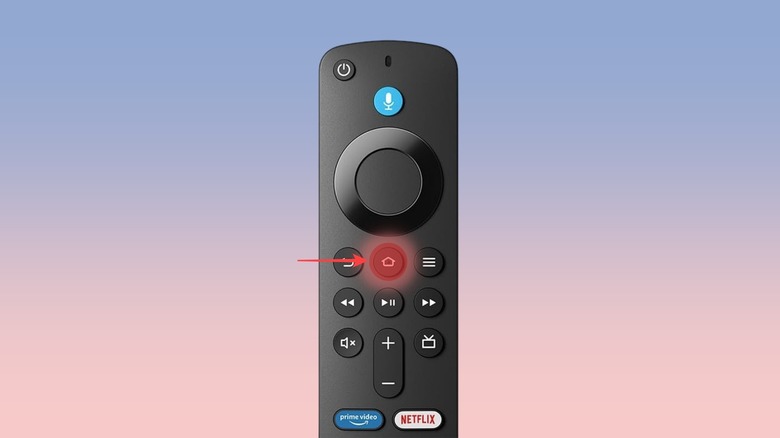
The quick settings menu on the Fire TV Stick devices is pretty useful as it includes some of the most commonly used options in one place. For example, you can use it to view and switch profiles, open the app drawer to quickly access all your Fire TV essential apps, put the device to sleep, start screen mirroring, and open the full settings. It also shows you the time and date. The easiest way to reach quick settings on your Fire TV Stick is to press and hold the home button on your Fire TV remote for five seconds.
This remote shortcut works from anywhere on the interface; you don't need to navigate to the home screen or get out of the streaming service you're watching. To get out of the quick settings menu, simply press back on your remote, and you'll be back to what you were doing.
Choose a hidden resolution and frame rate combination
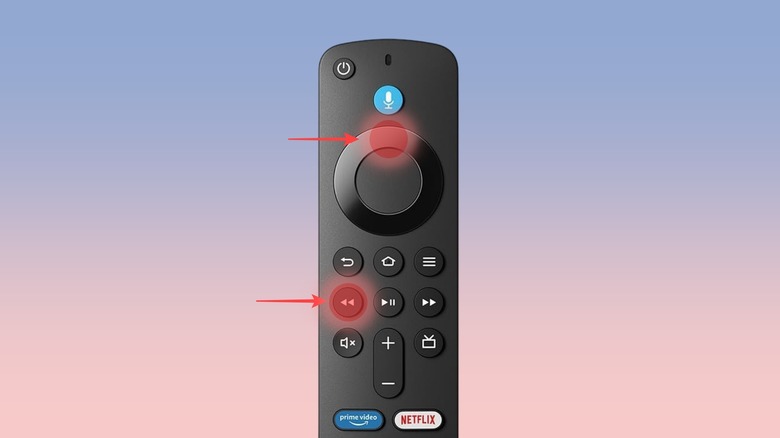
Depending on the Fire TV Stick you own, each supports a range of resolutions, such as 720p, 1080p, and 4K. You can switch between these resolutions if you want, for any reason, by going to the display settings. However, when you are selecting the resolution by navigating to the settings, you are typically limited to 60Hz and 50Hz frame rates, regardless of the resolution you choose. But you might be surprised to know that your Fire TV Stick can handle a number of other frame rates, such as 24Hz and 30Hz, which are available via a specific Alexa Voice Remote shortcut.
You can cycle between the different resolution and frame rate combinations available on your Fire TV Stick by pressing and holding the Up and Rewind buttons on the remote simultaneously for five seconds. Your Fire TV Stick will show each resolution and frame rate combination for a few seconds, giving you ample time to select it, or it'll move to the next setting. Another highlight of this shortcut is the additional support for uncommon resolutions like 480p or 576p, which you won't get in the display settings of your device. Remember, not all TVs will get all the resolution and frame rate combinations.
Restart your Fire TV Stick or reset the remote
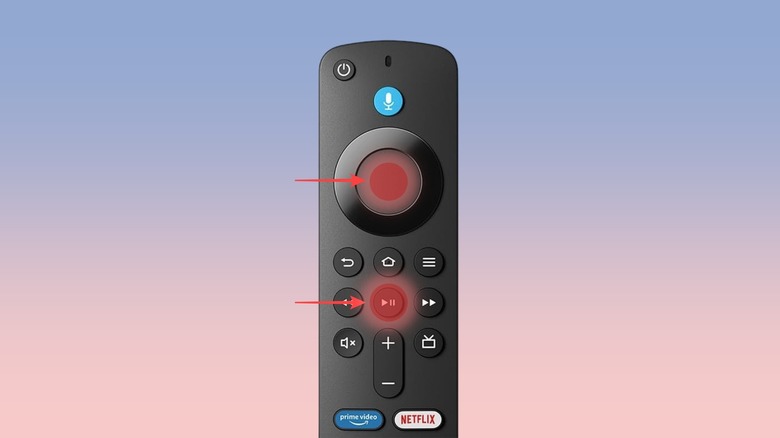
The Fire TV Stick devices aren't immune to freezes or lags. If you encounter such an issue, there is a remote shortcut that can restart your device without unplugging the Fire TV Stick or waiting for the interface to become usable to trigger the reboot through the settings menu. To restart your Fire TV Stick using the Alexa Voice Remote, press and hold the Play/Pause and Select buttons simultaneously for five seconds. This will force a reboot; your screen will go black, and your media streaming stick will restart.
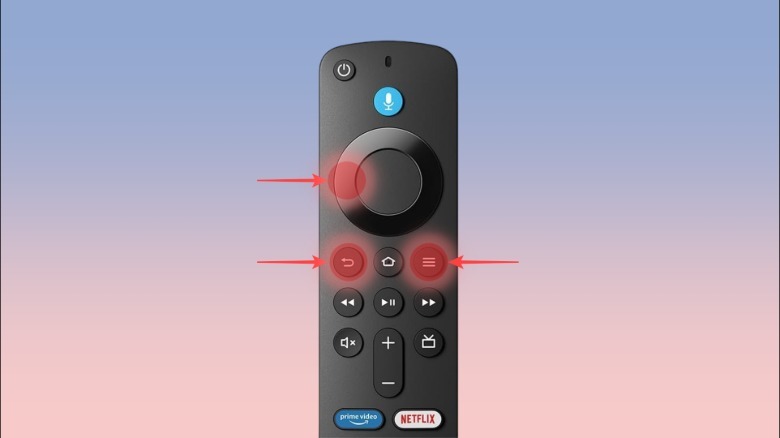
Besides rebooting the Fire TV Stick, the remote can also perform a reset of itself. This is helpful when the remote is not being recognized by the Fire TV Stick device. To reset the remote, press and hold the Back, Left, and Menu buttons simultaneously for about 12 seconds. After this, wait for five seconds, and then re-insert the remote batteries to complete this process. As the reset is complete, you can re-pair the remote with your Fire TV Stick by pressing the Home button for about 10 seconds, and if the process is successful, you'll get a notification on the TV.
Factory reset your Amazon Fire TV Stick
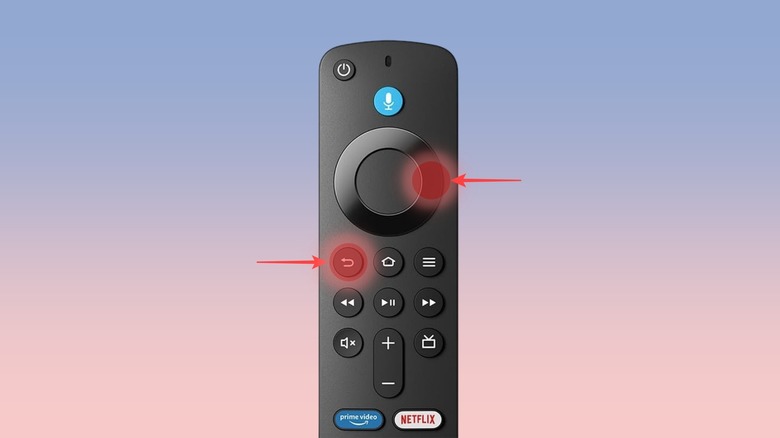
Besides letting you restart your Fire TV Stick, Amazon has included a remote shortcut that can reset your device to factory settings with just the press of a couple of buttons. This can come in handy when you are having frequent issues with your device and want a fresh start, and are looking to give the device to someone else. You can trigger the factory reset process by pressing and holding the Back and Right buttons for 10 seconds simultaneously. This will open a factory reset confirmation that you have about 20 seconds to deny if you don't want to reset your device.
Once approved, the process will delete everything, including any installed apps or saved media, and return the Fire TV Stick to the factory defaults, basically just like when you bought it. This is an irreversible process, so be certain before you reset your Fire TV Stick to the factory settings.