

5 Settings That Can Extend Your OLED TVs Lifespan
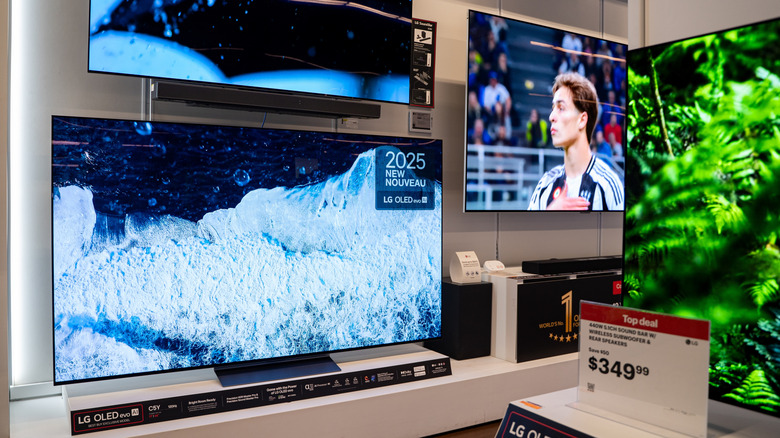
Many major manufacturers of televisions, like LG and Samsung, have largely switched to OLED panel screens for higher-end models over traditional LCDs. OLED panels do provide a noticeable bump in picture quality, though they do have their own downsides in the reliability department. For one thing, an OLED panel is susceptible to problems like dead pixels and burn-in, but you can work to mitigate these annoying effects with some clever utilization of your TV's settings, like Pixel Refresh and Logo Luminance Adjustment.
It's not a secret that long-term ownership of an OLED TV can eventually lead to unpleasant effects like smudgy burn-in or gradual picture degradation. While you can't stave off the ravages of time forever, carefully adjusting your OLED TV's settings, such as turning down the brightness, using a screen saver, and enabling more advanced features like Pixel-Shifting, can help to freshen up your screen and keep it looking nice and clear for as long as possible.
Turn the brightness down
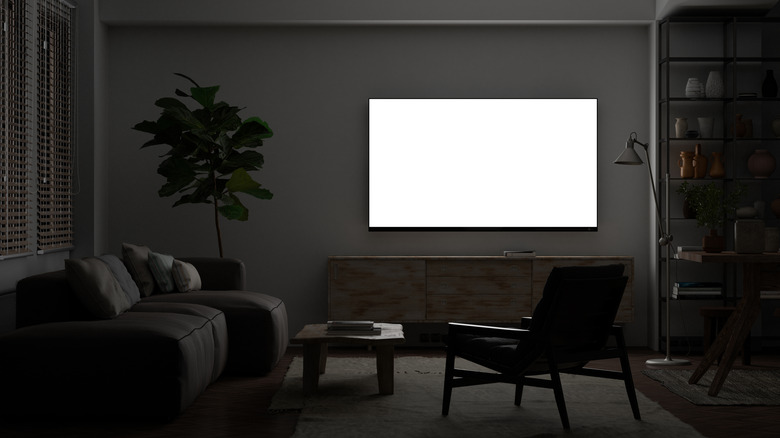
The primary enemy of a healthy OLED screen is bright, white light. Remember, the picture on your OLED screen is generated from a series of multicolored lights, and if they're brighter, that means they're running at a higher capacity. Yes, having the brightness turned up can give you a more vibrant, distinctive picture, but if the brightness is running at max capacity all the time, it shouldn't come as a surprise that the panel will start to degrade faster.
All this is to say that, if you want your OLED TV to last longer, it would be a good idea to turn the brightness down a fair bit. You want it just bright enough that you can see everything clearly, but still a decent way below the max; around 50-60% of its capacity should be sufficient. If you're having trouble seeing the screen, consider adjusting the lighting in the room before you turn the brightness up on your OLED TV. Open a window, move a lamp closer, adjust dimmer switches; anything you can do to brighten the room overall will help to alleviate the TV's burden a bit.
Use screensavers

Leaving a static image on your OLED TV for long stretches of time, forcing its pixels to stay in a single color configuration, can gradually increase your likelihood of unsightly burn-in, little phantom flecks of color left over from whatever image you left on it. The best way to prevent this is to just not leave a single, static image on your screen for more than a few minutes at a time, but in addition to that, you can employ a screensaver.
Screensavers were originally introduced for PCs in the 90s as a convenient way to prevent burn-in from setting in on CRT monitors. The advent of LCD screens made them less necessary, but OLED screens have brought them back for largely the same reason they were originally developed. Many OLED TVs have screensavers that are automatically programmed to kick in when the TV detects a static image has been present for a couple of minutes or more, such as when you have a show paused. Most OLED TVs have this feature enabled by default, though you can adjust the length of time that needs to pass before the screensaver activates in the settings.
Enable Logo Luminance Adjustment

The tricky thing about preventing static images from burning into your OLED TV is that not every part of a particular image may be static enough to trigger the screensaver. If you're watching a major news network, for example, the network's logo may be stamped on the corner of the screen whenever a show is on. This can also apply to video games with static UI elements like radars or health bars. Even if the rest of the screen is fluctuating, that little bit is technically always displaying the same image, which can lead to isolated burn-in and gradual picture degradation.
Luckily, manufacturers have taken this into consideration and added a particular feature that can selectively dim parts of your screen to lessen its negative effects. This feature, Logo Luminance Adjustment, also known as Logo Detection, scans the image displayed on your OLED TV for static logos on the sides or corners and subtly lowers the brightness in just those sections. You can tweak the intensity of this function in your TV's panel settings, switching between the default low intensity for only a minor dimming effect and high intensity for a more pronounced dimming effect.
Enable Pixel-Shifting
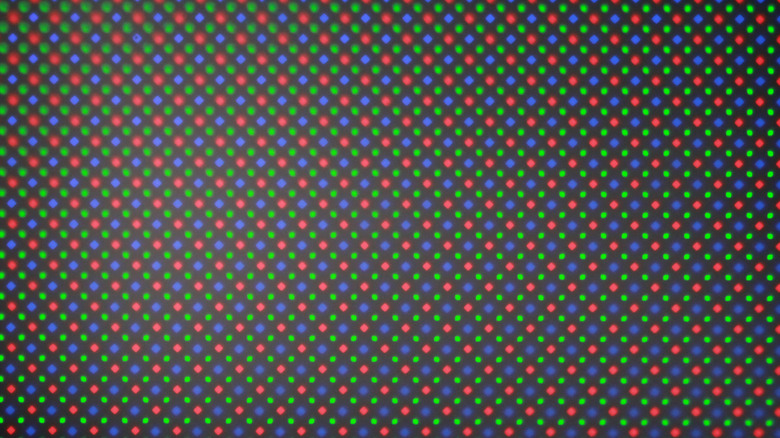
The pixels on your OLED TV are almost like a living thing, in that they need to keep on moving and shifting to a reasonable degree in order to stay healthy and active. Keeping a single pixel from displaying a particular bright color for too long both prevents burn-in and helps to stave off brightness-induced picture degradation. In addition to ensuring you don't leave static images on the screen, you can shake things up a little by enabling your OLED TV's Pixel-Shifting feature.
When Pixel-Shifting is enabled, your OLED TV will periodically move the entire picture around the panel's surface. It's very subtle, and you probably wouldn't notice it unless you were deliberately watching for it. Shifting the picture around like this helps all of the pixels to change their states and prevent image retention. This feature is usually enabled by default if it's present, but if it's not, you can enable it in your TV's display settings, after which you should always leave it on.
Clean things up with Pixel Refresh
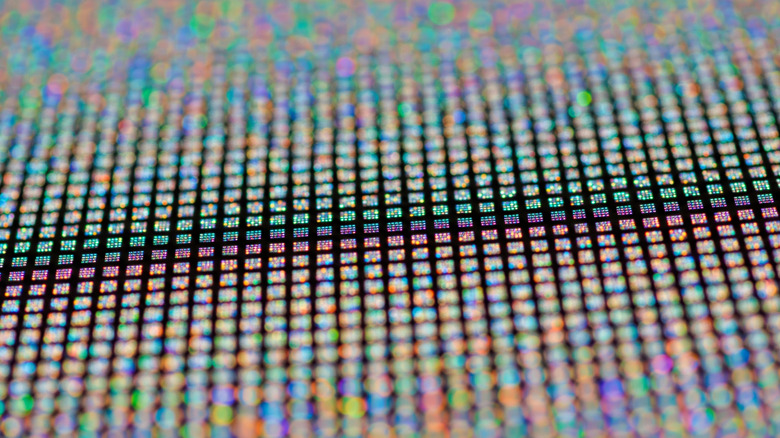
If you're starting to notice that the pixels in your OLED panel are sticking or leaving phantom images, it's possible some minor degradation has already begun to set in. Don't go shopping for a new OLED TV just yet, though, because there may be a feature present that can help to clean things up: Pixel Refresh.
Pixel Refresh, also known as Pixel Cleaning, is a function present on many OLED TVs that quickly analyzes and refreshes every single pixel on the panel. If any of them are exhibiting unusual behavior like dimness or uneven color, this refresh can help to restore them to proper working order. You can run a manual Pixel Refresh from your TV's settings, though doing so would require the screen to power down for a little over an hour, which would obviously leave you without a TV for that period. Overusing Pixel Refresh can also put some extra wear and tear on the screen. Rather than running manual refreshes, the best policy is to program the TV to perform automatic refreshes whenever you're not using it. You can set your Pixel Refresh settings to only engage when the TV is turned off. That way, when you're done watching TV for the day, the TV itself will run upkeep overnight.