

4 Free Ways Every Steam Deck Owner Can Customize Their Experience

When you hear people discuss a Steam Deck, you normally hear about titles worth downloading to play on it. Even if the handheld's primary use is gaming, there is still a lot of untapped potential. It turns out that in the hands of a user, the Steam Deck can be more than Valve's proprietary portable platform; it can also be used as a portable media center for other hobbies and be a place to export non-Steam libraries. This is all thanks to SteamOS, which is really just an Arch Linux-based distribution.
The Linux-based SteamOS makes for a great open-source platform for running many Linux apps. Decky Loader is just one prime example of an app that opens up customization options; you can install different plugins to add unique home screen animations, change the UI, the music, and more. But there are many apps and plugins you can add beyond Decky Loader to make your Steam Deck feel even more accessible. And even if you are only interested in gaming, you can still unlock the full potential of your Deck with apps like the Heroic Games Launcher, which lets you play games from other libraries, such as Epic and GOG, more easily. And if building a media library isn't your thing, you can also use built-in tools for deep control remapping, like setting up radial menus for shortcuts.
Tap into LocalSend to transfer your files and folds

If you're familiar with KDE Connect, then you will have an idea of how LocalSend works. But if you don't know about this popular file-sharing app alternative, LocalSend is a private, streamlined version that excels at moving folders. It also lets you wirelessly send your files and folders across to or from your Steam Deck to your PC, outside of Linux.
The app/plugin does this locally without using cloud servers, so it essentially turns into a great privacy tool. Though it does mean you'll need to download and install it on each device you plan to host for each exchange. But once you do, all you need to do is have your devices nearby and manually establish the connection after opening the plugin/app on the platform. After setting it up, you can save all your files or folders containing comics, music, or even books to your Steam Deck; it works the other way around as a handy tool for exporting your Steam recordings or screenshots to other devices.
Diversify your library with the Heroic Games Launcher
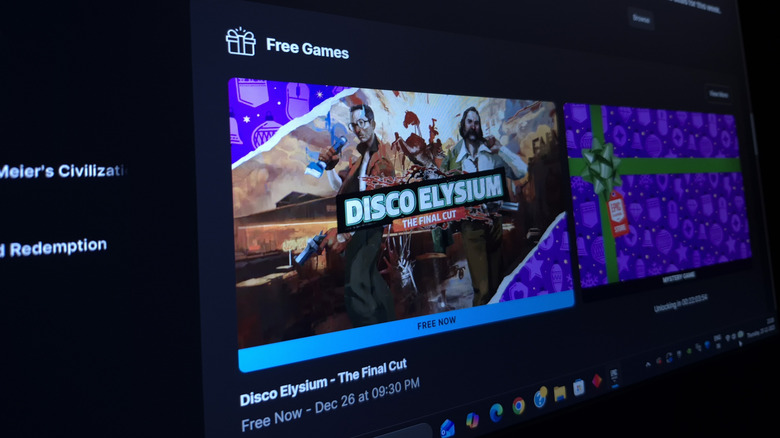
Being a true PC gamer might mean you've bought games outside of Steam. For example, as an Amazon Prime subscriber, you'll notice Amazon sometimes offers free Prime Day giveaways on Prime gaming. Or, if you're a long-time "Fortnite" veteran, you're also no stranger to Epic Games Store, which offers juicy holiday sales or timed freebies. Unfortunately, having different accounts and store access means managing separate libraries is a bit of a hassle. You'd ideally like to have your library all in one place, especially if you only play PC titles on your Steam Deck. If that's an issue for you, you'll find installing the Heroic Games Launcher an enticing option.
Heroic Games Launcher will still require logging into each service separately and installing the game from Desktop Mode, but once you've done that, getting to your games is fairly simple. All you need to do is add the installed game as a Non-Steam Game to your library, then switch back to gaming mode. You'll find your game listed under the Non-Steam Game category. Heroic Games Launcher is lightweight and continuously supported, and you'll also find Wine and Proton settings built right in.
Optimize your performance with CryoUtilities

You don't need to overclock your Steam Deck to get a performance boost. Instead, you can make a few simple tweaks to fix the stuttering or improve battery life. CryoUtilities is a free tool that adds extra customization on top of the vanilla tools offered by Valve's handheld software. Using this tool lets you manually reallocate the system's CPU and GPU resources. But if working with the developer's tools ends up being too daunting, you can also select the developer (CryoByte33) 's recommended settings to apply some changes.
One word of caution: be careful not to fall into a trap when relying on a collection of scripts and tools to boost gaming performance; it might not help every game and could actually make it worse. Reddit users have noted that since the tool's release, Valve has changed the default configuration of SteamOS, which involved swap size and ZRAM support, which made the plugin outdated and appear ineffective. Still, others have reported that it has helped games like "Cyberpunk: 2077", "Elden Ring", "God of War", and "Horizon Zero Dawn" perform better (and in the case of "God of War", prevent crashes).
Set up your own radial menu using SteamOS tools

Radial menus, sometimes referred to as pie menus, are small circular menus that appear when pressing a button. Options are arranged around a circle, and you can usually select one using directional input. It's a nice way to navigate the exact submenu you are looking for. You don't even have to download software to do this, as the SteamOS has a built-in way to make your own radial menu.
The gist of making your own is that you assign a button to a new UI. The easiest one to configure is usually one of the trackpads. Pressing the button(s) will summon the radial menu you've created. To access the editing layout option, you need to open the Steam overlay menu after you've loaded into a game. From there, you'll see a controller config/settings menu. After selecting your controller config or setting option, you should find a section labelled Edit layout, which you can select to access Virtual Menus in the left panel of the overlay. From there, you can set up your radial menu by naming it and adding panes or assigned commands. The process does take some time, but the payoff is there, especially if you are tired of menu hopping in the middle of gameplay.