

How To Disable Personalized Ads On Your Android Phone (And Why You Should)

Unless you're using an ad blocker on your Android device, you're bound to run into at least one ad while scrolling on your mobile browser or playing games. They're incredibly annoying, yes, but they get even creepier when they seem too tailored for your liking. Imagine looking up a garnet ring once, and now everywhere you go, you see jewelry ads. This is what you call personalized ads, and to be fair, they do have their upsides. For one, you get to discover new products and services that match your needs. That means you won't have to go out of your way to manually search for them — they'll automatically show up at the right time.
But the thing is, there are arguably more trade-offs to personalized ads. The biggest drawback is the privacy concern. Personalized ads use data, and that data can range from basic information like app usage to sensitive ones like your email address and age. And since user data is involved, there's always a question about the security risk too. The good news is, there's a built-in Android setting to improve your user experience and stop personalized ads on your device. Moreover, Android comes with other powerful security features, such as Advanced Protection, which further keeps your device and Google account safe.
Steps to turn off personalized ads on your Android
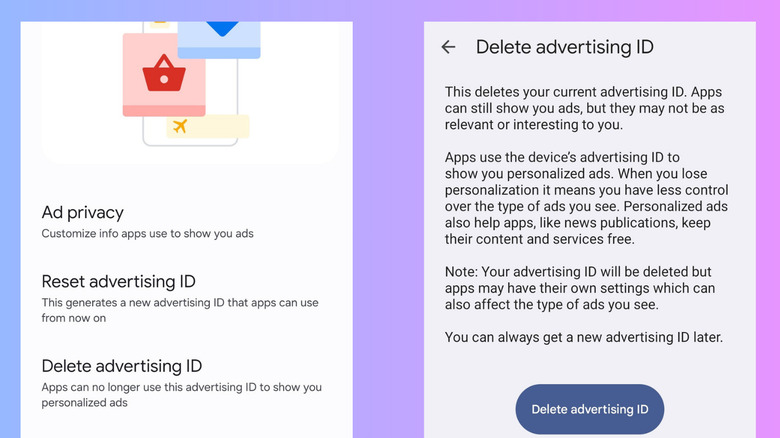
To personalize ads on your Android, apps use a so-called advertising ID that's unique to your device. This ID essentially associates your mobile with things like your app interactions and the information and account settings you've provided to a website or app. With the advertising ID, advertisers can better decide what ads to show you. That's why you get targeted ads in the apps and websites you use.
Thankfully, Google allows you to remove this advertising ID from your Android phone. Once it's deleted, the sites and apps on your device will revert to sending you generic ads instead. Here's how you can delete your advertising ID and turn off personalized ads on your Android:
- Launch your Settings app.
- Open Google.
- Select the All services tab.
- Under Privacy & security, head over to Ads.
- Tap on Delete advertising ID.
- Hit Delete advertising ID to confirm.
You should then be redirected to the main Ads page. From there, you can go to Ad privacy to further configure the data your apps use for advertising. For instance, toggle off Ad topics to stop Android from determining your interests from the apps you use. Turn off App-suggested ads, so apps can no longer recommend ads you might like. Disable Ad measurement to prevent apps from asking for reports about their ad performance on your device.
Keep in mind, though, that even after deleting your advertising ID and deactivating the options under Ad privacy, you'll continue to see ads pop up just as frequently as before. They won't be limited or disappear altogether — they just won't be personalized to your interests and activities anymore.