

You Should Check Your iPad's Battery Health And History - Here's How

Like many Apple products, iPads are designed to last at least a few years. But after running beautifully for a while, they'll eventually come to a point where you'll notice a significant decline in their battery life. What used to make it to the next day now barely lets you finish a movie before forcing you to move next to a wall outlet. This is annoying, but unfortunately, it's also the expected end of lithium-ion batteries like those built into iPads.
But how exactly can you be sure that the performance issues you're experiencing are actually due to a degraded battery, and they're not just in your head? That's where the battery health feature comes into the picture. This tells you exactly how your iPad is currently holding up and whether it's due for a replacement. It's important to check this from time to time, so you can plan ahead, as iPad battery replacements do cost a pretty penny. We'll walk you through a quick guide on how to check the battery health on your iPad, whether you have the new or old model.
Where to find the battery health and history on your iPad
There are two ways to view the battery health on your iPad. For iPad A16, iPad mini A17 Pro, iPad Air M2 and M3, and iPad Pro M4 and M5, it's as easy as checking the battery health on your iPhone:
- Launch the Settings app.
- Go to Battery.
- Tap Battery Health.
On this page are your battery-related data, including the Battery Health, Maximum Capacity, and Cycle Count. If your iPad's battery is performing as expected, the Battery Health will say Normal. If it requires replacement, it will say Service instead.
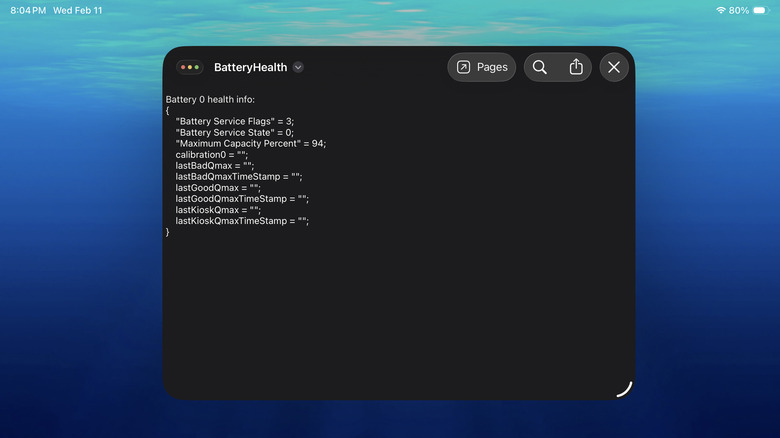
If your iPad is an older version, though, these details won't appear when you tap Battery in the Settings. You'll have to do a bit of digging to see your iPad battery's current capacity. To start, long-press on your volume up, volume down, and top buttons at the same time for about a second or two. Then, release them. This triggers Apple's sysdiagnose feature that reads your iPad's diagnostic data — which includes its battery health — and saves it in a user-accessible log file. It should be ready for viewing after ten minutes or so. To check the log file, here's what to do next:
- Go into Settings.
- Select Privacy & Security.
- Tap Analytics & Improvements.
- Hit on Analytics Data.
- Look for the "sysdiagnose" file with the current date.
- Open the file.
- Press the Share icon at the top.
- From the menu, choose Save to Files.
- Launch your Files app.
- Tap the saved .tar.gz file to extract it.
- Open the newly extracted folder.
- Navigate to the logs folder.
- Inside logs, head over to the BatteryHealth folder.
- Tap the BatteryHealth file.
Here, you should see an entry for "MaximumCapacityPercent" with a figure next to it. That represents your iPad's battery health. Anything below 80% calls for a replacement.
What to do to take better care of your iPad's battery

While you can't stop your iPad's battery from degrading, you can make adjustments to your usage and settings to get the most out of it. Right up there is applying a charge limit. On iPads released in 2024 and later, you can toggle on a new feature that sets the maximum charge level to 80%. This is especially helpful if you leave your iPad on the charger overnight, since it prevents the battery from staying at 100% for hours. When your battery sits at full charge for a long time, it can actually wear down faster. So, the 80% Limit is essentially a preventive measure to extend the battery lifespan. To enable this feature, follow these steps:
- In Settings, go to Battery.
- Tap Battery Health.
- Toggle on 80% Limit.
You can always turn off the charge limit whenever you want to charge your iPad to 100% — like before going outdoors for most of the day or in preparation for a power outage. Just make sure to remove it as soon as the battery is full to reduce wear. And speaking of charging, don't leave your iPad in a case if it heats up while plugged in. Some cases won't produce the same effect. But if yours does, you might want to consider changing cases, so you won't need to take it off every charging session.
Another important thing to keep in mind is the room temperature where you use or keep your iPad. iPads work best in ambient temperatures between 32°F and 95°F (0°C to 35°C). Going beyond this supported range will lead to permanent battery degradation.