

Your Vizio TV Has These Hidden Features Most Owners Miss
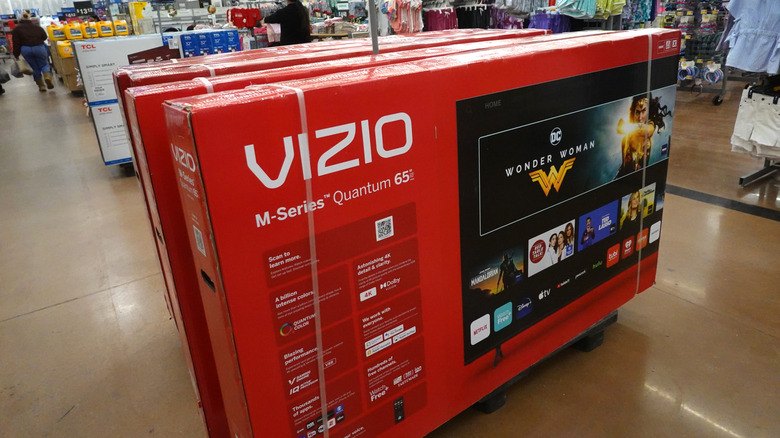
It's no secret that Vizio is a budget TV brand that gained recognition through its long-standing presence at big-box retailers selling TVs at razor-thin prices. From Best Buy to Costco, a few years ago, you couldn't visit the TV section of a brick-and-mortar store and not see a Vizio somewhere on the shelf. As a matter of fact, the company has been so successful at cornering the budget TV market that Walmart bought the company in 2024 to sell the brand's wares exclusively.
But unlike the early days, when Vizio TVs could suffer from software bugs and poor performance, the company has expanded its product line with fancier TVs that offer all of the bells and whistles one would expect. Features like HDR, variable refresh rates (VRR), and high refresh rate support are not that uncommon to see in a Vizio TV in 2026. Whether you're looking to game at 4K 120Hz or simply watch movies as cinematically as possible with a high-quality screen with the deepest blacks, Vizio's TVs offer a few features you may not be aware of that can easily improve your experience.
So even though the company's older reputation isn't instantly shrugged off by the masses, Vizio TVs have advanced in recent years. So if you're using one or plan on buying such a TV in the future but haven't had time to research its many exemplary but lesser-known features, this roundup is for you.
Turn off Motion Smoothing for a cinematic experience
If you've ever noticed a strange effect with your Vizio TV's image, you may have motion smoothing on, which is often on by default. What this does is create fake frames to fill a video, taking a 24/30 FPS video and inserting enough frames to make it 60 FPS (or higher, depending on your TV). While this can make a video look smoother (it's called Motion Smoothing, after all), it also creates what's known as a soap opera effect, where the video can look too real, much like a soap opera (which are filmed at 60 FPS, not the traditional 24 FPS of most film and TV shows), rather than cinematic at a slower refresh rate.
Motion Smoothing is especially egregious when watching content that requires a suspension of disbelief, like The Lord of the Rings. Adding a soap-opera effect to a fantasy movie filled with costumes and fantastic settings can look very unrealistic, thanks to the inserted frames that create a higher framerate. The outfits end up looking too real, as do the fantasy-based settings, and since neither is based in reality, they come across as fake, as if you were standing on a set as these scenes were filmed. The immersion of the films is ruined, basically.
Much like game publishers and developers have claimed 30 FPS to be a cinematic experience when playing (what are at the end of the day poorly optimized) games, movies and TV shows filmed at 24 FPS truly do offer a more cinematic experience that aids in the suspension of disbelief, which is why it's generally recommended to turn off Motion Smoothing on any TV, including Vizio's.
Turn on HDR for improved visual quality
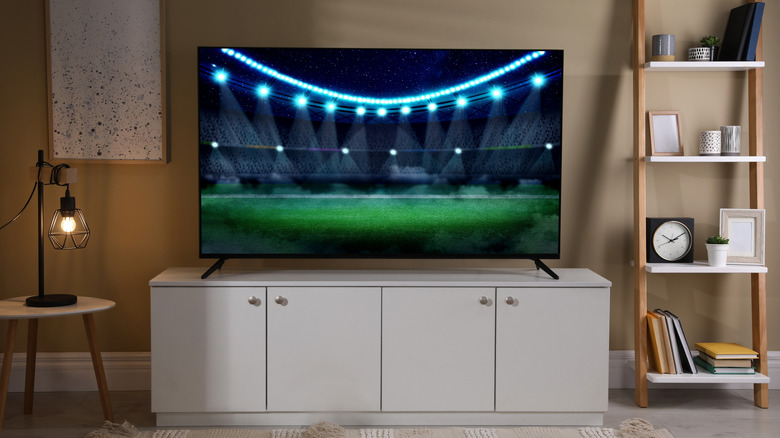
High Dynamic Range (HDR) support had a rocky start for many brands when it was first introduced in consumer electronics, thanks to many half-measures. The standard was new, and support was all over the place. Now that HDR is much more mature, you can finally expect decent performance, without the issues of yesteryear like rocky software and iffy hardware compatibility. Vizio, in particular, has really upped its HDR game, with wider support across its TVs, utilizing mature algorithms that improve contrast while minimizing issues like bloom, by supporting HDR10+ and Dolby Vision.
Of course, you'll want to use the correct HDMI cable to get the best HDR experience. While any high-speed HDMI cable can transmit HDR, features that elevate the setting's deeper darks and brighter highlights, like faster and variable refresh rates that create a more realistic-looking image, thanks to more natural motion, are most certainly limited by which cable you buy. So if you plan to take full advantage of your Vizio TV's HDR capabilities, you'll at least need a high-speed HDMI 2.0 cable to ensure proper support for your media.
So if you'd like to enhance your picture's quality with increased contrast, improved detail, and blacker blacks with lighter whites, but haven't yet taken advantage of your Vizio's HDR support, do yourself a favor and turn on this feature many users miss out on. When only 5% of the market actually turns on the HDR setting built into their TV, now's your time to shine as one of the few who do with your Vizio.
Turn off Dynamic Contrast for better image accuracy
So now that you're hip to the pleasures of HDR, it's time to dive into the issues Dynamic Contrast Ratio (DCR) can bring about. Basically, DCR is a feature that adjusts your TV's contrast on the fly, similar to HDR by creating darker blacks and lighter whites, but rather than adjusting things like contrast, color, and brightness individually, it only adjusts brightness, and if you watch closely, you'll see your screen's brightness continually change, which is certainly annoying, making for an erratic experience.
This is why it's recommended to turn off your Dynamic Contrast setting on any TV, including Vizio's, especially if you are currently or plan on using HDR, which offers a much better experience with improved contrast and brighter highlights than DCR can muster when it's too busy crushing blacks and adding artifacts. Where HDR makes an image look more natural, DCR often produces the opposite experience, with a screen that constantly adjusts its brightness.
However, there is a use case for DCR. It works better with Standard Dynamic Range (SDR) content, such as older Blu-rays, DVDs, and non-HDR content from before 2015, enhancing its range. So if you don't plan to use your TV's HDR, possibly because you don't own or watch any newer HDR content, DCR can come in handy to create a more lively picture. You'll still have to contend with the screen's brightness changing in sometimes noticeable ways, as well as some artifacting, which is why this easily missed feature on your Vizio TV is better off for most use cases to improve image quality.
Turn on Game mode when gaming for low latency
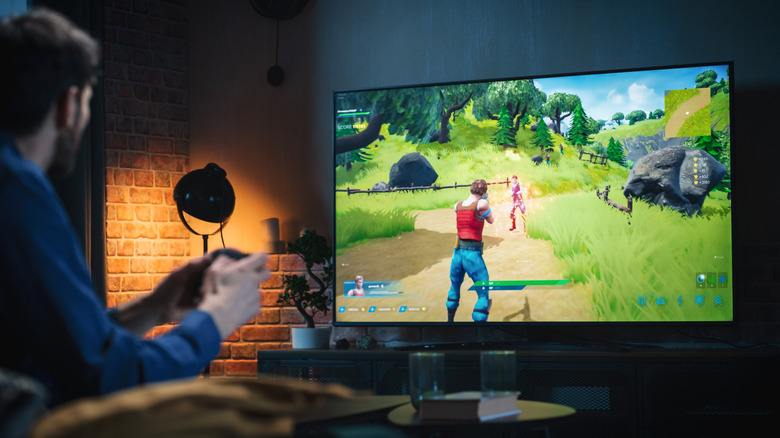
The higher your frame rate, the lower the latency between inputs and what you see on the screen. This is not only a boon for competitive play, allowing for faster reaction times, but it also makes for a more realistic image that moves more like real life since there is less motion blur. While high refresh rate support used to be something you'd see more of when buying a PC monitor, thanks to the latest generation of game consoles that support 4K 120Hz gameplay, so too do televisions, including many Vizio models.
If your goal when gaming is to create the most realistic image possible while minimizing latency, you'll want to take advantage of your TV's high-framerate support. What's nice is that most TVs offer an independent Game mode, including Vizio's, which can be set on certain inputs, say the input for your PS5 or Xbox Series X. This way, when you switch to that input to specifically game on your machine, the TV will switch to its Game mode, ensuring more consistent framerates, which is important when they are high.
Best of all, your Vizio TV doesn't have to support a high refresh rate to take advantage of Game mode. While it can improve the experience with high Hz screens, it's also an easy way to ensure your 60 FPS TV isn't using any image processing while you game, like Motion Smoothing. This way, your console's output remains pure on your TV screen. So no matter how you slice it, whether you want the best high refresh rate and VRR experience, or simply wish to game on an input free of unneeded processing, Game mode is one of the best options, even though it's often overlooked.
Turn off Smart interactivity and ACR to protect your privacy
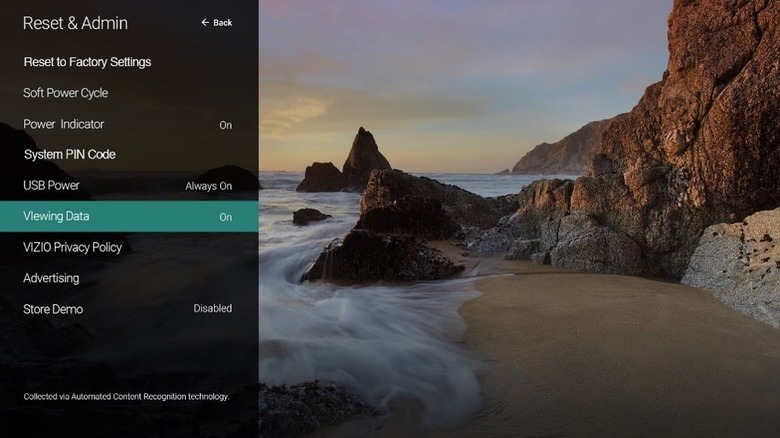
If you'd like to up your privacy on your Vizio TV, then you'll want to turn off Smart Interactivity and ACR, which are both used to track and report your viewing habits for targeted advertising. Unless you enjoy handing over your information for free, this is an easy one to recommend, as there is no benefit for the consumer. Like most things of this nature, it's sold to users as personal recommendations, but let's get real, it's just another avenue to advertise at the end of the day.
While Vizio is known for selling TVs barely above cost, which is how it managed to get such a large foothold in the industry, it does so by selling your data to make up the difference. There's no reason to help with that endeavor. But, like everything else in this roundup, how you can turn off Smart interactivity and ACR is often overlooked. Thankfully, it isn't difficult, though depending on your Vizio TV model, the way you navigate there will vary.
On some models, you'll need to look for the Admin & Privacy menu in your settings, and on others, you'll want to look for Reset & Admin. In either case, they are visible from the primary Settings menu, so they shouldn't be that hard to find. The key here is that you now know these settings exist, so you can make the conscious decision whether you want to turn off this tracking.