

Can You Use An HDMI Splitter With A Roku Device?
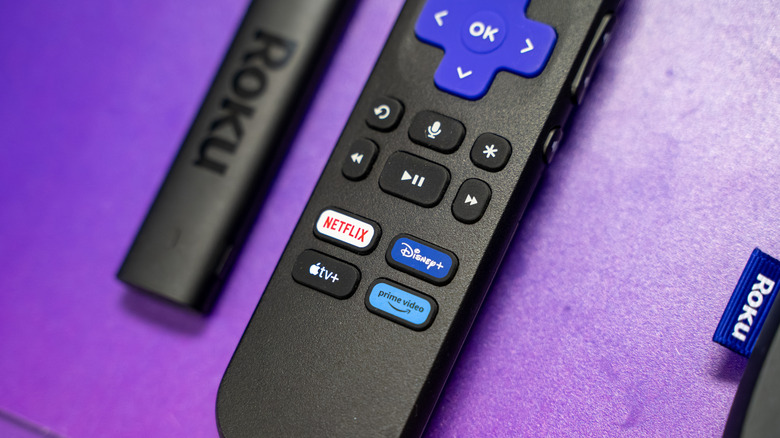
We've all got so many HDMI-connected devices these days that it's easy to get buried in a sea of HDMI cables. While using HDMI ARC technology on a soundbar is one of our favorite ways to unlock full functionality for your devices, some users are looking for more specialized use cases. We also love the Roku ecosystem for a lot of reasons, so if you have a streaming stick like a simple Roku device, will that work with an HDMI splitter?
The short answer is "yes," but there are some important things to consider. First, it depends on the direction you're splitting. Are you trying to plug multiple source devices into the same HDMI port on a display? That's a job for an HDMI switcher, which features a physical button or toggle to manually select which source device is feeding content to your display. Many users also want to know if you can split the output of your Roku stick to multiple monitors, which is possible with many of their models. We'll get into both scenarios here.
Splitting multiple source devices into the same display input
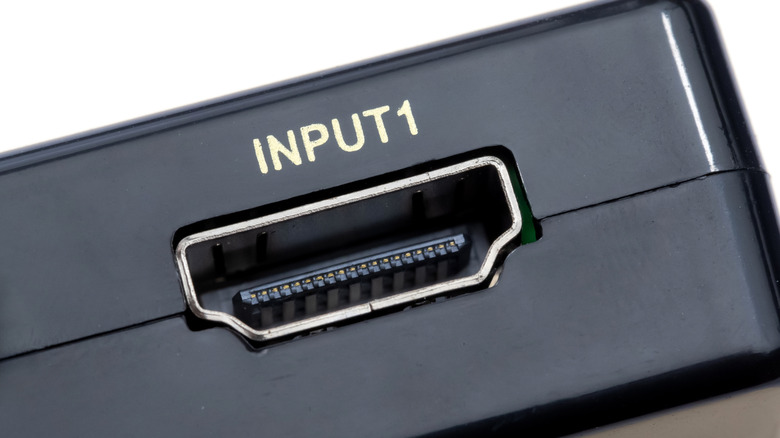
One of the most common HDMI splitting use cases is to "share" an HDMI input on a monitor or TV amongst multiple source devices. This is helpful if your display is older and doesn't feature more than one HDMI. These devices are often called "HDMI switchers" and will almost always feature a button or toggle to select your input. This means you can share an HDMI port on your TV between a Roku device and something else.
This switching functionality is imperative for a simple device like this so that your TV only receives one HDMI input at a time. This switcher is important because it helps you be sure you know which device is sending a signal. With these devices, there's a real mixed bag on capabilities, as shown by a quick Amazon search. Some of them are more affordable but won't offer full 4K resolution at high frame rates. Others can offer high frame rates and high resolutions but tend to be pricier. So, it's crucial to consider the devices that are sharing this switcher, because at the end of the day, the switcher will serve as the HDMI cable itself. So be sure to check the Roku device you have to make sure your switcher will support its stock resolution.
Splitting one source output to multiple displays
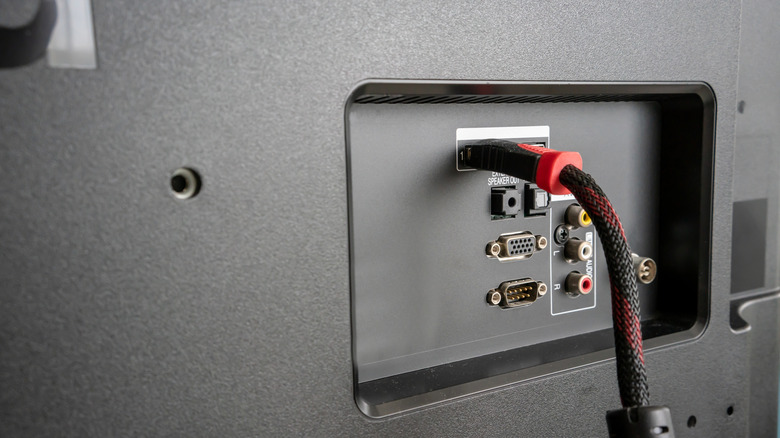
Another really common use-case for splitting HDMI signals is to go the other direction — plugging a single media player or source device into multiple TV or display outputs. This function can be really handy if you want to play the same content across multiple rooms, which is great for running a playlist at a party or making sure everyone in a house can watch a program at once.
While these splitters don't typically have buttons or toggles, there is a lot that goes into making sure they'll work. Sure, you'll want to check that the product listing has compatibility for the resolution that your Roku player supports, but there are a couple of other specs to check. One key reason that you might not see a signal from a simple streaming stick like a Roku is if the splitter doesn't support the right version of HDCP (High-bandwidth Digital Content Protection). This protocol was developed by Intel to ensure copyrighted material is protected from recording and capture. In our case, this can actually cause both HDMI signals to be stopped, so make sure it supports at least HDCP 1.4.
Not all streaming players are equal, either. The same factors apply for HDCP, so check the listing for your Roku stick for which HDCP version is required and supported. There's a handy article on Roku's support site that runs you through what to do if you've got an HDCP error. At the end of the day, most modern Roku devices support splitting the signal as long as the splitter supports the resolution and HDCP protocol. This is all with an eye toward making the most out of your Roku device, including new features like their updated subscriptions format.