

6 Laptop Upgrades That Aren't Worth Your Money

Laptops are the obvious choice for flexible working, but with portability comes limited customization. With a desktop PC, you can change every major component, from the display and keyboard to the processor, motherboard, and graphics card. Some laptops can be customized, but upgrades are typically narrower and more difficult than on desktops.
Cramped laptop design makes diagnosing bottlenecks harder. Recently, I splurged on an SSD for an aging Lenovo ThinkPad T-series laptop, but saw no improvement until I replaced the overheated battery, which had been throttling the laptop's performance.
If you've also been struggling with software-based solutions to boost performance and are now considering a component upgrade, be careful about the hardware parts you buy. In many cases, the perceived benefits are not realized.
A new generation of RAM
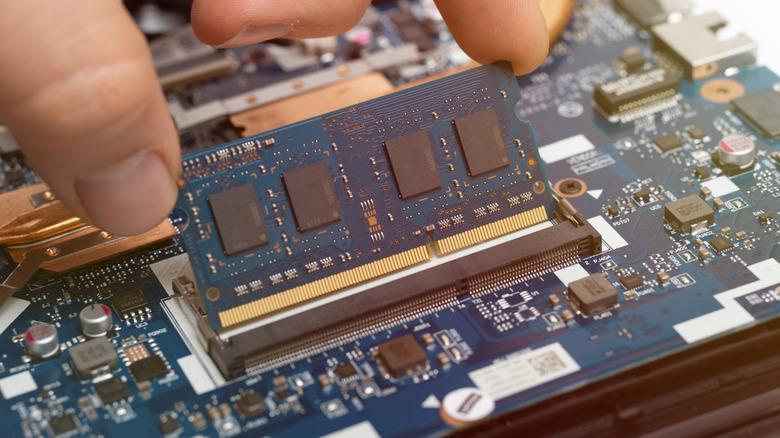
Many consider 16GB RAM the bare minimum, especially since the rise of AI, which demands generous random-access memory. But beyond capacity, we often hear how the next-gen iterations are also important, such as the shift from DDR4 to the DDR5 standard.
The biggest difference is the bandwidth and frequency, as DDR5 doubled the numbers from 3200MHz to 6400MHz. Moreover, DDR5 memory has a higher capacity. Despite this, the benefits of upgrading your laptop's memory are not total. Corsair notes that DDR5 RAM modules run hotter than their predecessor.
Independent tests conducted by Geekom, which is known for its mini PCs, show only modest gains in real-world performance. When shifting from DDR4 to DDR5 memory, gaming FPS output increased 3%, average gaming performance climbed 2.5%, and Adobe Premiere gained 3%.
"The differences compared to the previous generation are often significantly smaller than initially promised," Geekom notes. Unless DDR5's higher bandwidth is a hard requirement, there is little real-life benefit to upgrading your laptop's DDR4 memory.
GPUs
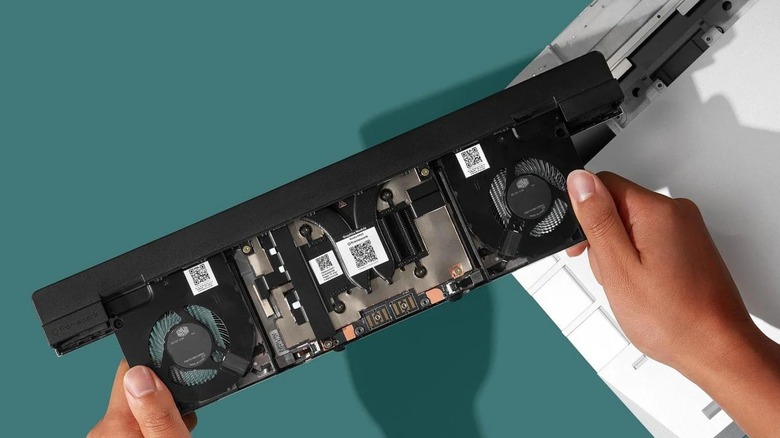
Generally, you can't upgrade the GPU inside a laptop because it's either soldered to the motherboard or integrated within the CPU block. Still, you have options. In the US, Framework is a reliable brand that has been selling modular laptops for years. You can upgrade the GPU module on Framework laptops and choose between Nvidia and AMD GPUs. Keep in mind that you must invest in a compatible Framework laptop.
But again, you need to do the math for price and performance. Framework is currently selling the NVIDIA GeForce RTX 5070 GPU module at $699 in the US. For $549, you can get the far more powerful desktop version of the same GPU, and the GeForce RTX 5070 Ti at $549. Another option is getting an external GPU, which gives you the power of a desktop-grade GPU on your laptop.
Of course, your laptop must also support Thunderbolt input, and you must spend anywhere between $300 to $400 on an external GPU and power supply unit combo. Overall, you are looking at an additional $1000. For most people, an external GPU just isn't worth the money and hassle compared to a similarly priced desktop PC.
Display
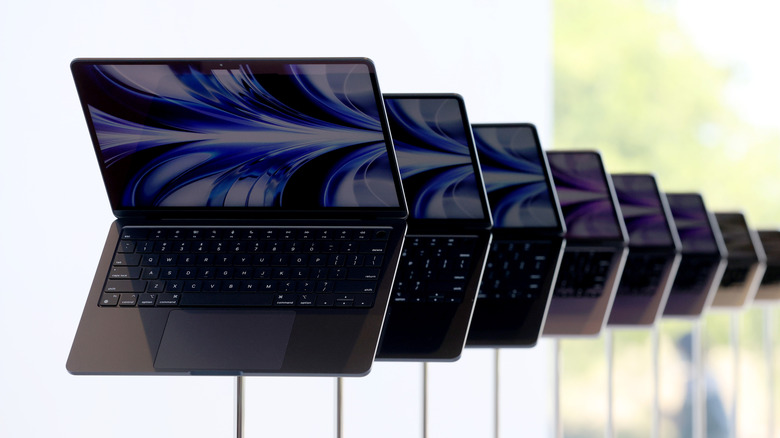
If you want a better laptop screen, you either get a new laptop or visit a modder shop that can replace the display panel and the underlying connectors matched to the same size specifications. If you take the latter route, the warranty will be void. Additionally, the process could be expensive, and it's unclear if the replacement panel will last and how it will affect the laptop's power and performance. One consolation is that it will be cheaper than buying a new laptop.
So, what's the solution? That depends on the upgrade you want. You want more pixels (say, jump from full-HD to UHD), or you want to replace the IPS LCD panel with a more vibrant OLED screen. In either case, your only viable option is investing in an external screen.
ViewSonic, ForHelp, and Arzopa offer well-equipped portable monitors that are usually as slim as a tablet and can be easily carried in a laptop bag. ForHelp sells a 4K 15.6-inch monitor for around $200, which is a pretty sensible display upgrade for your laptop. And between $275 to $400, you can get touch-sensitive OLED external screens with 3K and 4K resolutions, complete with a built-in stand.
Touch-sensitive display

In theory, touch-screen laptops add input versatility and can look appealing. In reality, touchscreen laptops edge closer to being gimmicky than practical. There are plenty of problems with putting a touchscreen on laptops. Most desktop software isn't designed for touch-based interactions. Second, the moment you start tapping with your finger or stylus, the display lid starts to wobble. Even signing a document can be a hassle.
The only solution is a 360-degree laptop. One that lets you rotate the screen all the way around, turning it into a tablet. But these 2-in-1 laptops are usually expensive, so you may want to consider Windows tablets with a detachable keyboard, such as the Microsoft Surface and ASUS ProArt PZ13. Choosing this format means a serious hit to the port situation and battery life, alongside a lower-wattage chip that brings the performance down a notch compared to a traditional laptop.
Overall, you're best off with an external screen. They are affordable, come in a range of sizes, feature 4K resolution and OLED, and usually come with a built-in kickstand. For around $300, you can buy a portable 4K OLED touch-sensitive screen with extra ports and a kickstand without having to throw your old laptop away or perform risky DIY display surgery on it.
AI laptops
There is an AI rush in the laptop market. Microsoft has touted the virtues of Copilot+ PCs, which are essentially laptops that meet a 45TOPS AI performance baseline and can handle on-device AI-driven features such as Recall, editing, and translation, to name a few. Microsoft is putting Copilot in virtually every corner of the PC, from the Office apps to the humble Taskbar. Looking at the hype machine, one would think that AI PCs are the best bet to boost productivity and that it's time to pick a fittingly AI-native laptop.
The reality is quite different. Over the past 12 months, we've tested at least seven Copilot-boosted AI laptops, and none have impressed us any more than an average non-AI-hyped laptop. Even the PC makers are aware of the slow uptake. "They're not buying based on AI. In fact, I think AI probably confuses them more than it helps them," Kevin Terwilliger, VP of the PC Product Management Group at Dell, told PCGamer.
Right now, there are barely any legitimate and practical benefits that would make me recommend a Copilot+ branded AI-native laptop. And that's predominantly because on-device AI experiences are not markedly better than browser-based AI services, including Copilot. Recall is a fairly powerful offline AI feature on the Copilot+ machine, but it has been mired in privacy scares ever since its release. Microsoft recently admitted that a Copilot bug gave it access to confidential emails, so there's yet another incentive to avoid the AI laptop hype.
SSDs
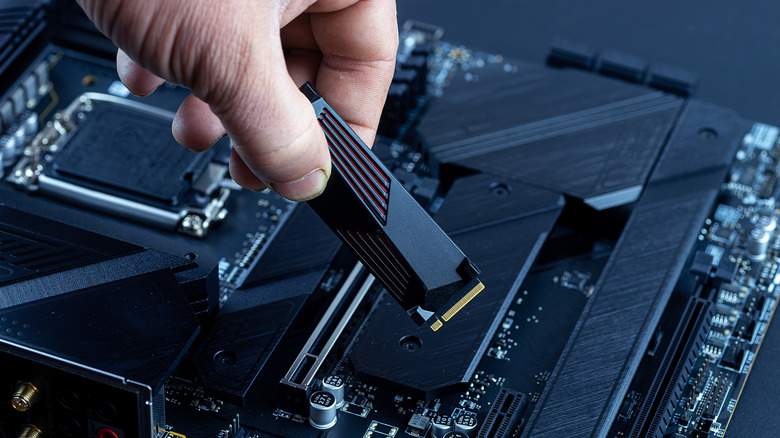
In general, moving from an HDD to an SSD brings marked performance improvements, especially with boot times. An SSD can reduce boot time and application load time from 30 seconds to 10-15 seconds.
A 1TB HDD drive from a reputable brand like Western Digital costs around $60, but if you're eyeing an SSD with the same storage capacity, you can easily spend between $160 and $200, depending on your laptop's compatibility. In general, if you need plenty of file storage, an HDD is the more economical option for your laptop.
An SSD will slash your laptop's boot time, but the drive will not dramatically improve application speeds. If the software is struggling, it's predominantly a performance bottleneck with the CPU, GPU, or RAM. For example, pro-grade applications such as Adobe Suite or Lumion will launch faster and enable quicker asset transfer, but their performance won't magically go through the roof if you upgrade to a faster SSD.