

Your Mouse Is Probably Plugged Into The Wrong USB Port - Here's Why

If you have ever had your computer mouse lag, stutter, or freeze, you may have blamed the operating system or the device driver. But as it turns out, most of the time, the problem lies with the USB port you are using to connect the mouse. Modern PCs, both desktops and laptops, house multiple USB-A and USB-C ports to connect peripherals and devices, with the mouse usually using the former port type. Keep in mind that the issue doesn't stem from the port type but the USB standard.
Mice, and other similar peripherals like keyboards, don't require a high data transfer rate offered by USB 3.0 and are more suited for the older USB 2.0 standard. Connecting your mouse to a USB 3.0 port has no practical benefits and may even cause problems that could affect the device's smooth functioning. But for some, USB 3.0 may offer an advantage over USB 2.0 while connecting a mouse. In the end, it all comes down to the individual setup and specific use case.
What is the best USB port for your mouse
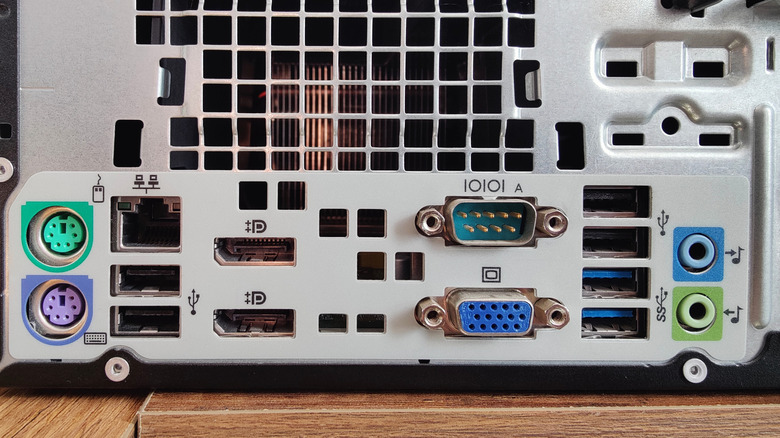
Generally speaking, the USB 2.0 port on your computer will deliver the best performance, irrespective of whether you are using a wired or wireless mouse. A typical mouse or keyboard is a low-bandwidth input device with minimal speed requirements, which USB 2.0 easily meets. Anything above that will not enhance responsiveness or usability of the mouse. But how do you identify the right port for your mouse?
If you look closely at the USB ports, they will either have different colors like blue, green, and black, or specific markings. That signifies the port standard or speed. For instance, black is associated with USB 2.0 while blue and green are linked to USB 3.0. On laptops that don't use color schemes, faster ports usually have a Thunderbolt or lightning symbol next to them. So, after you find the right port type, connect the mouse cable or adapter (in case of a wireless mouse) to it and see if there's a noticeable improvement.
Apart from performance, there's another benefit to reserving the USB 2.0 port for the mouse. This frees up your system's USB 3.0 ports for other devices that benefit from higher data transfer rates, like a flash drive or an external SSD.
USB 3.0 can trigger connectivity issues and introduce stutter
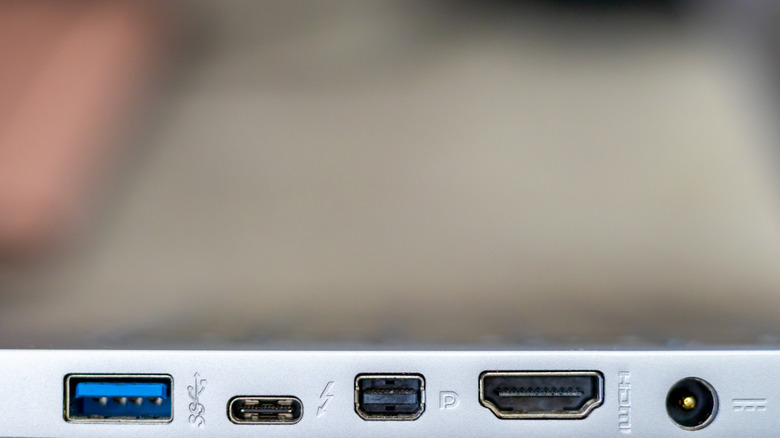
Many users suggest that USB 3.0 can sometimes affect connectivity, stability, and performance, especially if you are using a wireless mouse. It may even introduce input lag, which negatively impacts the gaming experience. Those are major downsides of connecting your mouse to a USB 3.0 port, but it's not a universal problem.
Sometimes, the port's positioning plays a more prominent role. If the USB 3.0 port is closer to the wireless mouse than the USB 2.0 port, the former may be a smarter choice. For instance, if one is located at the back end of the CPU and the other is at the front end, you should plug the adapter into the port at the front end irrespective of its standard. Proximity to the source is equally important. The farther the adapter from the mouse, the more the lag and stutter.
Smart users always consider all these factors: the port standard, type of mouse, and proximity to the port, and then pick the one that aligns with their setup. So, if your mouse is acting up, switching ports won't take more than a minute, and it can really upgrade the experience.