

5 Surprising iPad Tricks You Might Not Have Heard Of
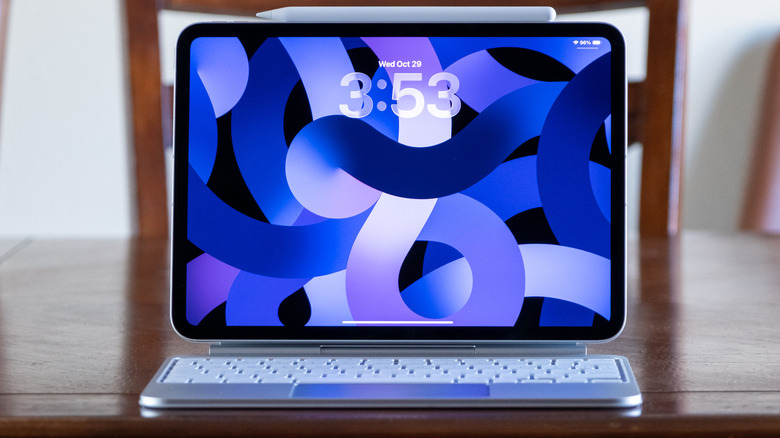
The iPad has evolved considerably since its introduction in 2010, becoming a great computer both in terms of hardware and software capabilities. Whether you're a brand-new owner who is just getting used to the iPad, or whether you've been a loyal user since the first-generation model, learning how to use it never stops. The deluge of new software features every year may make it difficult to discover and remember every new trick, especially once muscle memory has kicked in, and you get used to performing specific iPad actions in a certain way. In what follows, we'll cover some interesting iPad tricks that you may not have heard of.
Perhaps the biggest upgrade the iPad received was in terms of software in 2025, when Apple released iPadOS 26, enabling better multitasking support than the Stage Manager concept launched in previous years. At the same time, iPadOS 26 introduces various design changes, including Liquid Glass, which some users may dislike. If you've been avoiding iPadOS 26 to prevent dealing with the translucent effects, you will have to install the software release to take advantage of advanced multitasking. While many of the features that follow also work on older iPadOS releases, they may improve your productivity significantly only after you combine them with iPadOS 26's new windowed apps experience.
If your iPad (or iPadOS install) is too old, you may need to upgrade to a new model or update the software to actually take advantage of some of the hidden iPad features below. You may need an Apple Pencil for some of them.
Quickly switch between apps
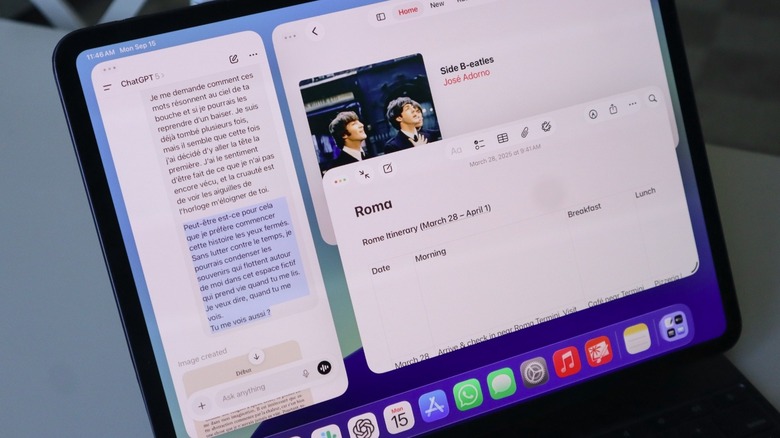
The ability to turn apps into windows in iPadOS 26 like on a Mac or Windows PC can come in handy for particular workflows that require a bird's-eye view of your desktop or quick interaction between apps. But some apps require a full-screen view, and you may still want to switch between multiple full-screen apps with ease. Like on the iPhone, you can swipe up from the bottom towards the middle of the screen and lift your finger to see all the apps that are currently open. Tap the app you need (or any group that might be on the screen), and it'll take over the display. Similar to the iPhone, there's an even faster gesture. You can also swipe left and right on the bottom of the screen to move between the open apps in order of most recent use. That is, the previous apps you used are a left swipe away, and you can continue swiping until you find the one you need.
But unlike the iPhone, the iPad also lets you switch between apps by simply tapping on the screen with multiple fingers, which makes it even faster than having to hunt down the bottom of the display to initiate the previous gestures. Tap the screen with four or five fingers and move right or left. The app-switching mechanism is similar to the previous version where you swipe left and right on the bottom of the screen, but it's more intuitive, as it works anywhere on the screen. To enable the feature, head to Settings > Multitasking & Gestures > Four or Five Finger App Switching.
Make the virtual keyboard work for you
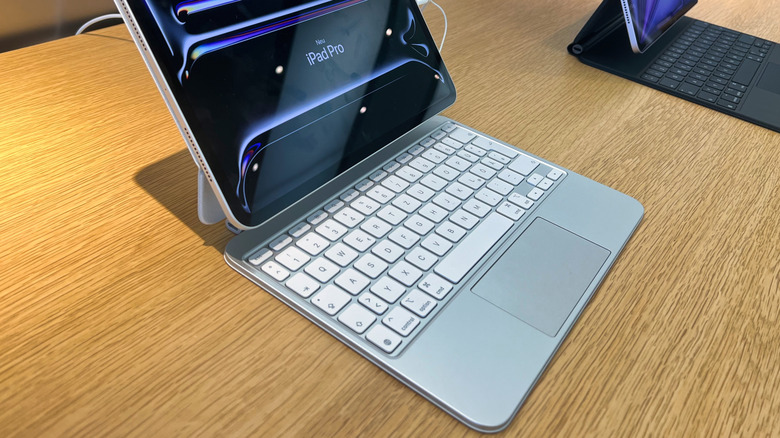
You can turn the iPad into a laptop by attaching the tablet to a keyboard dock. Such an accessory may make typing faster than using the virtual keyboard. You already know where all the keys are, and muscle memory makes typing on the physical keys much faster. However, you don't have to fear the digital keyboard that appears in apps that allow text input if you learn to put it to work for you. That way, you'll make typing more convenient and potentially faster.
You can turn the iPad keyboard into an iPhone keyboard by performing a pinch-in gesture on it. The feature also comes in handy when you want to view more of the screen. It makes one-handed typing easier, and you can move it anywhere on the display. You can also enable the iPhone keyboard by long-pressing the keyboard icon when the keyboard appears and choose the Floating option (iPadOS 13 and later). The same menu offers you a Split view for the keyboard, which splits the keyboard into two halves, one for each bottom corner. This may help you type faster with your thumbs.
Speaking of typing faster, you should be aware of two other iPad keyboard features, including one that's available on the iPhone. Long-press the Space bar (iPadOS 12 and later) and your keyboard becomes a trackpad that allows a more precise cursor movement than tapping on the display. The other tip concerns typing specific characters, like numbers and other signs. If you see two symbols on the virtual keyboard, one sitting atop the other, swiping down on a key will type the top symbol (iPadOS 11 and later). That means you won't have to move back and forth between the different keyboard modes.
Edit text faster with a few gestures
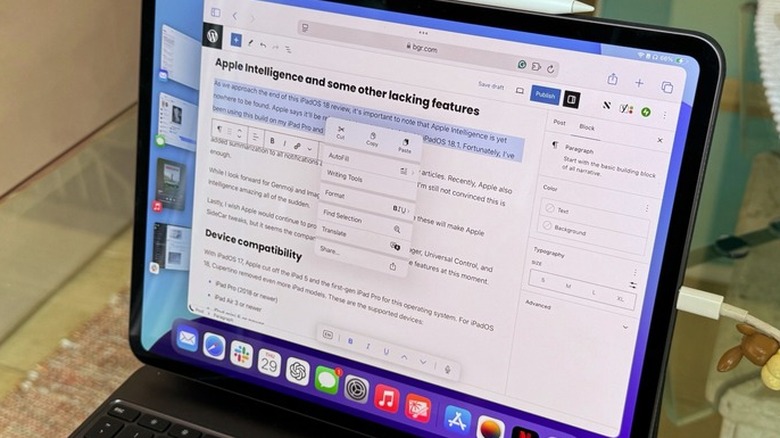
Knowing the keyboard secrets above may speed up the process of writing. But regardless of how you use the iPad keyboard or whether you rely on a stylus to take notes, inputting text is only half the job done. You will make mistakes, and you will change your mind. You'll want to edit the text as fast as possible, and that's where a few gestures will come in handy.
First, you can select the text you want to move, and copy it by pinching the screen with three fingers (and close them). Repeat the gesture if you want a Cut action. To Paste, pinch with three fingers (and open them) in the desired location. These gestures may take some time to get used to. An alternative to cutting and pasting text is to move it by long-pressing the selected text until it lifts from the screen. Then drag it and drop it where you need it. These gestures are known as Productivity Gestures (iPadOS 13 and later), and you'll find the toggle for them in the Settings app under Multitasking & Gestures.
If you make any mistakes while teaching yourself these gestures, you can always undo the previous action with a gesture. Swipe left (or double-tap) with three fingers in a text field to Undo. Swipe right if you need to Redo something. While these gestures work on older iPadOS versions, they may speed up productivity in iPadOS 26 when using windowed mode to see multiple apps and quickly switch between them.
Start taking notes from the Lock Screen
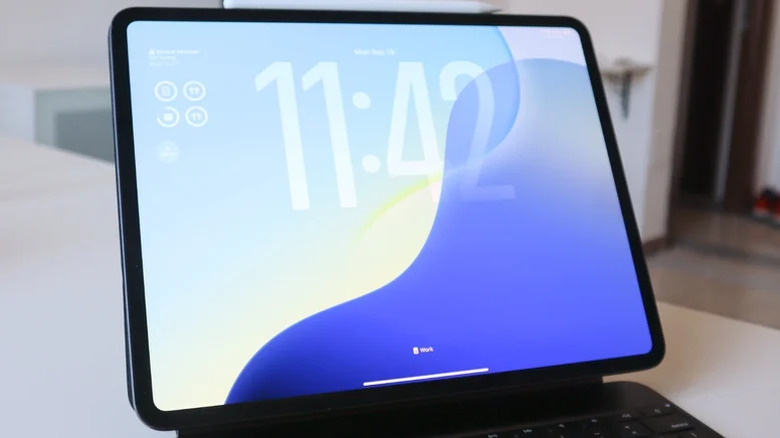
You can take a Quick Note by swiping up from the lower left or right corner of your iPad. Using this gesture makes it a lot easier to jot down thoughts as fast as you need them, ensuring you don't need to find the Notes app and open a new file. There's an even faster way to start taking notes on the iPad, a feature not available similarly on the iPhone, as it requires the use of a stylus.
On the iPad Lock Screen, tap and hold the Apple Pencil to start writing (iPadOS 11 and later). The gesture will open up a Quick Note, and you can start jotting down ideas immediately. The feature can come in handy when taking notes for school or during meetings, as it gets you directly where you need to be much faster than the alternative. You'd have to unlock the iPad and then either start a Quick Note with the bottom screen gesture, or open the Notes app. By the time you do that, you may already be behind in the note-taking process.
To enable the feature, go to Settings > Apps > Notes, and turn on the Access Notes From Lock Screen feature (in iPadOS 18 or later). For iPadOS 17 and earlier, go to Settings > Notes. As a reminder, all handwritten notes can be converted to digital text on the iPad with the Scribble feature (iPadOS 14 and later).
Take screenshots with a gesture
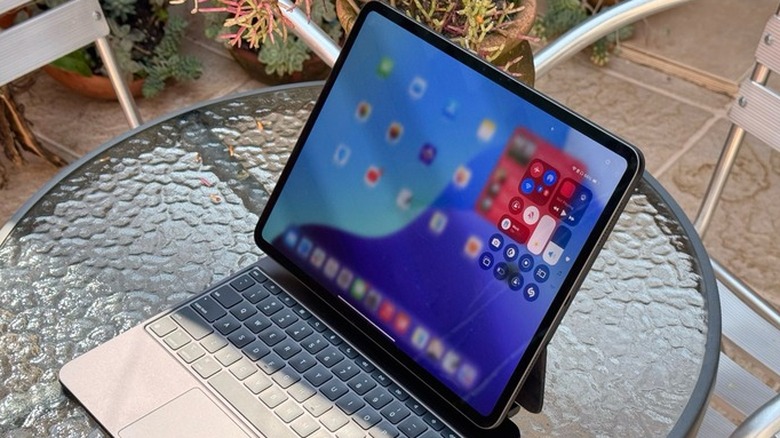
Another thing you might often do with your iPad (just like the iPhone) is to screenshot the display to quickly save information you want to remember directly to the Photos app. Maybe it's something you saw on social media or on a website. But the iPhone way of taking a screenshot, pressing the Power and Volume Up buttons, isn't as convenient on a tablet. That's where a quick gesture will come in handy.
Swipe diagonally from the bottom left corner and you'll capture the iPad screen much faster than the traditional gesture (iPadOS 13 or later). The feature is similar to swiping up from the right corner to quickly start taking a new note, a feature that's also available on iPhone. If the screenshot-taking gesture doesn't work on your iPad, you need to enable it by going to Settings > Apps > Notes > Corner Gestures and selecting the screenshot option for the desired corner.
Optionally, you can decide whether a finger swipe can trigger screenshots and only have the feature enabled for using the tablet with an Apple Pencil. That way, you won't trigger accidental screenshots of things you don't want to have saved. Critically, the corner gestures introduced in iPadOS 15 only work when multitasking is disabled in iPadOS 26 (including Stage Manager), something you can do from the Multitasking shortcut in the Control Center when you need to take screenshots quickly.