

5 Smart TV Settings That Can Quickly Fix Sound Delay
If the audio and video on your TV are out of sync — say the lips move first and the sound comes later — you are not alone. It's a common problem, but luckily, it's an easy one to fix. You usually don't need to replace the cables or buy a fancy soundbar for audiophiles or anything like that. In most cases, the problem stems from misconfigured settings on your smart TV, and simply readjusting them will do the trick.
Modern smart TVs handle things differently than older models. For starters, the audio and video are often processed separately, and if this processing gets misaligned, you notice a delay. Similarly, certain audio modes on your smart TV, designed to personalize the experience, can introduce sound delay. In case the audio and video are out of sync across channels and apps, you can always adjust the audio delay setting to sync the two back together.
Keep in mind that fixing sound delay on a smart TV is generally straightforward and takes only a few minutes. The settings we will discuss exist on almost all smart TVs, although they're sometimes under a different name.
Choose a different sound mode
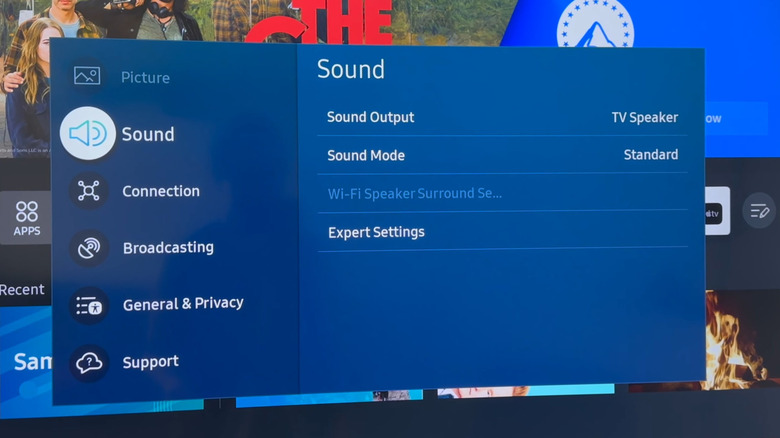
Your smart TV comes with a bunch of built-in sound modes, and switching between them can fix the sound delay. That's because these modes don't just change how the audio sounds but also how long it takes to process.
To change the sound mode, open your TV's built-in settings and go into the Sound or Audio section. Here, choose a basic mode like Standard or Normal from the list of Sound Modes. Choosing these sound modes over options like Movie or News can reduce audio processing, minimizing the delay and bringing the audio and video into sync.
If the sound modes listed on your TV are different or you are unsure of which to pick, refer to the TV's manual. It should describe what individual sound modes do. The idea is to pick one that reduces audio processing. You can even reconfigure sound modes to fix muffled dialogue on your smart TV.
Adjust the audio delay
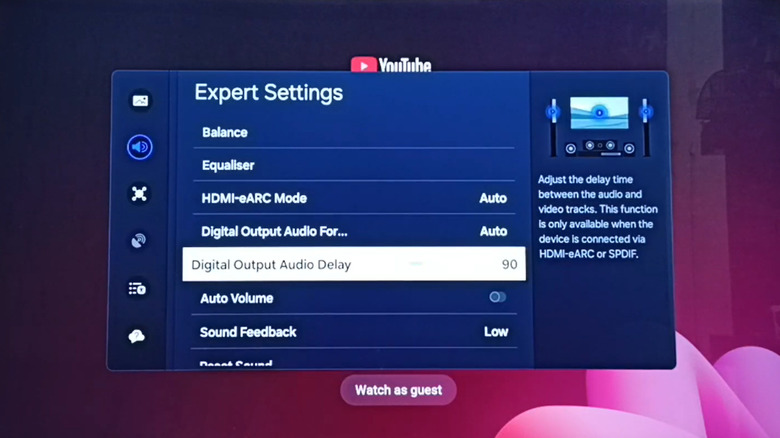
Most modern smart TVs allow users to adjust the sound delay. If it's already set up, first try resetting it to zero and checking whether the sound delay disappears. In case it's not preconfigured, you will have to manually adjust it until the audio matches the picture.
To adjust the sound delay, open the Sound settings on your smart TV and head into the Advanced section. Here, you should find an option labeled Audio Delay or Audio/Video Sync. Select it, then drag the slider to adjust the audio delay. If the sound is ahead of the video, delay it by a few milliseconds and check for improvements. In most cases, you won't have to delay it by more than 10 to 40 milliseconds, but keep experimenting with the values until the two are in perfect sync. Some smart TVs also let you input absolute delay values into a text box. If that's the case, start small and increase the value until the audio and video are synchronized.
Adjusting audio delay can often be one of the trickier fixes to execute, so have patience. When done right, it becomes the most practical solution, primarily because the sound quality stands unaffected.
Change the digital audio output format
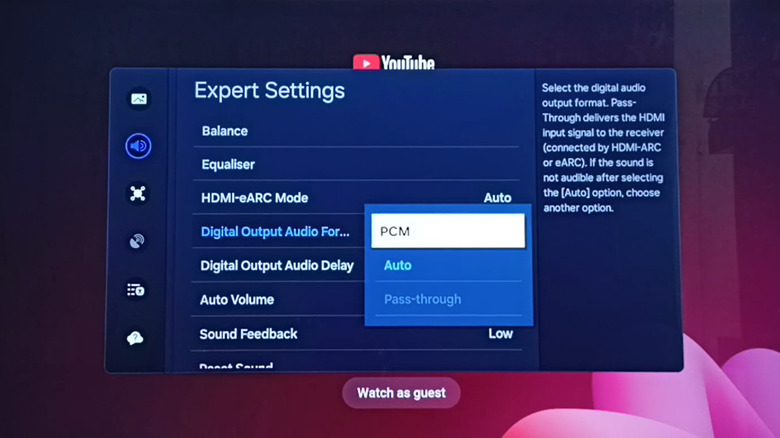
If you notice sound delay after connecting your smart TV to a soundbar or home theater system, it could be the digital audio output format causing the issue. These output formats include options like Auto, Bitstream, Dolby Digital, Passthrough, and PCM, with the first two often configured by default. This means that the soundbar or home theater system decodes the audio, which can introduce a lag. So, it might help to change the digital audio output to PCM (Pulse Code Modulation), where your smart TV does the decoding.
To do that, open your smart TV's settings, head into Audio or Sound, and look for an option called Digital Audio Output Format (or similar). Once you find it, set it to PCM, then check for improvements.
Unfortunately, switching to PCM also has drawbacks. On many TVs, you may lose out on multi-channel support, which means your soundbar or home theater would default to two-channel audio. Ultimately, surround sound and other effects might no longer work with this setting enabled. So, weigh the pros and cons before going ahead with PCM as the digital audio output format.
Enable or disable Game Mode
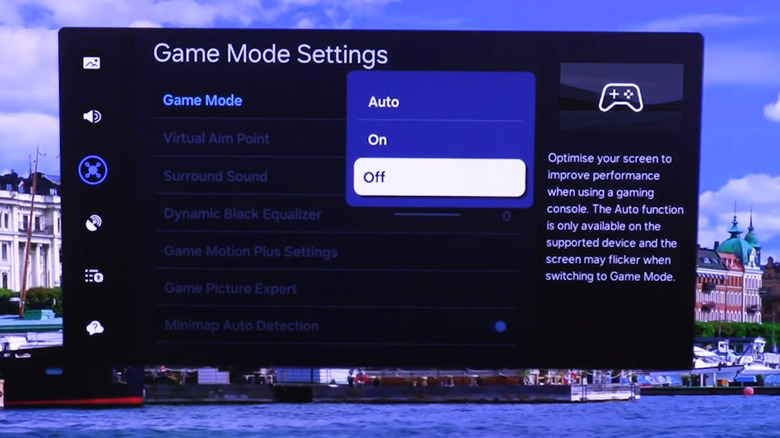
As surprising as it may sound, your Game Mode configuration may result in audio delay on your smart TV. Typically, the Game Mode preset reduces or disables several video processing functionalities to minimize latency, which makes pictures appear faster. And because this changes how fast video processing occurs, the audio may suddenly look early or late.
There's no absolute configuration for Game Mode. You will have to check both Game Mode configurations, enabled and disabled, to see which one minimizes or eliminates the sound delay. Game Mode is usually found under the Picture settings on your smart TV.
Ideally, if you are watching videos, movies, or shows on your smart TV, Game Mode should be disabled — but while playing games, enabling the feature can improve your experience. Some even suggest keeping it enabled at all times, but if you're experiencing audio sync issues, choose the setting that works best for you.
Reset the sound settings
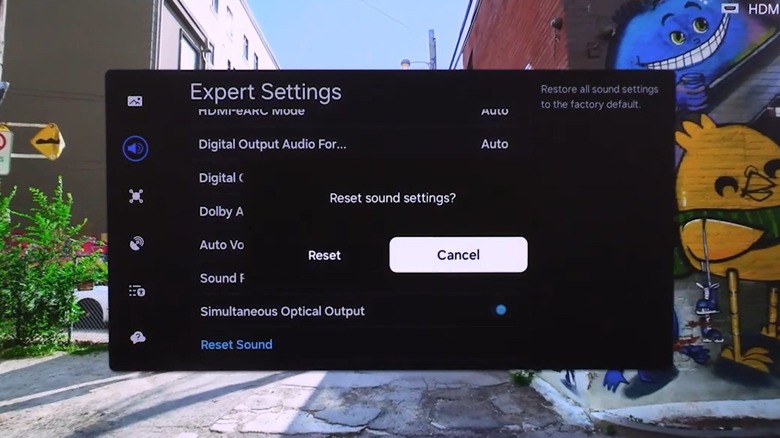
If nothing else works, your last option is to reset the sound settings to their factory defaults. That's because changes made to audio and video settings over time can conflict with one another, leading to sync issues. If things worked fine when you first got the TV, reverting to the original configuration should fix the problem.
To reset the sound settings, open your smart TV's settings, go into Sound, and then select Advanced Sound or Expert Settings. Here, you should see a "Reset" option. Select that and follow the on-screen instructions to complete the process.
You should only reset the sound settings as a last resort, because it will disable any customizations you may have made to the audio setup. An easy way to identify if a reset would work is to check whether the delay is present across channels, apps, and games. If so, it's most likely a setting causing the problem, which a reset usually fixes.