

11 Ways To Get The Most Out Of Your Smart Thermostat
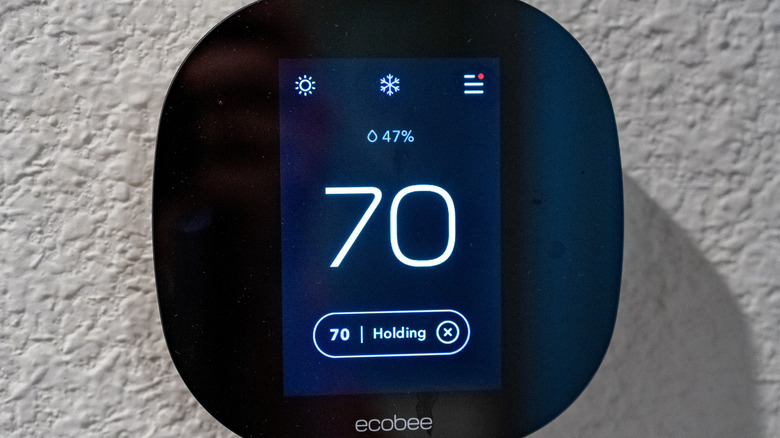
Most people buy a $200 smart thermostat and treat it exactly like the $15 plastic dial their house came with. They walk past it, bump it up two degrees when they're cold, bump it down when they're hot, and then completely ignore it.
That mismatch is a waste of technology. This device isn't just a digital thermometer on your wall; it's an energy-saving, climate-controlling brain for your house. It is built to automate your comfort and aggressively lower your utility bills, but it can only do that if you let it.
Let's unlock what this gadget can actually do. Here is a breakdown of the most overlooked features that solve annoying household temperature issues and keep actual money in your wallet.
Sign up for utility reward programs

Thanks to hidden peak-hour rates, you are drastically overpaying your power company every summer. Let's take some of that back. Utility companies will literally pay you, or give you massive bill credits, to let them tweak your AC by a single degree during peak hours. Honestly, saving money on energy bills is the entire point of buying this tech in the first place.
When the grid is stressed out on a 100-degree Tuesday afternoon, the power company would rather pay you a small bounty to ease up on your AC than face a city-wide blackout. They do this by sending a signal to your smart thermostat to adjust the temperature by one or two degrees. You probably won't even notice the temperature difference, but you will definitely notice the credit on your next statement.
The financial upside here is massive. For example, Duke Energy offers an "Immediate Profit" scenario with a flat $150 bill credit just for enrolling, plus $50/year thereafter. Austin Energy offers a "Cover the Cost" scenario: a $50 rebate for purchasing the device, a $75 credit for enrolling in "Power Partner," and $30/year for staying in.
And setting it up is hardly an odyssey. Open your thermostat app, find the modest little settings gear, and look for something like "Rebates and Rewards" or "Energy Savings." Enter your zip code, confirm your utility provider, log in, and you are finished. Two minutes of effort to make the power company work for you for once.
Enable geofencing to auto-adjust when you leave
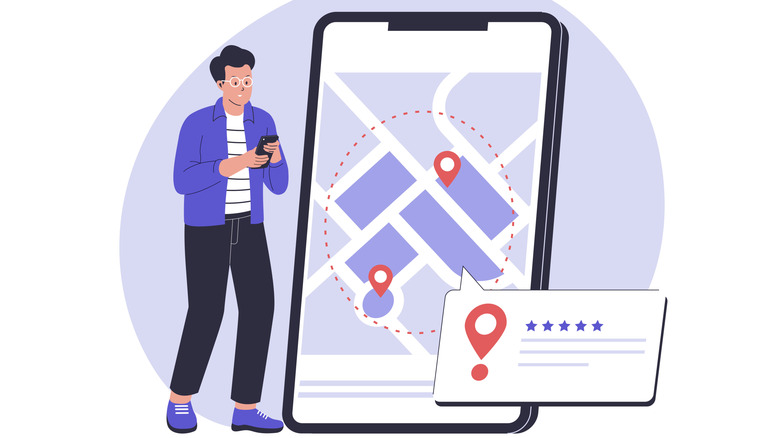
Rigid schedules are outdated; heating an empty house while you're at the grocery store is just burning cash. Geofencing solves this by using your smartphone's GPS to create an invisible perimeter. It turns off the HVAC the second you leave and fires it up when you cross back into the zone, ensuring you always walk into a comfortable home.
To make this magic happen, you must grant the right permissions. Go to your phone's system settings, find your thermostat app, and set Location Access to "Always Allow." Once enabled, navigate to "Routines" or "Presence Sensing" within the app to toggle Geofencing on. This ensures the system responds instantly to your location.
While effective, geofencing works best when every adult in the home installs the app so the system doesn't assume the house is empty when one person leaves. Fortunately, concerns about this draining your battery are largely outdated. Modern apps use efficient "significant location change" technology rather than constant GPS tracking, minimizing the impact on your phone.
Finally, because geofencing tracks location rather than sleep habits, it can miss bedtime temperature changes. The best solution is a hybrid approach: let geofencing manage your erratic daytime schedule, but program a hard "Sleep" schedule for nighttime. This ensures your home cools down for bed automatically, giving you the best of both worlds.
Use remote sensors to fix uneven room temperatures
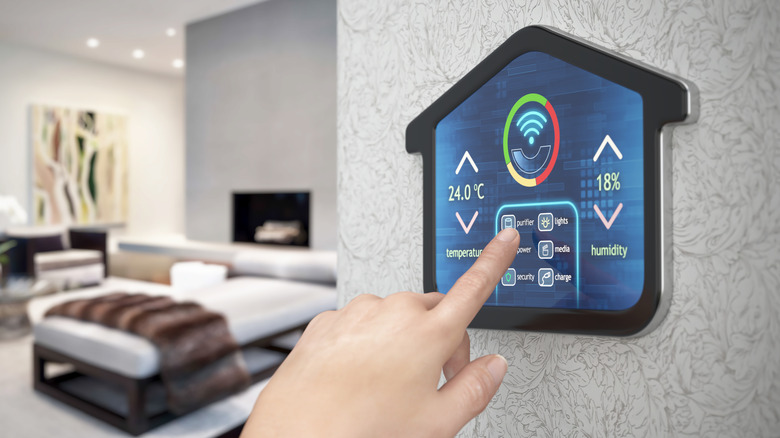
It is the oldest architectural curse in the book: your hallway is Antarctica, your bedroom is a sauna, and you are losing your mind trying to find a balance. The fundamental flaw with traditional setups is that your thermostat only knows the temperature of the exact patch of drywall it is bolted to. If the hallway is cool, it shuts off the AC, completely ignoring the fact that your upstairs bedroom is baking in the afternoon sun.
The hardware fix for this is brilliant and entirely bypasses the need for expensive ductwork changes. You just need to grab a pack of smart room sensors like the EB-RSHM2PK-01 ecobee SmartSensor. These tiny little white pucks read the temperature in whatever room you place them in and beam that data back to the main unit. Systems like the Ecobee essentially perfected this by allowing you to force the system to prioritize specific rooms at specific times.
Pull the plastic battery tab out of the sensor to wake it up, open your thermostat app, tap "Add Device," and select the sensor. Walk upstairs and stick it right on your nightstand. Then go into your app's "Sleep" schedule settings, find the option for "Participating Sensors," and uncheck the main hallway thermostat, leaving only the bedroom sensor checked. Now, your AC will keep running until your bedroom hits the target temperature, regardless of what the hallway feels like.
Use the built-in dehmudification mode
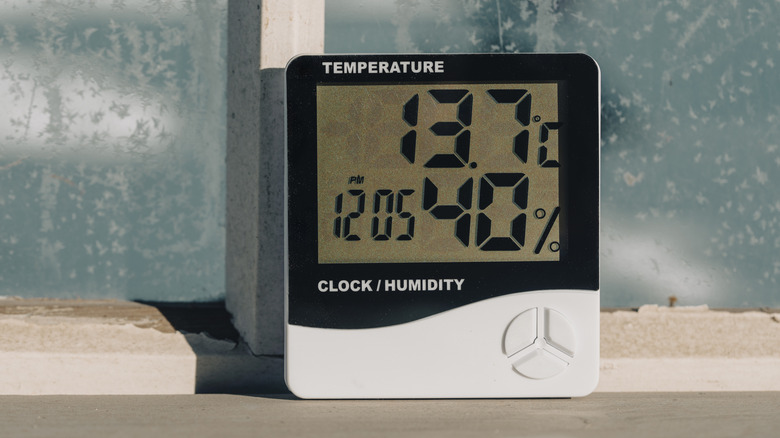
"It's not the heat, it's the humidity." It is a massive cliché, but it is violently true. We've all had those days where the thermostat claims it is a reasonable 74 degrees, yet the house feels swampy and sticky. Most people don't realize that their smart thermostat actually tracks indoor humidity and has a secret weapon to fix it.
Before you buy a clunky portable unit, you need to know the risks. Beyond the annoyance of constantly emptying water buckets, your dehumidifier could cause a house fire. Millions of portable units have been recalled for overheating and smoking. Why bring a potential hazard into your living room when you don't have to?
The clear winner is the equipment you already own, upgraded by a smarter brain. Unlike standard thermostats that only see temperature, smart thermostats monitor humidity levels and take control of your AC compressor. They run the system strategically to wring moisture out of the air, effectively converting your central HVAC into a safe, whole-home dehumidifier.
Nest boasts a specific feature named "Cool to Dry" found under its Nest Sense settings, which intelligently cycles the AC to prioritize humidity reduction. Ecobee offers a similar lifesaver in its System menu simply called "Dehumidify using AC." These are tiny software tweaks that make your home safer and vastly more breathable this summer.
Automate your perfect sleep temperature
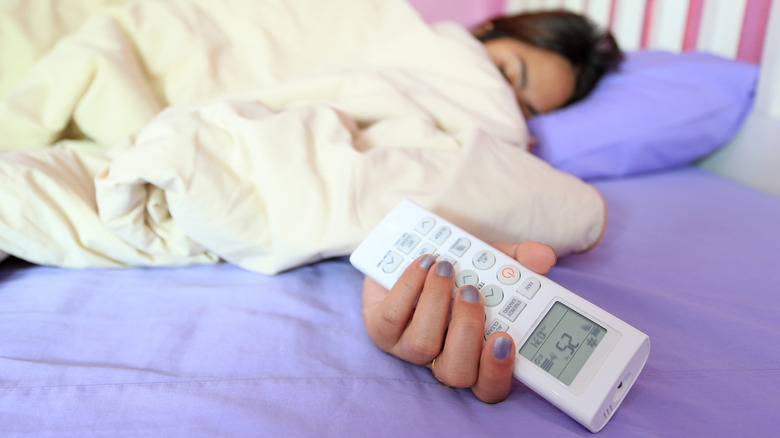
We've all doom-scrolled through advice on how to get a better night's sleep, reading about everything from ditching blue light to buying weighted blankets. While there are countless ways to improve your rest, experts agree that temperature is critical. You simply cannot get deep REM sleep if you are waking up sweating every few hours because the house is too hot.
This is where your smart thermostat becomes your sleep coach. By tying it into your broader smart home ecosystem, you can create a custom "Goodnight" routine. It is a massive quality-of-life upgrade, provided your Wi-Fi is stable enough to handle it. You don't want to be stuck in a sweltering 75-degree house just because the router blinked and the command failed to execute.
To build this routine, open your Alexa or Google Assistant and hit the plus icon to create a new automation. For your trigger, set a voice command like "Good night." Then, stack your actions: tell it to lock the smart doors, kill the lights, and finally, instruct your thermostat to drop the temperature to a crisp, scientifically optimal 67 degrees.
Set alerts for extreme temperature drops
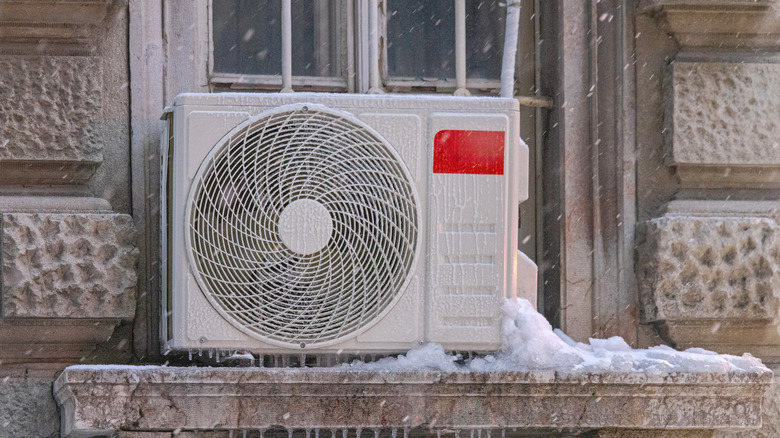
Coming home from a winter vacation to discover your furnace died and your pipes burst is a uniquely devastating nightmare. However, if you are caring for aging parents, the stakes are much higher than just wet drywall. Recent research highlights a critical, often overlooked danger: Indoor temperatures can affect the brain function of elderly people.
For seniors, a broken AC in a heatwave or a failing furnace isn't just uncomfortable; it can lead to rapid cognitive decline and serious health risks. A smart thermostat is uniquely positioned to prevent this because it never stops monitoring the environment. Think of this feature as a "check engine" light not just for your house, but for the safety of the people living inside it.
By setting up extreme temperature alerts, your thermostat acts as a 24/7 remote caregiver. If the internal temperature swings dangerously high or low, it pushes an aggressive notification to your phone. This gives you the critical window to call a neighbor or repair tech before a situation becomes a medical emergency.
To set this up, open your app settings and look for "Notifications" or "Alerts." Set your absolute lowest threshold (like 50 degrees Fahrenheit) to protect pipes and prevent hypothermia, and your highest (like 80 degrees Fahrenheit) to prevent heat stress. It is a simple digital safety net that offers massive peace of mind.
Pre-cool your home to avoid peak energy rates
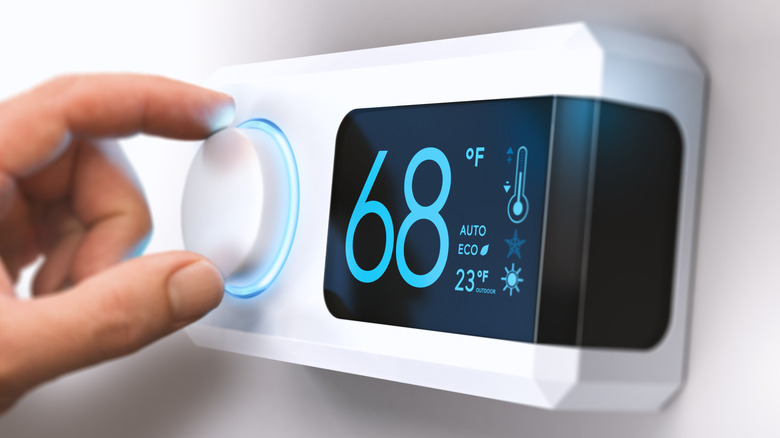
We all dream of a future where energy is basically free. There is even some wild science out there suggesting that rain may be the key to generating cheap electricity around the world. That sounds incredible, but until the day comes when a thunderstorm actually pays your utility bill, you are stuck dealing with the painful reality of "Time-of-Use" rates.
If you happen to live in an area with a "Time-of-Use" energy plan, you know the pain of 4:00 p.m. That is when utility rates skyrocket, and running your AC during the late afternoon can easily double your monthly bill. But you can actually beat this system by treating the physical structure of your house, your drywall, your furniture, and your floors, as a giant thermal battery.
The concept is called "supercooling." Instead of fighting the heat during the most expensive part of the day, you aggressively blast your air conditioning before the peak rates kick in. You drive the temperature down deep into the high 60s while electricity is still cheap. When 4:00 p.m. rolls around, your system shuts off entirely, and your heavily chilled house slowly coasts through the expensive hours, staying perfectly comfortable without using a dime of peak electricity.
To execute this heist on your smart thermostat, open your app's "Schedule" tab. Create a new temperature setpoint around 1:00 p.m. or 2:00 p.m. and drag the target temperature way down to 68 degrees Fahrenheit. Then, create a second setpoint right at 4:00 p.m. (or whenever your peak rates start) and set it to something much higher, like 78 degrees Fahrenheit. Your system will do the heavy lifting when power is cheap and take a nap when power is a rip-off.
Run the central fan to circulate air without the AC

You know those odd days in spring or fall when the house just feels dead? It is not actually hot enough to turn on the AC, but the air is heavy and still. You stare at the thermostat, refusing to pay the money to fire up the heavy compressor just to get a breeze. You do not need the air colder. You just need it to move.
Your central system has a blower fan that works for pennies, but you have to be careful how you use it. If you simply switch the fan to the "On" setting, you might inadvertently make your home feel swampy. This happens because the fan blows air over the damp internal coils, picking up moisture and dumping it right back into your living room. Instead of feeling fresh, your house gets sticky.
The secret to getting that fresh feeling without the humidity penalty is the "Circulate" setting. Most smart thermostats have this option hidden in the fan menu. It runs the blower in short bursts, usually about twenty minutes every hour, rather than running it nonstop. This gets the air mixing but gives the system enough time to drain so you do not recycle moisture.
Grab your phone and open your thermostat app to try it out. Look for the fan icon and switch it from "Auto" to "Circulate" for the afternoon. It helps eliminate hot spots and keeps the room feeling lighter without driving up your energy bill. Just remember to keep an eye on how the air feels. If it starts getting muggy, switch it back, but on a dry day, it is a total game-changer.
Check usage history to find insulation leaks

Stop guessing why your energy bill is suddenly $50 higher this month. We usually blame the power company, but your smart thermostat actually "keeps the receipts." The usage history tab isn't just a pretty graph for data nerds. It is your home's own investigative series, and frankly, it's more revealing than some addictive Netflix crime dramas. Except this time, the villain lives in your walls.
Here is how you play detective: Check the data. If your heater ran for six hours straight at 2:00 a.m. on a mild night, that is a massive red flag. At 2:00 a.m., your house is in a "static state," no one is opening doors or cooking. The house should hold its temperature easily. If the heater runs a marathon just to keep the room at 68 degrees, it means heat is escaping as fast as the furnace can push it in.
This data tells a specific story: You don't have a broken furnace, you have a broken envelope. Think of your home like a bucket and your furnace like a hose. If the hose runs full blast just to maintain the water level, you have holes in the bottom of the bucket. Your expensive warm air is flying out through invisible cracks.
So, what do you do? Don't call an expensive pro yet. Go to the hardware store. Buy a $5 tube of caulk and weatherstripping. Use the data to confirm the leak, then seal the drafts around windows and doors. You are literally plugging the holes in the bucket so your thermostat can finally take a break.
Lock the temperature with a PIN code
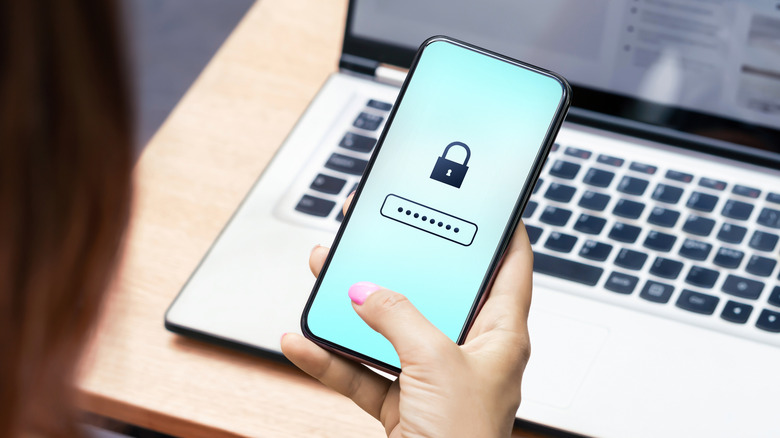
Dads everywhere, rejoice. The endless, infuriating household thermostat war is officially over. Whether you have toddlers who treat the shiny dial on the wall like a fun toy, teenagers who crank the heat to 80 degrees the second you leave, or you're an Airbnb host trying to protect your expensive AC coils from getting frozen solid by clueless guests, you need to lock it down.
You don't have to be a tyrant and lock people out completely, though. The beauty of the PIN lock feature is that it allows you to set a permitted, safe range. You can give people the illusion of control. For example, you can set it so anyone walking by can change the temperature, but only between a totally reasonable 68 and 74 degrees Fahrenheit. The Google Nest Learning Thermostat has arguably the most intuitive user interface for setting this up.
To establish your new household boundaries, open the Nest app, go to "Settings," tap "Lock," enter a 4-digit PIN that your kids won't easily guess, and set your allowed temperature range. If you are on an Ecobee, the path is slightly different: go to "Settings," then "Access Control," and hit "Enable Security Code."
Calibrate your thermostat to stop false readings
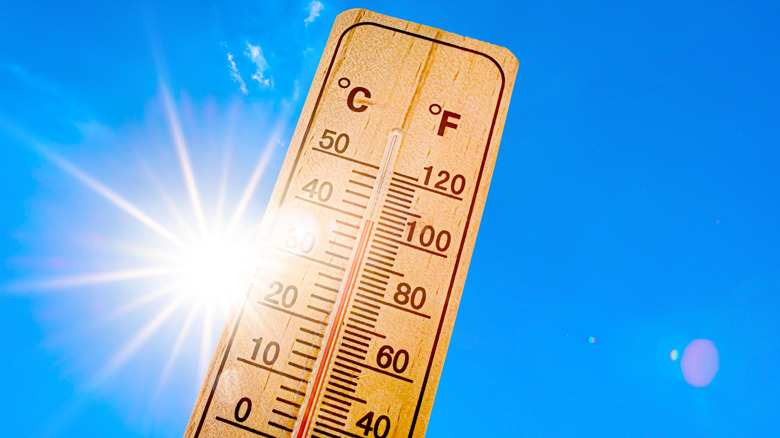
We all know that 2025 was one of the warmest years to date, and it's only getting worse. With global temperatures climbing, your AC is already fighting a war of attrition against the sun. But your smart thermostat is only as smart as the physical data it receives, and if it's getting bad intel, it is going to lose the battle.
When the sun hits that plastic casing, the internal sensor thinks your entire house is suddenly 85 degrees and on fire. It panics, blasts the AC, and freezes everyone out of the living room. You might assume you have to hire an expensive electrician to rip the unit off the wall, patch the drywall, and rewire it down a darker hallway. You don't.
Instead of moving the hardware, you just tweak the software.
Go deep into your app's "Settings," look for "Advanced Settings" or "Installation Settings," and find the menu for "Temperature Correction" or "Calibration." Here, you can tell the software to permanently offset its reading. If it's always sitting in a sunbeam, just tell the app to permanently subtract 3 degrees from whatever the sensor is feeling. Problem solved.