

This Hidden Gmail Trick Will Help You Clear Out Your Inbox Fast
So you get a notification from Gmail, hoping it's a job offer or "package shipped" notification. Instead, all you see is yet another subscription email. This might happen more than a few times a day, with senders ranging from your old university to a random fitness app you've long since uninstalled. If these types of emails keep coming, it won't take long before your inbox is flooded with more junk than important messages.
And If you're already knee-deep into unwanted subscription emails, unsubscribing one by one, over potentially hundreds of messages, would definitely be a tedious task. The good news is, you don't have to manually scroll through your inbox to find all those subscription-based emails. Gmail can help ease the burden via its Manage subscriptions feature, by listing all your active subscriptions in one convenient location for quick access. But since it isn't part of the Gemini AI-powered Gmail overhaul, you'll still have to do a bit of work yourself. Let's walk through how to use the Manage subscriptions feature.
How to easily unsubscribe in Gmail
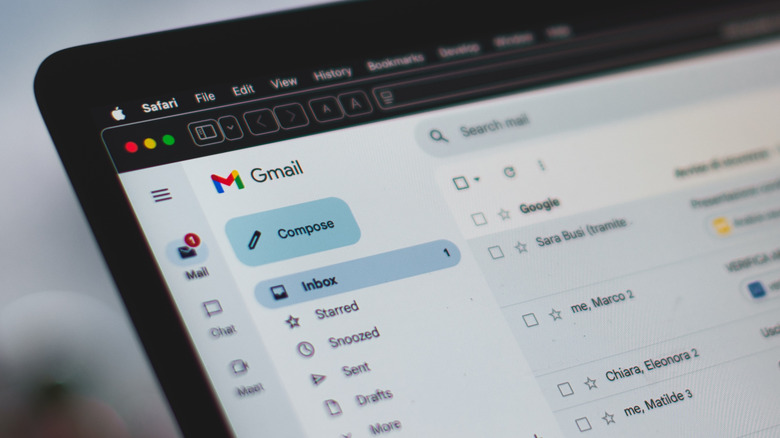
Manage subscription is one of the hidden Gmail features everyone should use to declutter their inbox. Conveniently, this feature is accessible on both web and mobile app versions. Here's how to use it:
- Open Gmail on your device.
- Click More on the left side panel if using a computer or the hamburger icon on a smartphone.
- Select Manage subscriptions.
- Scroll through your active subscriptions.
- Tap on a sender to view the emails they've sent and verify you no longer want to receive them.
- Go back to the subscriptions list and click the Unsubscribe button next to senders you wish to unsubscribe from.
From here, you'll see two types of pop-ups. The first is a direct pop-up, where you can simply tap Unsubscribe, and Gmail will take care of the rest. In some cases, you'll see a pop-up with the option to "Block instead" or "Go to website." When you opt to block a sender, you won't be unsubscribed from their mailing list. However, their new messages will be redirected to your spam folder instead of the inbox.
If you prefer not to get any of their messages at all, select "Go to website" to unsubscribe from the sender's site directly. It's important to note that the unsubscribe process might take a couple of days as the sender has to manage the request received from Gmail. Unsubscribing also doesn't automatically delete the previous emails from your Inbox. You'll still have to remove them yourself. For further improvements, be sure to change this one Gmail setting for a better Android app interface.