

If Your Android Phone Won't Charge, These Common Issues Might Be Why
Nothing can be more frustrating than realizing your phone hasn't charged right when you're about to leave the house. Unless you're carrying a decade-old phone, the phone should charge even if your charging habits are poor. Your Android device can stop charging for a variety of reasons, including damage to the charging port, a bad cable, or an outlet that isn't providing enough power.
No matter the reason, you'll want to investigate it, as a damaged charging port, unlike a problem with your cableisn't always a cheap fix (and not every phone has wireless charging to bypass the problem). Fortunately, there are telltale signs for what might be causing it, and in some cases, even easy fixes you can apply safely. In even rarer situations, the charging issue is caused by a persistent software glitch, such as Samsung's Wet Status, which prevents charging altogether if the device detects moisture inside its port.
Everything we cite can be done by yourself or involves a low-cost replacement. Though if you suspect a deeper issue with your Android phone, you'll want to check the warranty status or have the device serviced by a technician.
Your device's USB port and cables could be the culprit
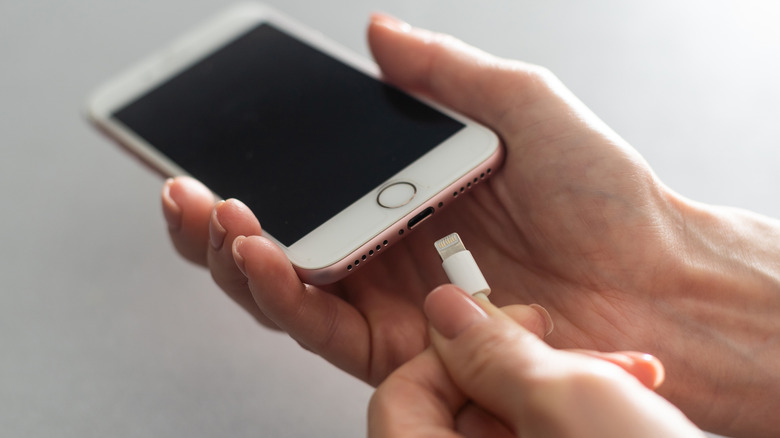
Unless you can see physical damage inside the charging port, the other likely reason your Android phone might not be charging properly is that the USB port is dirty, or the cable has done its time.
Generally, if your USB port is dirty, you won't feel a click when you plug in your cable (and you might notice a bit of resistance), and in some cases, you might see lint if you shine a light directly on it. Cleaning a dirty port isn't too bad if you have some household tools, like a plastic dental pick or a tiny brush that can slot inside. In trickier situations, if something sticky is inside, use 91% isopropyl alcohol with a cotton swab to clean it — but turn off your device and let it thoroughly dry before turning it on again. A clogged port can happen, especially if you've had your device for several years, and it's accumulated dirt — so it's not a bad idea to routinely clean it as one of your first early steps.
If your device's port looks completely clean, and you're sure there's no damage, then the next easy solution involves changing your cables. They will experience wear and tear over time, and this wearing is faster if you're using a cheap cable from Amazon rather than the one your original equipment manufacturer provides. The simple fix is to use another one or buy a replacement.
A wet status notification could stop your phone from charging
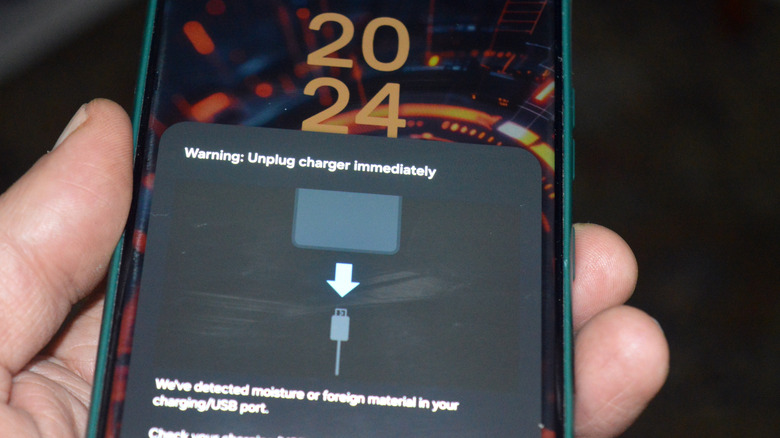
Some manufacturers include moisture protection settings directly into the Android phone. For example, Samsung's Moisture Detection notification will appear on your phone if you attempt to charge it after it's been exposed to moisture or a wet substance. This safety mechanism activates the moment you try to plug in your phone. In most cases, you should take this notification seriously and let your device fully dry before charging it. The mechanism prevents your phone from short-circuiting or corroding. Phones have an IP rating indicating how resistant they are to dust and water, and how much exposure they can withstand. Even if your device was in contact with small amounts of water and the IP rating means it can handle it, it is recommended to keep it thoroughly dry anyway.
But in some cases, the notification will persist even after a full day of letting your device dry. Aside from the most tried-and-true method of restarting your Android phone, a few tricks may work to clear it. The first one involves moving charging locations; if you've decided to charge your phone in the bathroom, try a spot with better ventilation, like your living room. The other involves changing your cable, which might have been slightly damp from water condensation. If that doesn't work and the notification persists, you can try turning off fast charging in your battery menu, or clear the USB settings cache in your app settings.