

The Reason Why Your Keyboard's 'F' And 'J' Keys Have Little Bumps On Them

We may receive a commission on purchases made from links.
Many of us use desktop computers, workstations, or even gaming laptops regularly. When interacting with these devices, you'll most likely use a keyboard and mouse. Whether you've closely observed the keys or tried cleaning your laptop keyboard, you've probably seen a small, useful feature on standard QWERTY keyboards that may be helping you type, without you even knowing it. Most computer keyboards feature a small tactile bump on their 'J' and 'F' keys. You may have noticed these bumps before, but never known their purpose, or this could be the first time you've spotted them.
While the bumps on these keys may go unnoticed, they're a valuable design feature, especially if you type a lot. The design of these keys helps you type faster and more efficiently by ensuring you can find your finger placement on your keyboard without looking at the keys. Here's a breakdown of why your keyboard's 'F' and 'J' keys have bumps on them.
Why do the keyboard 'F' and 'J' keys have bumps?

Tactile bumps (also known as "homing bars/bumps") on the 'F' and 'J' keys help you quickly navigate your keyboard when touch-typing. Touch-typing is when you type without looking at your keyboard, as opposed to the "hunt and peck" method, which sees you using two fingers to find and press each key. The touch-typing method utilizes muscle memory and efficient positioning for faster, more accurate typing. To efficiently touch-type, your fingers should be in the "home row" (the middle line of keys) position. This involves your left index finger being placed on the 'F' key, with the other three fingers on your left hand positioned on the 'D' (middle finger), 'S' (ring finger), and 'A' (little finger) keys.
With your right hand, position your index finger on the 'J' key, your middle finger on the 'K' key, and your ring finger on the 'L' key. The bumps on the 'F' and 'J' keys help you to find this position again quickly and easily, without having to look down at your keys. Starting from the "home row" minimizes the travel distance of your fingers when typing, improving typing speed, accuracy, and accessibility, while reducing hand strain.
Why does the numeral '5' key also have a bump?
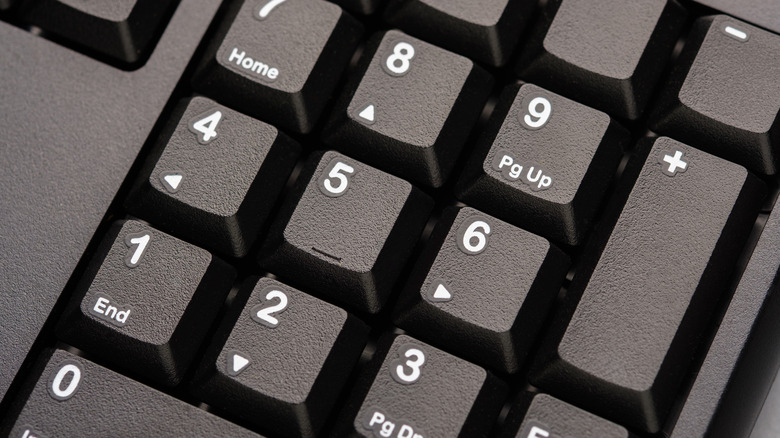
Like the 'F' and 'J' keys, the '5' key on your keyboard's numpad also has a tactile bump to help you quickly navigate when touch-typing. Your numerical keypad also has a "home row": the '4', '5', and '6' keys. The optimal position for touch-typing on this keypad is to place your right index finger on '4', your middle finger on '5', and your ring finger on '6'. Again, this allows for minimal finger travel distance, with the raised bump on the '5' allowing you to quickly and easily find your positioning again without having to look at the keys.
It's worth noting that these tactile bumps are primarily found on devices with physical keys, such as laptops and computer keyboards. However, if you do wish to add these tactile bumps to your phone or iPad to turn it into a laptop replacement, bump dots can be a great option. These tactile markers are particularly useful for the visually impaired and can be placed on a touchscreen, ideally on top of a screen protector, for a tactile reference for typing.