

4 Underrated Smart TV Features You Need To Start Using
Many people own a smart TV, and while it's often the centerpiece of living rooms, it's likely used for little more than running the best streaming services, watching movies, and playing games from a PlayStation or Xbox. As with any new tech, it's always worth checking out some of the more hidden features to get the most out of your smart TV. The good news is that, while many of these features can improve your smart TV experience, they don't require expert technical knowledge.
There are plenty of miscellaneous features that most modern smart TVs now support, such as streaming Xbox games on your TV, controlling smart devices, viewing your doorbell camera, or simply displaying family photos as a screensaver. If you're looking to make the most out of your smart TV's capabilities, it's worth having a look at some of the understated smart TV features your model in particular supports.
1. View your Ring Doorbell on your TV
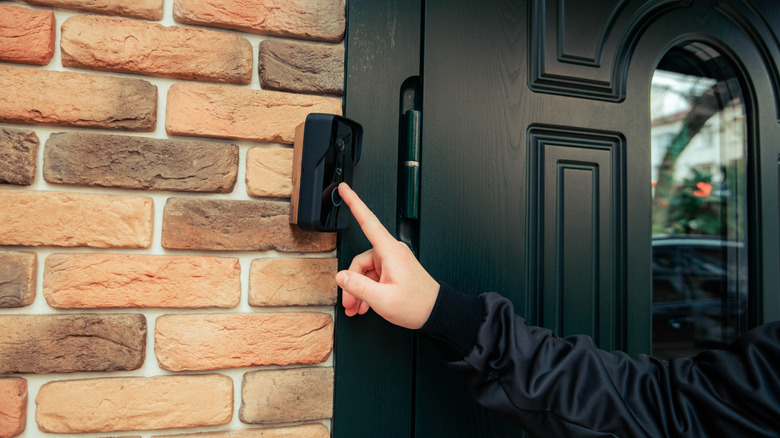
There's plenty of tech out there designed to help keep you, your household, and your family safe, including smart security cameras and doorbells. If you own a Ring Doorbell and a compatible smart TV, you can view the doorbell footage without leaving the couch. The good news is, if you own a SmartThings-enabled Samsung TV, it's as simple as making sure you've added the Ring Doorbell through the SmartThings app on the TV set.
If you're not using one of the SmartThings TVs, many of the best smart TVs on the market now come with Google Home or Alexa built in. If you have added your Ring Doorbell to your Google Home app, then you simply need to say "hey Google, show (camera name) on (TV name)" to display the live footage. For Alexa users, you will need to say "Alexa, show me (camera name)."
2. Stream Xbox games
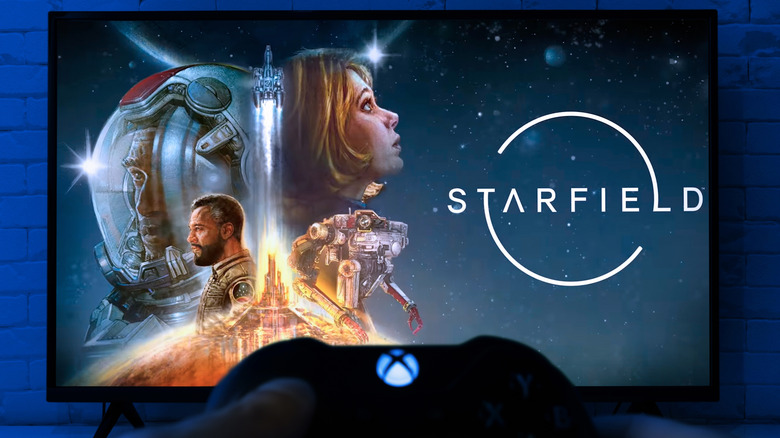
If you're a gamer, the chances are you'll want to use your Smart TV for gaming. With Microsoft raising the prices of its Xbox consoles, not everybody can afford the luxury of having an Xbox in their house. Luckily, there's a way to play Xbox games on your TV, even if you don't own an Xbox. If you own a compatible Samsung or LG TV, you can simply download the Xbox app and stream games straight to your TV. Although it is worth noting that you will need an Xbox Game Pass subscription in order to stream games to your smart TV.
If you don't have a compatible smart TV, you can still stream Xbox by adding an Amazon Fire TV Stick. Before picking up a Game Pass subscription you will want to make sure you have a strong enough internet connection in order to stream Xbox to your TV. Microsoft recommends having an internet connection of at least 20Mbps. You'll also need to make sure you have a compatible Bluetooth controller, such as the official Xbox Series X|S controller.
3. Control your smart home devices
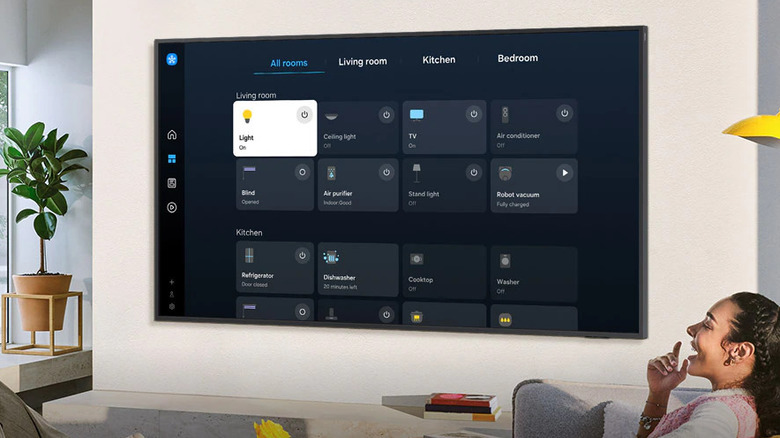
Most modern smart TVs feature a way to control your smart devices, without needing to get up or even look at your phone. If you're using an Android TV, they usually come with Google Home or Alexa pre-built into them. You can simply use your voice (with compatible TVs) or an app to control all of your connected smart devices around the house.
If you're using Apple TV, you can simply use the Siri Remote to get to the HomeKit dashboard and access all of your smart devices from there. For those of you using the Philips Hue ecosystem, there's now a Philips Hue TV app, which will let you control your Philips Hue lighting devices straight from your TV. Not only can you control your lights from the Philips Hue app, but with compatible devices and a Philips Hue Bridge, you can sync up your TV screen's color with the rest of your smart lighting, giving you an incredible ambient experience.
4. Display your favorite photos and art
Almost all Smart TVs these days will let you display your own digital photos, either as a screensaver or just to share memories with friends and family on the big screen. Most smart TVs come with either Google Photos or Amazon Photos built in, making it easy to add your own images to your smart TV. The method to turn these photos into a screensaver depends on which smart TV you own, but in most cases, you can simply go to your settings and change the screensaver to Google or Amazon Photos.
If you're running a slightly older smart TV and don't have access to either Google or Amazon Photos —and there's no native way built in to display your images — you can still use a USB drive. With most older models, simply filling a USB drive with your favorite photos and inserting it into your smart TV's USB port will trigger a slideshow, or at least prompt you to open the files and view your images.