

Your Apple Watch Sleep Tracking Accuracy Might Be Wrong - Here's How To Fix It
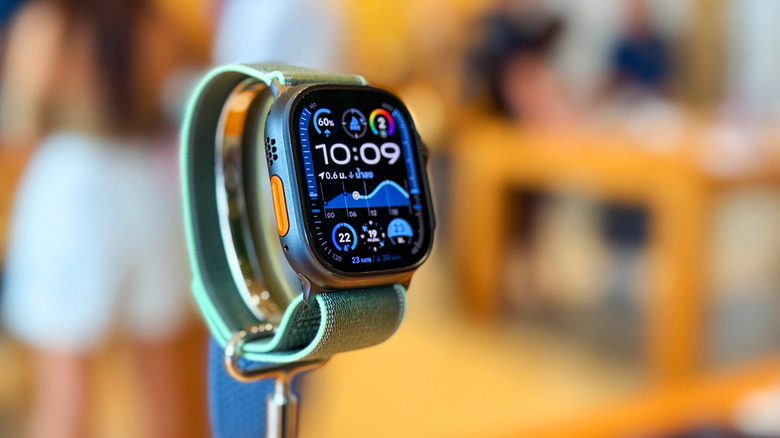
Apple Watch is arguably one of the best smartwatches around and hands-down the best companion to an iPhone. It excels in so many ways, tracking activities and vitals, offering access to apps, and more. Apple wasn't initially known for the best sleep tracking, especially compared to other wearable brands that focus heavily on this. But the company has been improving this function, even adding features like sleep apnea detection with clinical validation for its latest devices, like the Apple Watch Series 11.
However, sometimes you may feel that Sleep Tracking isn't accurate compared to other devices or to how you feel in the morning, or that the time when you fell asleep and woke up don't match the times on the device. There are a few reasons why this might be happening.
Before the Apple Watch can even start tracking sleep, you need to select the Set up Sleep option in the Health app. This includes setting your bedtime and wake up times, which gives the watch an idea of when you usually head to bed and wake up in the morning. You can also set sleep goals, including the number of hours per day. There are a few other ways to ensure the best sleep tracking accuracy.
Wear and settings
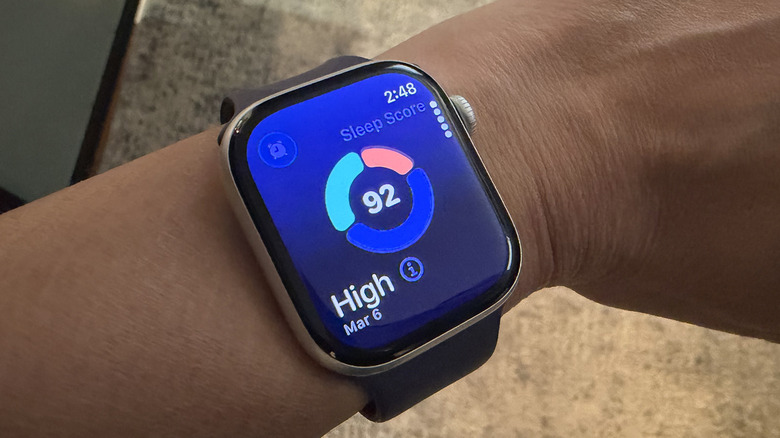
The most obvious thing you need to do to track your sleep using Apple Watch is to ensure the Watch is properly secured on your wrist. It shouldn't be loose enough that the sensors can't track your movement, but also not too tight that it affects circulation. The battery needs to be at least 30 percent charged, and you need to turn Sleep Tracking on from the Watch app and set your Sleep Schedule. While you might not have a routine bed and wake-up time, it's important to get this as close as possible to your routine. You can create different times for weekdays and weekends, or adjust for individual days. This can be useful for those who do shift work or have changing schedules, where you might work later some nights versus others.
Once ready, use Sleep Focus to eliminate distractions, like notifications on the watch, and ensure you get a better night's sleep. You can also put your phone into Sleep Focus or Do Not Disturb mode right before turning in, which will in turn activate these features on your Apple Watch as well. This, combined with accelerometer data that shows you're lying down, lets the device know that you're in bed. Then, it will use breathing analysis to determine your various stages of sleep.
Other settings to be mindful of
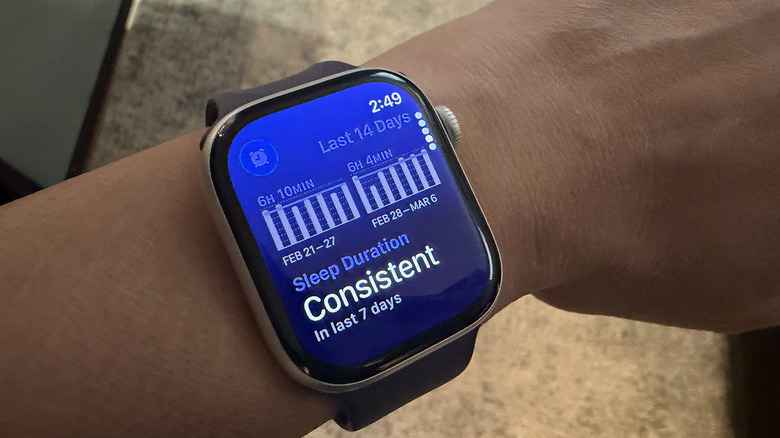
I once noticed my Apple Watch stopped tracking sleep altogether, and I couldn't figure out why. I had previously turned off Wrist Detection to take photos of the device while it wasn't on my wrist, and I forgot to turn it back on. This feature is essential for tracking, as it works to determine vitals like heart rate drops, which are indications of sleep and its different stages. Go to the Watch app, select Passcode, and make sure Wrist Detection is in the active position (green).
Consider using the Wind Down mode to ensure more accurate tracking and get you prepped for bed. In the Health app, select Browse (the magnifying glass on the bottom right), Sleep, Full Schedule & Options, and select a duration for Wind Down. This automatically switches the watch to nighttime mode to reduce distractions and start getting your body and mind ready for bed. It doesn't necessarily improve accuracy of Sleep Tracking, but it's an indicator to the device that you're about to head to bed, so it can begin tracking accordingly. Keep in mind that Apple Watch can sometimes overestimate data like light and deep sleep, something I have noticed in comparing it against many other smartwatches and smart rings I've reviewed over the years. But in following these set-up steps, you can get a fairly accurate guide of how much and how well you sleep each night.