

How To Tell If You Have 'Monitor Ghosting,' And 5 Ways To Fix It
We may receive a commission on purchases made from links.
Monitor ghosting is a common visual artifact, usually showing up as a blurry trail or shadows following moving objects across a computer screen. This happens because a monitor's pixels can't transition between colors fast enough to match its refresh rate or the frame rate of a user's graphics card. It doesn't cause permanent damage like screen burn-in, but leads to eye strain and a frustrating lack of clarity during fast-paced gaming sessions and while watching fast-paced films and TV shows.
While it's more often than not a hardware problem such as slow response times, low refresh rates, and generally non-optimized display technology, sometimes ghosting can be drastically reduced or eliminated at a software level. Most modern displays offer a range of onboard settings and software optimizations designed to sharpen motion and clear up lingering pixel trails, as manufacturers understand the relationship between gray-to-gray response times and onscreen motion.
The same goes for monitor owners, who can take control of their displays, cutting down ghosting through tweaking overdrive settings, and updating graphics drivers. Identifying the presence of ghosting is usually the first task involved. From there, users can find the best way to get the most out of their chosen monitor.
Run a UFO motion test to diagnose the issue
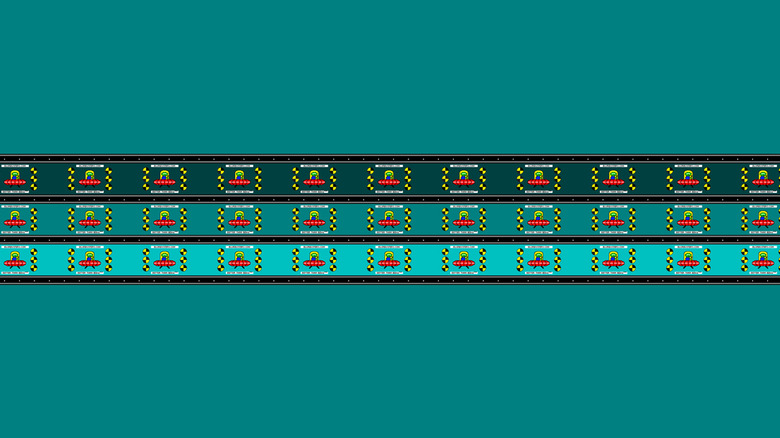
There's a fine line between motion blur and input lag compared to ghosting. For those unsure if it's their display or GPU struggling, using the Blur Busters UFO Motion Test should be their first priority. It's a free, industry-standard benchmarking tool that uses an image of an alien in a UFO moving across the screen at various speeds. This allows users to see if pixels are leaving a noticeable smudge or smear as they travel.
Ghosting happens when pixels on an LCD monitor can't keep up with the rate the connected computer or GPU generates new frames, so understanding the technical cause for ghosting is a good starting point. This is usually measured by Gray-to-Gray (GtG) response time, which tracks the speed at which pixels change from one shade of gray to another.
If the GtG response is too slow, the previous image remains visible for a fraction of a second while the new one is being drawn. If the UFO test shows clear trails, it's time to look into internal monitor settings to improve performance. It's tempting to splurge on a new 4K monitor due to prices coming down, but it's often better value for money to go for a 1440p display with better specifications to avoid these very issues.
Enable the overdrive or response time setting
One of the most effective ways to reduce ghosting is through the monitor settings rather than your computer or GPU. Most gaming monitors have some form of "pixel overdrive" setting, which sends more voltage to each pixel to help liquid crystals twist and change states more quickly.
Accelerating this physical process allows a gaming monitor to edge its refresh rate closer to its response time. Even the least reliable gaming monitors have this setting alongside budget or mid-range, but premium gaming monitors should automatically do this with auto-calibration.
Pixel overdrive can be a double-edged sword, resulting in a bright-colored halo effect or glowing trail around moving objects. This happens because pixel transitions are happening too quickly and miss their target value. When calibrating a display, it's best to find a balance where motion remains sharp without introducing inverse ghosting or haloing. It's always a good idea to double-check how a specific display handles 1ms response times and overdrive settings if at all, as finding the "Medium" or "Normal" settings often provide the best results for most panels. This information can usually be found on the manufacturer's website or in the included instruction manual.
Update graphics drivers and replace faulty cables
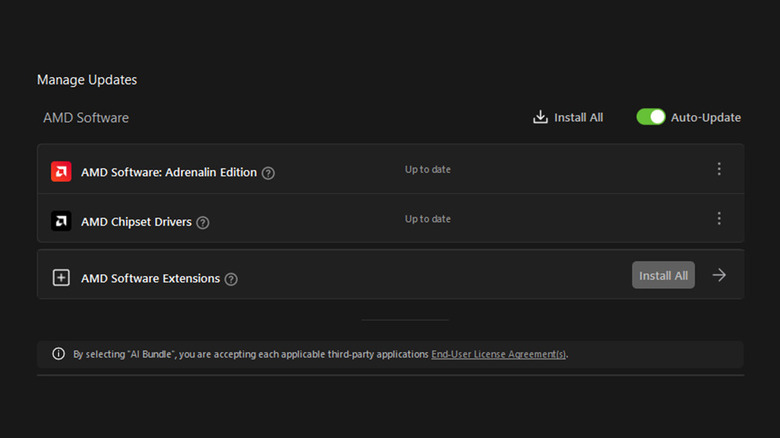
Software compatibility and physical connectivity are often overlooked when trying to improve ghosting. Outdated graphics card drivers can cause a variety of visual artifacts, including issues with frames synchronizing with displays. It's always a good idea to turn on automatic updates in AMD Adrenaline or the Nvidia App, and manually check the software for updates when having issues, including ghosting. Driver updates often include bug fixes and performance optimizations that can stabilize frame delivery while reducing lag and smearing. This goes double for high-end gaming PCs where the GPU and monitor must work in perfect harmony.
The physical connection between a PC and monitor is also a consideration when troubleshooting ghosting. A faulty HDMI or DisplayPort cable can cause signal degradation, which could also impact refresh rates or introduce interference. It's a good idea to check cables for physical fraying or damage that could lead to overheating and frame rate drops.
High-quality, high-bandwidth cables are a simple way to keep a clean signal from a GPU to a gaming monitor. Ugreen HDMI and DisplayPort cables usually mix the best of both worlds when it comes to pricing vs. quality, as expensive "premium" cables are often not worth the upcharge. Make sure to check buyer reviews before investing in new HDMI or DisplayPort cables.
Adjust refresh rate and adaptive sync settings
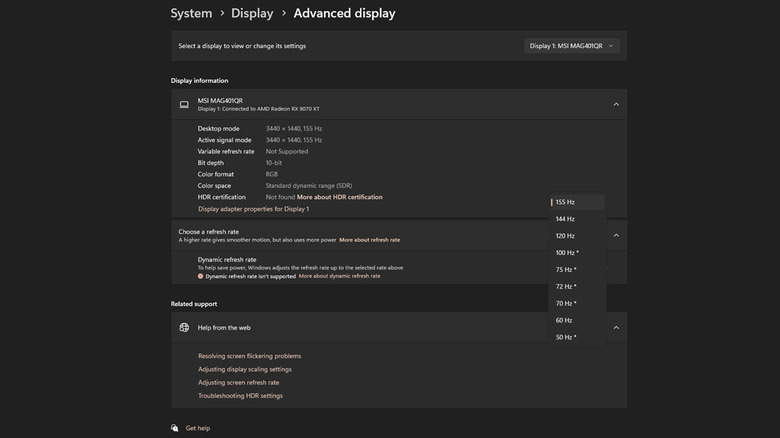
If internal monitor settings don't resolve the ghosting issue, try adjusting the refresh rate through your operating system. On Windows and Linux, this can be done easily by going into advanced display settings. Lowering the refresh rate to 60Hz or a lower supported value reduces the frequency at which the monitor draws new frames, giving pixels more time to complete transitions. This isn't an ideal solution for competitive gamers who rely on high-speed displays for 120Hz and over, but it can be a temporary fix for monitors with particularly slow response times until a more competent gaming monitor arrives.
Users with AMD Radeon and Nvidia GeForce RTX graphics cards should also look into adaptive sync technologies when buying a monitor, such as AMD FreeSync and Nvidia G-Sync respectively. This technology synchronizes the monitor refresh rate and GPU frame rate to eliminate screen tearing.
Sony also has similar support for VRR on the PlayStation 5, which adds weight to synchronizing displays to gaming hardware for a smoother image. There's also advanced technology such as Nvidia G-Sync Pulsar, which uses sophisticated algorithms to time a monitor's backlight pulse with frame delivery, significantly improving motion clarity.
Invest in high-performance IPS or OLED panels
The sad truth with ghosting is that users experiencing it will most likely have to put up with it in some shape or form, especially with LCD monitors. VA panels suffer from it too thanks to slow response times, usually referred to as "dark smearing". VA technology has improved, with fast IPS panels typically offering much better motion clarity for the same price point. For users looking for the best experience playing fast-paced games with one millisecond response times or less, the best thing to do is avoid VA LCD panels entirely.
The best choice for motion clarity right now is OLED technology, which has fundamentally changed gaming monitors and manufacturer habits for the better. Because OLED pixels are self-emissive and don't rely on twisted liquid crystals to function, they can switch states almost instantly.
Modern gaming OLEDs often have response times as low as 0.03ms, significantly faster than LCD-based alternatives. What does this mean for gamers? Well, ghosting, haloing, and motion blur is pretty much non-existent on these panels. OLED gaming monitors really are the gold standard for blur-free motion, and are becoming more affordable as manufacturers experience better and better return on investment when making them.