

4 Devices Your DualSense Controller Can Connect To (Other Than Your PlayStation 5)
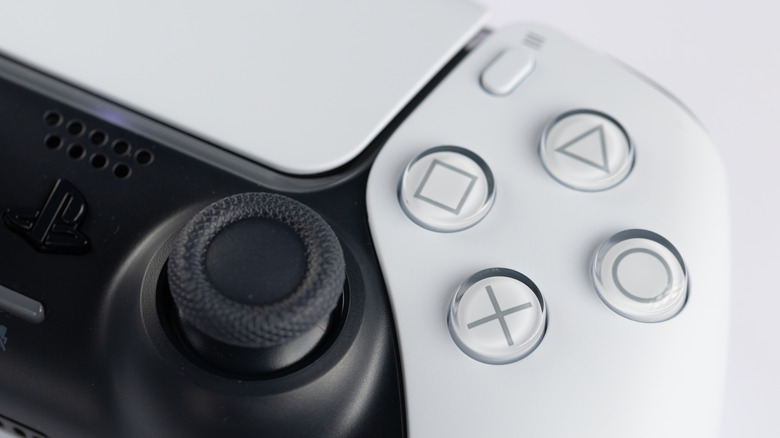
Sony's DualSense controller is an excellent companion gamepad for the PS5, offering an ergonomic design, immersive features like haptic feedback and adaptive triggers, and a built-in microphone and speaker for online gaming. But this wireless gamepad doesn't need to be exclusively used with a PlayStation 5.
If you have a go-to gaming controller that you're comfortable with, you may want to use it for gaming on other devices. Fortunately, there's a wide range of devices your DualSense or DualSense Edge can connect to via Bluetooth or USB, including PCs and Macs, smart TVs, mobile devices, and the Steam Deck — with four different compatible Bluetooth device pairings able to be registered simultaneously to one controller.
While connecting to a non-PS5 device may mean you don't have access to the DualSense's full suite of features, it does mean you don't have to shell out extra money on a new gamepad for your other gaming devices. Below, we've broken down four types of devices your DualSense controller can connect to that aren't your PlayStation 5.
PCs and Macs
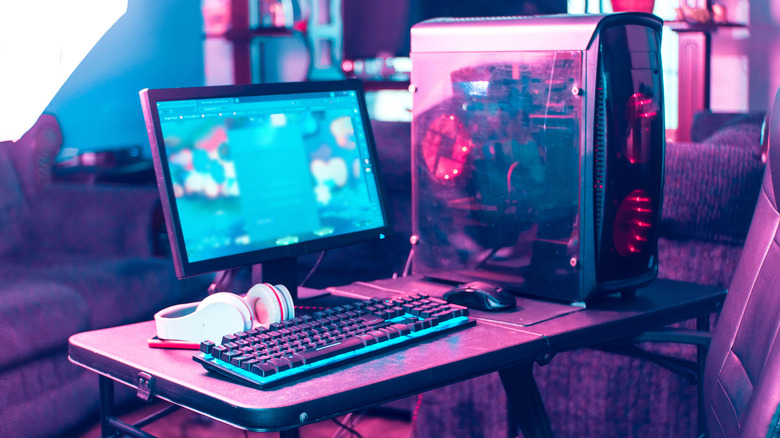
The DualSense controller can be connected to a PC (Windows 10 64-bit or higher) or Mac (Big Sur 11.3 or higher) laptop or desktop. The easiest way to connect your gamepad to a PC or Mac is by using a wired USB-C connection, as this method should largely be plug and play — and may be your only option if your computer doesn't have a Bluetooth receiver.
However, connecting your gamepad to a PC or Mac wirelessly offers more movement flexibility and is fairly straightforward, too. Simply press and hold the PS button and the Create button (the one above the d-pad) at the same time, until the light bar blinks, to turn on Bluetooth pairing. Next, enable Bluetooth pairing on your Mac or PC and select the DualSense controller when it appears in the list of available Bluetooth devices.
It's worth noting that not all of the DualSense's functions are available when connected to a PC or Mac. The controller's advanced haptic feedback features require you to be playing a DualSense-supported game with a USB connection to work on PC, but basic haptics are available on either PC or Mac when connected via Bluetooth. Similarly, its built-in microphone and speaker only work on Windows PCs. However, the DualSense's headset jack works for both PC and Mac if you've connected via USB. Adaptive triggers should also work for both, but require you to be playing a game that supports the feature, such as "Gran Turismo 7" or "Ghost of Yotei."
Mobile devices
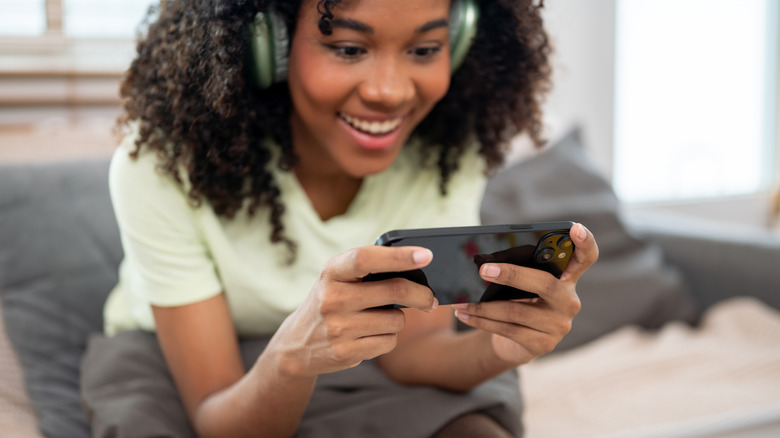
If you prefer to play your games on the go, you may want to connect your DualSense to your phone or tablet. The DualSense controller is compatible with mobile devices running the following operating systems (or later versions): Android 12, iOS 14.5, and iPad OS 14.5.
Your DualSense can be connected to a mobile device through Bluetooth pairing, following the same steps as you need to take to connect to PC and Mac (press and hold the PS and Create buttons, then pair the controller in the mobile device's Bluetooth settings). This is particularly useful when paired with the PS Remote Play app, which allows you to stream and play select games from your PS5 or PS4.
However, many of the DualSense's advanced features are incompatible with mobile devices, such as haptic feedback, the headset jack, and the built-in microphone and speaker. Adaptive triggers can work when playing a game that supports the feature, but note that most games do not.
Smart TVs
As the DualSense is compatible with tvOS 14.5 and Android 12 devices, you can also connect the gamepad to smart TVs. As long as your smart TV runs on one of the aforementioned operating systems or higher and has Bluetooth capabilities, your DualSense should be able to connect to it, allowing you to pair your controller to modern smart TVs from major brands, including LG, Samsung, and Google.
Again, this is great when combined with the PS Remote Play app, as you can stream PlayStation games from your console to your TV and play them comfortably — without fully booting up your console. So, if someone is hogging the room that your PS5 is in, you can jump into a gaming session from another room with a compatible TV. What's more, if you have a smart TV that supports cloud game streaming, like a newer Samsung, you can also use your DualSense to play compatible Xbox Game Pass, Nvidia GeForce, and Amazon Luna games.
Steam Deck
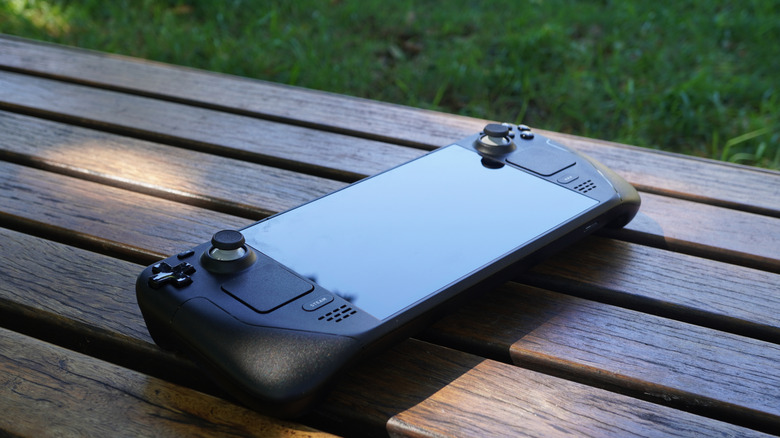
As a handheld gaming PC, connecting a controller to your Steam Deck isn't entirely necessary, but it's worth considering if you want more comfort for marathon gaming sessions or a more traditional console experience when your deck is docked — without paying for a separate Steam Controller. Aside from Valve's own gamepad, the DualSense is considered by experts to be one of the best Steam Deck controllers around.
Like connecting to a PC, you can either hook up your DualSense to your Steam Deck using a USB-C cable or via a Bluetooth wireless connection (you can enter pairing mode by pressing and holding the PS and Create buttons simultaneously). This will allow you to take advantage of the DualSense's trackpad and gyro controls, but other advanced features, like adaptive triggers, likely will not work — even with a game that supports them. Haptic feedback may work, but only if a game is designed to support the feature through Steam Input, Valve's software layer that allows any controller to be compatible with the Steam Deck. A possible fix for this is to connect the controller via USB-C and turn Steam Input off on your Steam Deck when playing a game with native DualSense support. Though, users report this isn't always a sure fix.