

5 Things You Didn't Know Your iPhone's Reminders App Could Do
The default Reminders app on the iPhone, iPad, and Mac started as a simple app for jotting down to-do tasks you needed to remember, but Apple has improved the application significantly in recent years, giving it more advanced features that allow users to integrate Reminders with various Apple apps, improve organization and sharing, and set up reminder workflows that can ensure you get the task done when it has to be completed. Reminders evolved past being an app that offers a simple checklist for grocery shopping or travel management. You can still use it for simple tasks like that, but you'll make the most of Reminders if you get yourself acquainted with a few of the hidden features, which aren't obvious when you first open the app, whether you're a longtime iPhone user or you've just purchased the latest iPhone 17 models.
The advanced features, like Apple Intelligence support, a dedicated Groceries list, and the ability to save reminders from several Apple apps, turn Reminders into a richer app than before. And since Reminders is an Apple app, it also works across Apple devices. iPhone users who also own iPads and Macs will find the same rich Reminders experience on the tablet or laptop, where they can use an even larger canvas to stay on top of their tasks.
Create a reminder without opening the app
The easiest way to create a new reminder is by opening the Reminders app and tapping the "+" that appears in the lower right corner of the screen. However, you're not restricted to the app, and you have several options that let you set a reminder without loading the app. This can come in handy in scenarios where you're pressed for time, but you want to ensure that you've saved the reminder. The simplest way to do it is by telling Siri to save a reminder for a specific activity. The voice assistant will set the reminder for you, and you'll find it in the app.
You can also add a reminder shortcut to Control Center by tapping the "+" symbol in the top left corner, selecting Add a Control at the bottom, and then searching for the Reminders category, which offers a New Reminder control. Once the button is available in Control Center, a tap is enough to bring up a Reminders interface. The keyboard appears at the bottom, and the top screen area (around the Dynamic Island) becomes the text field for the new reminder.
The same user interface appears if you use your iPhone's Action button to start a reminder. The feature is available only on iPhone models that have the Action button on the left side instead of the standard Mute switch. That means iPhone 15 Pro models or later. Go to the Action Button menu in the Settings app, choose Controls, and set up Reminders. This shortcut will be even faster than the Control Center trick, and works in scenarios where you can't use Siri. iPhone owners who still use older iPhones will have to rely on the Control Center button instead.
Associate reminders with people
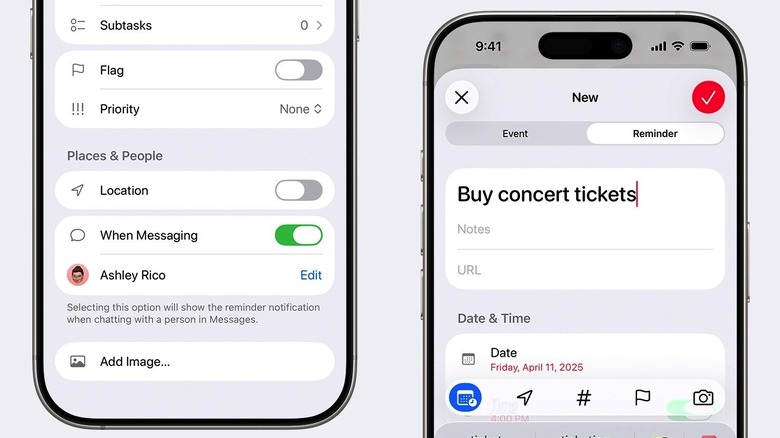
Invoking Reminders without opening the app is useful when you remember tasks that need doing, and you want to save them as fast as possible so you don't forget about them. But there are other ways to trigger a reminder. Sometimes you may want to remember to relay specific information to your friends, family, and coworkers. You can set up the Reminders app to trigger a reminder when you're texting a person.
Go to the Reminders app, create the reminder you need, and then associate it with the right contact. Tap the Edit Details button and look for the When Messaging toggle. Once you enable it, you'll be able to select a person from your contacts. The next time you chat with that person in Messages, a Reminders notification will appear on the screen, to ensure you give them the information you wanted to pass on. Importantly, the feature only works with the default Messages app, so it won't trigger in other chat apps. Still, the feature comes in handy for certain scenarios, such as if you want to give specific information to a person only when chatting with them, rather than leaving that information in a voice message or a call.
There's one more similar Reminders trick that applies to a different built-in communication app on the iPhone, the Phone app. In case you want to remember to call somebody at a specific time, maybe return a missed call, you can go to the Phone app, drag the contact's name to the left until a blue icon appears next to the Trash icon. That's the Reminders shortcut. You can tap it to set a reminder for calling that person in the future.
The connected apps
Apple has also added Reminders integration to other key iPhone apps you may be using regularly, such as Mail and Calendar. You can create reminders from the Mail app just as easily as the Phone app. When dealing with an email that may contain important information, you can set up a Remind Me task. Just tap the share sheet and choose the Remind Me option to remind you about this specific conversation, so you can perform a task, or simply reply to that email later.
The Calendar app will display reminders prominently across your devices, which can come in handy when dealing with urgent tasks. Maybe you want to cancel Netflix following the latest price hike, and you set up an urgent reminder that expires a few days before the next renewal period. That reminder will appear in the Calendar app. But you can also add a new reminder directly from the Calendar app by tapping the "+" symbol in the top left corner and then choosing the Reminder tab. This will let you save a reminder complete with date and time. You can also set the urgency, and whether you need the reminder to repeat in the future. Maybe you're not convinced about canceling Netflix and you want more time to think about it or finish the new top-rated Netflix original that might be on your list.
Organize reminders like a pro
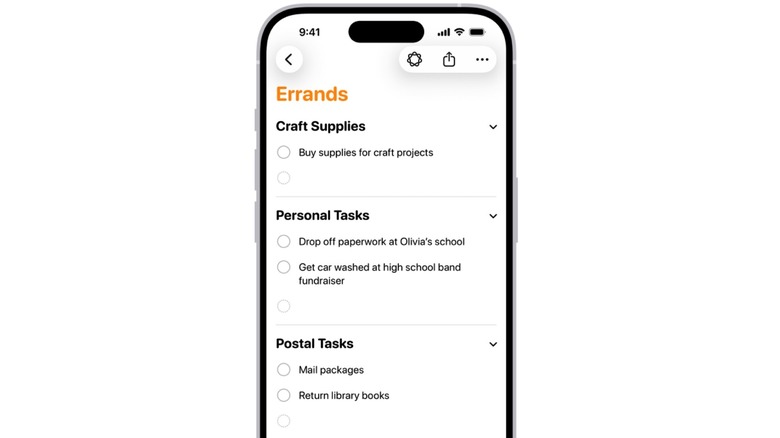
The reminders you save may end up in the same general list. You'll want to move these tasks to specific lists. Tap and hold a reminder, and a menu will appear that will let you assign that item to a different list. You can pin the lists that you use the most, like a Groceries list, to the top of the screen. Tap and hold a list and select the Pin option. You can unpin lists by selecting the Unpin option or use the Hide option for default lists.
Reminders also lets you create folders (called Groups) that contain multiple lists. Tap and hold one list and drop it onto another to start. The app will prompt you to add a name for the new group. You'll then be able to drag-and-drop multiple lists to the same group. You can remove lists from the group by dragging them out. You can also add subtasks to a main task if you want to group tasks in the same list. Tap the "i" symbol on the right of a reminder and look for the Subtasks menu to add extra tasks nested under the main one.
Apple Intelligence can also be used to automatically categorize reminders (on devices that support Apple's AI tools). Tap the three-dot menu in the top right corner, and you'll get an Auto-Categorize feature that has the Apple Intelligence icon next to it. The AI will redo your list to add sections that include similar tasks. On that note, any Reminders list can include sections. Tap the three-dot menu in a list and select the New Section option. Those sections can be viewed as columns for an even easier view of a specific list, which is especially useful on iPad or Mac.
Share lists with others
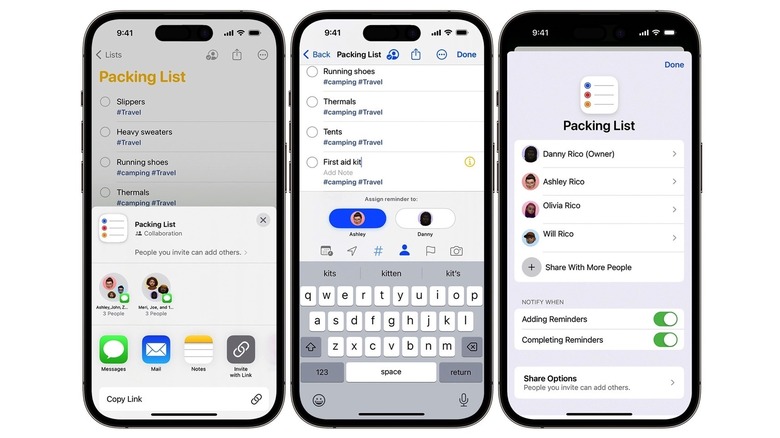
While lists are great for organizing your reminders, that's not the only great feature about them in the Reminders app. You can share any list with other people in your household, so everyone can add items and mark them complete. Tap the share button in the top right corner of a list of reminders, and you'll be able to share the list with your contacts. For an even more efficient task management system, you can assign specific people to specific tasks in a list once it's shared with others. Tap a reminder, then tap the person icon (the Assignment button) and choose a person in the list.
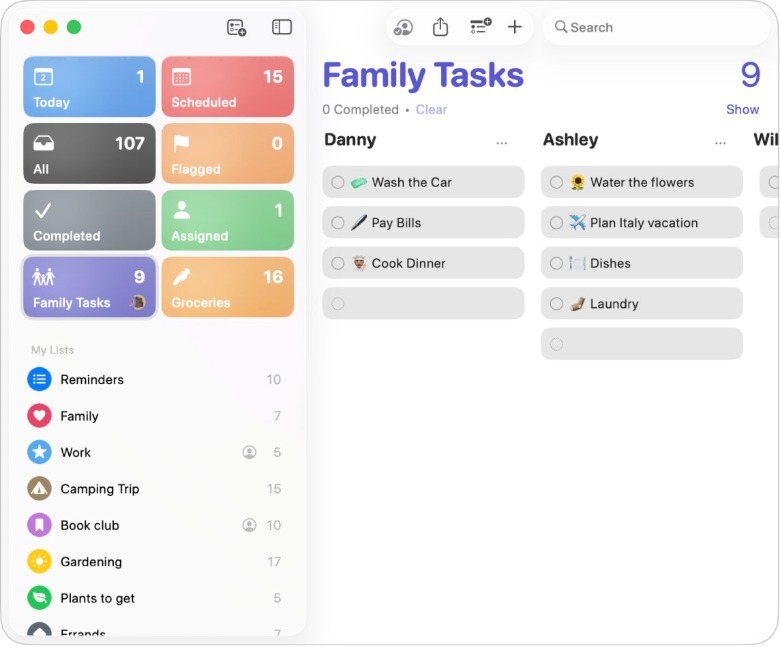
Sharing a list can come in handy in a host of situations. Take grocery shopping for example — you can assign specific items for each family member and make shopping much simpler. The groceries example comes in handy because it already serves as inspiration. But you can replicate the same workflow with general lists that may involve work tasks, home chores, or family travel. You can share complex lists that have sections of tasks, each with their own subtasks, with family, friends, and coworkers to manage complex projects and stay on top of task completion in real time. Visualizing shared reminders is even easier on a Mac, as seen in the image above.