

4 Nintendo Switch 2 Settings That Will Instantly Boost Performance
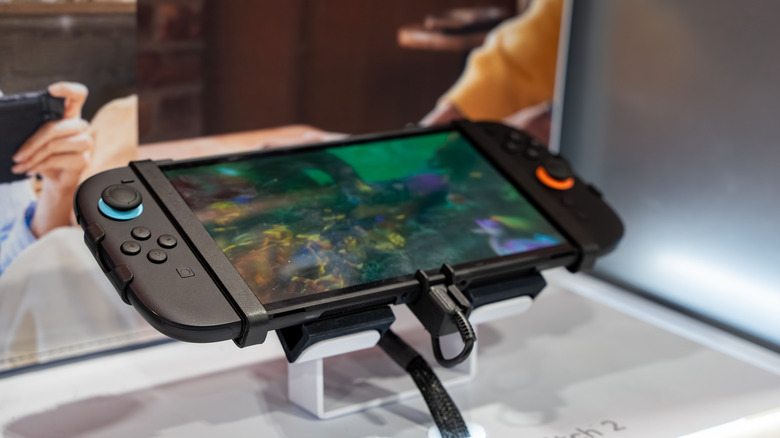
The Nintendo Switch 2 already boasts some big improvements compared to the original Nintendo Switch, including support for 120 Hz refresh rates and higher resolutions, even when playing in handheld mode. However, if you want to get the most out of your Switch 2 games, then there are a few settings you can change to help ensure you're getting the best performance for each title that you play.
Many of these can be enabled from the Switch 2's settings, though you may also need to go into games specifically to enable some of them. Either way, we recommend giving them each a try and seeing how they improve your games' performance. One downside to some of these settings is that they will increase battery usage of the Switch 2 slightly, which means you may need to recharge it more often. We'll be sure to note when settings might affect your battery, though. While you're making changes, we recommend going ahead and making sure your resolution or button mapping settings aren't ruining your Switch 2's experience.
Handheld Mode Boost
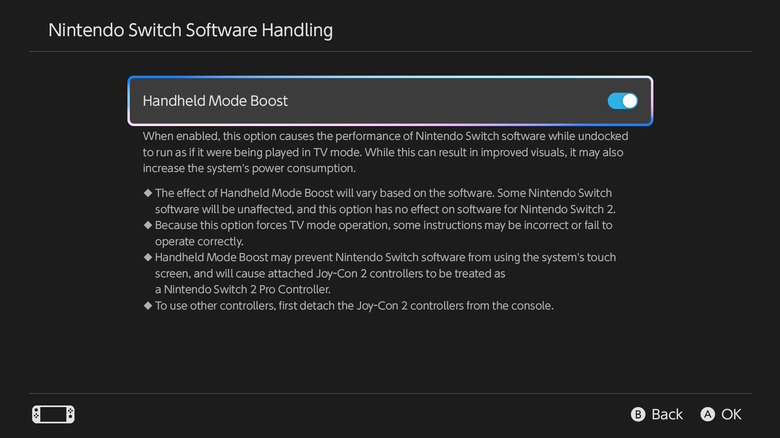
One of the big advantages that the Switch 2 has now, especially if you're playing older Switch games, is the new handheld boost feature, which allows Switch games to take advantage of the improved hardware found in the Switch 2. This basically boosts the OG Switch games to 1080p instead of 720p — which is the resolution they ran at on the original Switch when playing in handheld mode.
While this setting can be a big boon, it isn't turned on by default. Instead, you'll need to enable it yourself. To do so, open System Settings, then navigate down to the System option in the list and tap on it. Next, look for the Nintendo Switch Software Handling option and select it. This should now give you an option to enable Handheld Mode Boost. There are some downsides to using this setting, as this essentially forces the games into TV mode to improve performance. That means some features such as touchscreen controls might be disabled, and your Joy-Con 2 controllers will be treated like a single Switch 2 Pro controller, which can make it difficult to use Joy-Con features that require the Joy-Cons to be separated.
Turn on HDR
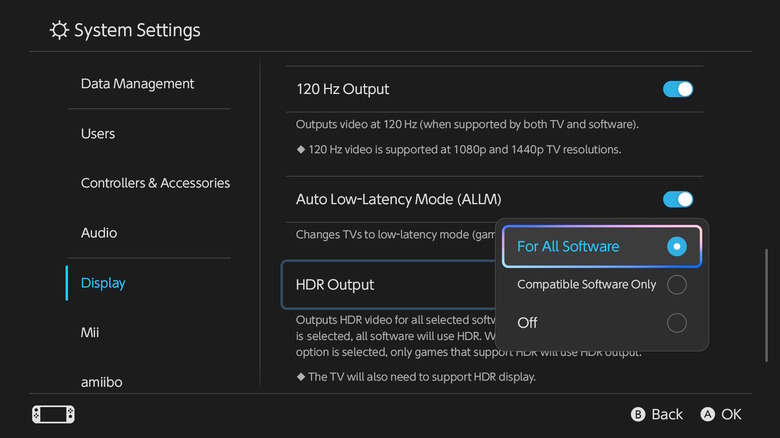
One setting that the Switch 2 has that the original Switch didn't is HDR support. When enabled, this setting won't massively change the actual performance of the games themselves, but it will improve visual performance across the board. There are two modes for HDR support which you can cycle between. Ultimately, you can go with whichever you prefer, but if you want the best visual performance across all your games, then selecting the Always On option is your best bet.
You can turn this setting on at any time by launching your Switch 2 System Settings and then navigating down to Display and then finding the HDR Output section. From here, select Always On or Compatible Software Only to enable HDR and instantly start improving your games' visuals.
If you don't know what HDR is, it basically provides an expanded contrast and color setup for games, giving them a more vibrant and colorful appearance. Like the Handheld Mode Boost, this setting can impact battery life, so you may want to turn it off when playing in handheld mode away from a place you can charge your Switch 2.
Use Auto Low Latency Mode to improve input lag
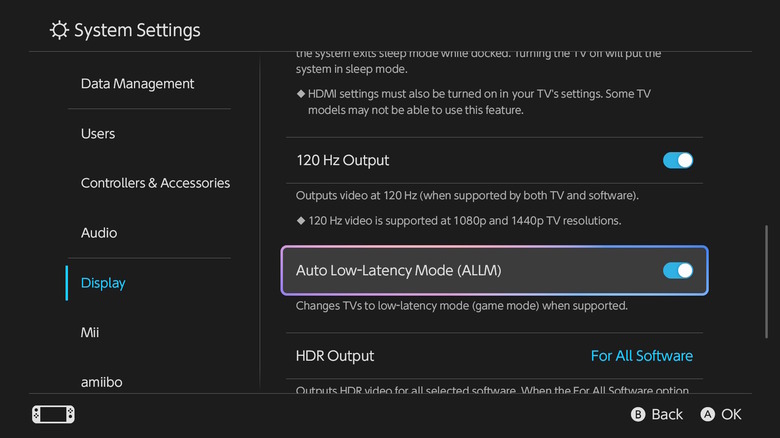
Input lag is one of the most annoying issues you can run into when playing video games. This basically means that when you press a button on your Switch 2 controller, it takes a moment for the input to be registered and carried out by the game. Input lag can be detrimental to some games, especially those with fast-paced gameplay that require precise timing on button presses. Luckily, the Switch 2 comes with a setting that can help reduce this.
This setting is called Auto Low Latency Mode or ALLM. When enabled, it allows your console and TV to set the optimal latency settings to allow for smooth and lag-free gameplay. Basically, ALLM helps to set your TV to Game Mode — a setting that many of the best gaming TVs support, though you might also find it on some budget models. This allows the TV to seamlessly swap to a mode that should provide less input lag than regular modes on the set might offer. You can enable ALLM at any time by opening your Switch 2 System Settings menu, then navigating to Display, and then toggling Auto Low-Latency Mode (ALLM) on. Now, when you connect your Switch 2 to a TV in docked mode, it should automatically turn on Game Mode and help ensure less input lag, which means improved performance when playing.
Use 120 Hz mode
One of the biggest improvements that the Switch 2's improved hardware offers is the support for higher refresh rates, which can mean higher frame rates. Essentially, a higher frame rate means that animations will appear smoother, which makes it easier to track motion across the display. While higher frame rates are usually more needed for first-person shooters and other fast-paced titles, having a higher frame rate in more casual titles can also be a huge boon, as it makes the gameplay appear smoother overall.
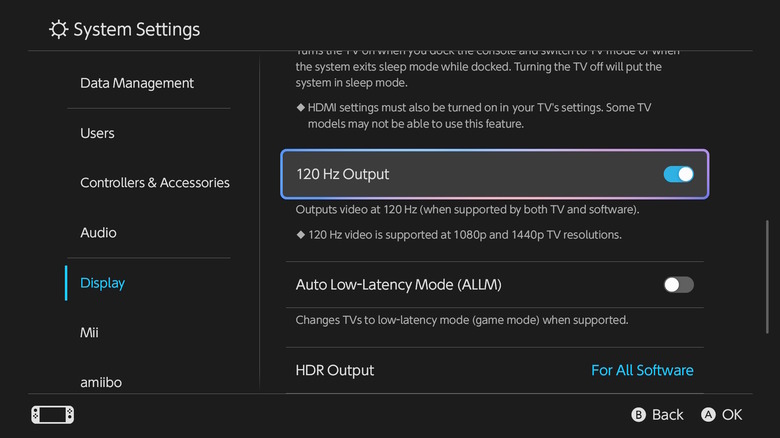
Unlike the original Switch, which topped out at a 60 Hz refresh rate, the Switch 2 supports up to 120 Hz. This means that you can enjoy smoother gameplay and high FPS across multiple titles on the console. You can enable 120 Hz mode by opening the System Settings, selecting Display and turning on the toggle next to 120 Hz Output. This higher refresh rate will only be available when both the TV and software support it, and only when running the resolution of the console at 1080p or 1440p. So, if you try to play in 4K, it won't support this higher refresh rate and will instead default to a 60 Hz refresh rate.
Check for Performance mode in games
Some games may offer Performance and Quality modes within them, which is a feature we've seen on previous consoles like the PlayStation 5. While Performance mode prioritizes smoother gameplay, Quality mode puts the visuals in the top spot. These settings are usually found in the game itself, and not all titles will have it, so you'll need to check the game specifically to see if this kind of option is supported.
Ultimately, there is no end-all-be-all combination that will improve performance across all games. That's because not all titles will work better when using the Handheld Mode Boost, and not all titles will support HDR or even 120 Hz refresh rates. As such, you may find yourself mixing and matching these settings above to find the option that works best for a given game. The good news is, the Switch 2 tends to handle games much better than the original Switch did, thanks to its newer hardware, larger display, and advanced features.