

This One Setting Could Be Killing Your Router's Internet Speed - Here's How To Fix It
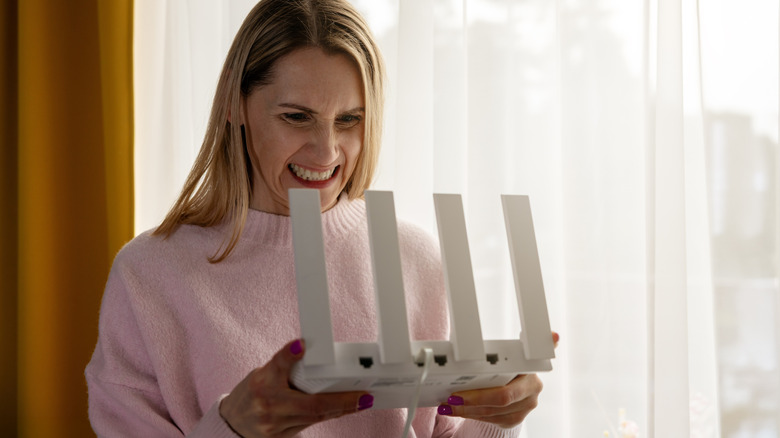
If your internet feels slow even on a high-speed plan, it could be the router's channel selection that is to blame. Routers are typically configured for auto channel selection, which is the most convenient option. That's because it simplifies things for the end user. But if you don't mind the extra effort for improved internet speed, manually configuring channels is the smarter choice.
For the unversed, your router's frequency bands (2.4 GHz, 5 GHz, or 6 GHz) are divided into channels. For instance, on the 2.4 GHz Wi-Fi band, there are only 11 usable channels in North America. Of these, only three, 1, 6, and 11, don't overlap. The remaining channels overlap and deliver slower speeds. With auto channel selection, the router automatically assigns a channel after quickly scanning the airwaves for the one with the least interference.
Theoretically, this should work, but it often doesn't. That's because the initial scan doesn't always reveal the true picture. There could be other Wi-Fi networks around using the same channels, which can lead to interference. Similarly, many household appliances interfere with your Wi-Fi because they also operate in the same frequency range. These include microwaves, smart home devices, and baby monitors. So, if this interference starts after the initial scan, your router won't automatically switch channels, leading to slower internet speeds.
Manual channel selection can fix the problem
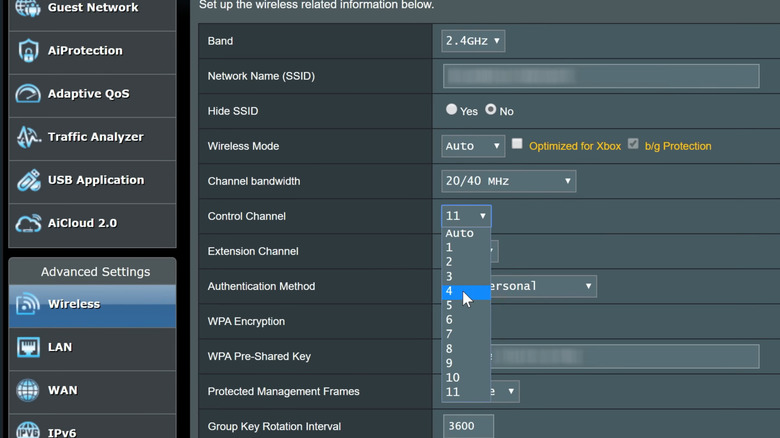
When you manually set the channel in the router's admin panel, you can largely mitigate interference from other networks and household appliances and eliminate overlap between channels. On the 2.4 GHz band, you must choose 1, 6, or 11, since these are the only non-overlapping channels. On routers that support the 5 GHz band, you have 30 channels to choose from, and of these, 24 are non-overlapping. You should typically select 36, 40, 44, or 48, though other options like 149, 153, 157, 161, or 165 should work too.
The steps to manually configure channels vary depending on the router manufacturer. But in most cases, you should see an option titled "Channel" under the "Wireless" section. Simply pick the band you need to work on, and if "Channel" is set to "Auto," select one of the recommended channels from the list. Once done, save the changes and test for improvements.
Unlike routers, mesh systems don't generally allow you to manually configure or switch channels. So, these steps may not work. But it may still be worth checking. Also, if your router only supports the 2.4 GHz Wi-Fi band, you should upgrade to a modern, faster router that supports more bands. We now have tri-band routers that support three bands: 2.4 GHz, 5 GHz, and 6 GHz. Switching to these can improve internet speeds across your devices.
Network analyzer apps will help find less-crowded channels
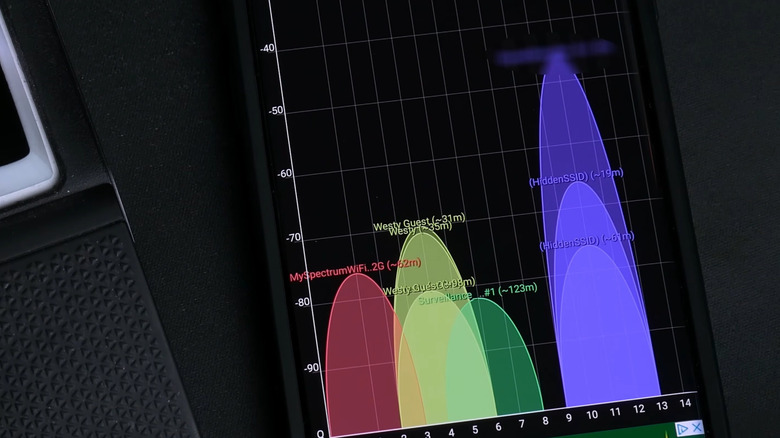
In some cases, even manually configuring channels on your router won't help. That's because others around you could be congesting the same channels. To avoid this, you will need a Wi-Fi or network analyzer app. On Android devices, you can use the WiFi Analyzer app. For Windows and macOS, you have WiFi Analyzer on the Microsoft Store and NetSpot on the Apple App Store, respectively. Keep in mind that there are none available for iPhones or iPads. A Wi-Fi analyzer app will scan the networks around you, and present a graph highlighting how crowded the different channels are on the 2.4 GHz and 5 GHz bands. Choose the one that's least congested. Also, Wi-Fi analyzer apps show signal strength along the Y-axis, which can help you figure out the optimal router placement.
Beyond channels, it's recommended that you move your priority devices like gaming consoles and PCs to the 5 GHz or 6 GHz band and reserve the 2.4 GHz band for the less network-intensive devices. That's because 2.4 GHz offers better coverage than other bands, and can move through walls and objects more easily. But because of less data transmission, it is not suitable for the more important devices. Lastly, make sure the router is placed centrally so that every device receives optimal signal strength.
As you can see, fixing slow Wi-Fi speeds on your router doesn't require switching to costlier plans or buying expensive hardware. Sometimes, simple tweaks to the router's settings can deliver a significant improvement.