

What That Purple Dot On Your MacBook Screen Is Trying To Tell You

Apple has been in the computer business for a minute, and we're willing to bet the company will be around for years to come. The first version of macOS arrived in 2001, becoming Apple's signature operating system for laptops like the MacBook Pro and desktop hardware like the iMac. As macOS continues to evolve, users are often treated to new features and settings, even if it's something as simple as a purple indicator dot hanging out near the Control Center icon. Speaking of which, what does that purple dot mean anyway?
Introduced with macOS Sonoma in late 2023, the purple dot is a privacy indicator. When you see it, it means that an application is recording system audio or recording your screen. Features like FaceTime and screen sharing — as well as videoconferencing tools like Zoom and Microsoft Teams — may cause the purple dot to appear. Fortunately, there's no reason for concern, as long as you granted these apps permission to record and monitor.
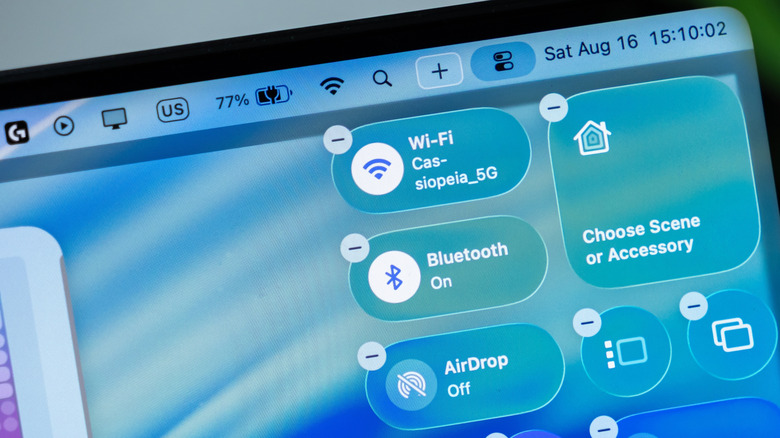
The purple dot is actually part of a small family of Control Center indicators. There are two other colored dots: orange signals that your Mac's microphone is in use, and green lets you know your Mac's camera is active. There's also an arrow icon to indicate that your location is being used. You may be able to click the Control Center icon to see what apps are using your system audio, mic, cam, or location (displayed below the Control Center icon).
A bite-sized indicator with an important role
You have the ability to grant and deny screen and audio-recording permissions for compatible apps on your Mac. To do so, open System Settings, then go to Privacy & Security and Screen & System Audio Recording. Find the app you want to enable or disable permissions for, then simply toggle recording on or off. You can also choose to have an app capture screen and system audio simultaneously, or to exclusively record audio.
You can add new apps to the list by clicking the plus icon at the bottom of the screen. We also recommend removing apps you no longer use; that way, you'll have fewer options to scroll through when using the privacy menu and also reduce the likelihood of forgetting what apps have access to your phone and data. Do keep in mind that granting permissions to third-party apps usually subjects you to the app provider's terms and conditions, and not just Apple's.
Even if you've somehow memorized what apps you've granted certain permissions to, it's still worth taking a peek at your Mac's privacy settings now and then. Software updates can sometimes reset apps to default settings, which may cause the purple dot (or other indicators) to appear unexpectedly.
Apple just wants us to be aware

We live in a world where even our Mac computers encourage productivity. On the one hand, apps like Zoom have reinvented (for better or worse) remote and hybrid career paths at pretty much every level. On the flip side of the coin, macOS users now have to be extra mindful when it comes to protecting their machines and personal data from digital thieves.
On the surface, it may not seem like a handful of multi-colored dots is all that important. If all your permissions are always in check, you might even forget to occasionally look at the menu bar to see what dot (if any) is lit up beside the Control Center icon. Still, macOS helps you stay as informed as possible, which is why there isn't a way to turn off these privacy indicators.
It's also worth mentioning that macOS will only display one icon at a time, even if an app is using the camera and microphone simultaneously. This makes it all the more convenient that you can click Control Center to potentially see what app forced a dot in the first place.