

Don't Wait To Install Software Updates On Your Laptop - Here's Why
Updating your laptop's software version is a routine task that you should be performing more often than not. Although software update notifications can be annoying and might feel like an interruption to your busy schedule, updating your device should be part and parcel of your laptop's routine maintenance checklist. Ignoring software updates is one of the most common mistakes people make that can ruin a computer. Even if you have seen reports of Windows 11 updates killing some computers, we still recommend that you install updates as soon as they're available.
The reason for this is that software updates are a critical step in ensuring your laptop continues to run smoothly. One of the most important reasons to install updates promptly is security. Software can have security flaws or vulnerabilities that malicious actors can exploit to infiltrate your device and gain access to your data, or even take full control. Thankfully, when developers spot these flaws, they can fix them by rolling out a patch to the identified gap in security. However, you're only protected if you install the update.
Software updates can also target performance issues, ensuring your laptop runs faster and more efficiently. Updates might also ship new features to your device, such as enhancing the user interface for a more enjoyable experience, or adding extra functionality to make your laptop even more capable. For example, Apple introduced its new Liquid Glass design language in macOS Tahoe, giving existing Mac users a fresh laptop facelift. Software updates can also ensure your laptop is compatible with new apps and services that require the latest operating system to run.
How to ensure your laptop is always up-to-date
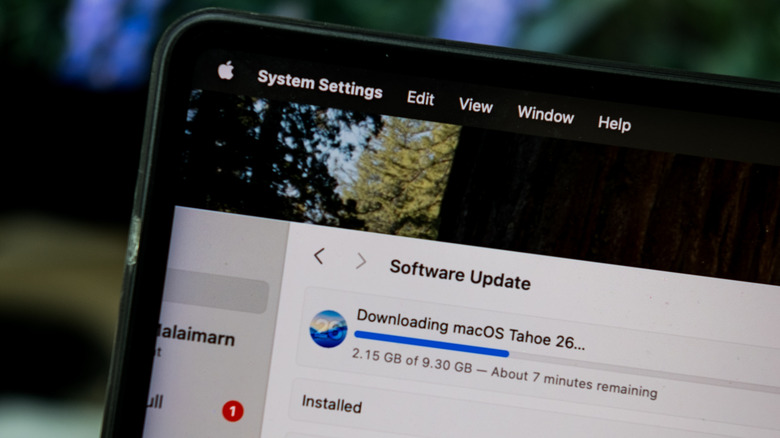
As noted, software updates can patch security vulnerabilities, improve the performance of your laptop, introduce new features, or even ensure compatibility with newer apps. But how can you stay on top of updates as soon as they are available? Well, the answer is to automate the process so that your laptop handles this routine maintenance process on your behalf.
If you have a macOS-powered laptop, follow these steps to automatically update your device:
- Open the Settings app and select General from the left sidebar.
- Select Software Update and on the follow-up screen, click the Info button next to Automatic Updates.
- In the pop-up menu, enable all three options: Download new updates when available, Install macOS updates, and Install Security Responses and system files.
Now, macOS will automatically download any new updates and install them on your system.
If you have a Windows 11 laptop, updates should be installed automatically. However, if you turned this behavior off in the past, you can also enforce automatic updates by following these steps:
- Click the Windows Start Menu and choose Settings.
- Once the Settings app opens, click Windows Update.
- On the next page, toggle on the option for: Get the latest updates as soon as they're available.
These settings will ensure that regardless of whether you're running macOS or Windows 11, your laptop will always have the latest software.