

Upstream Vs. Downstream USB Ports On Your Monitor: What's The Difference?
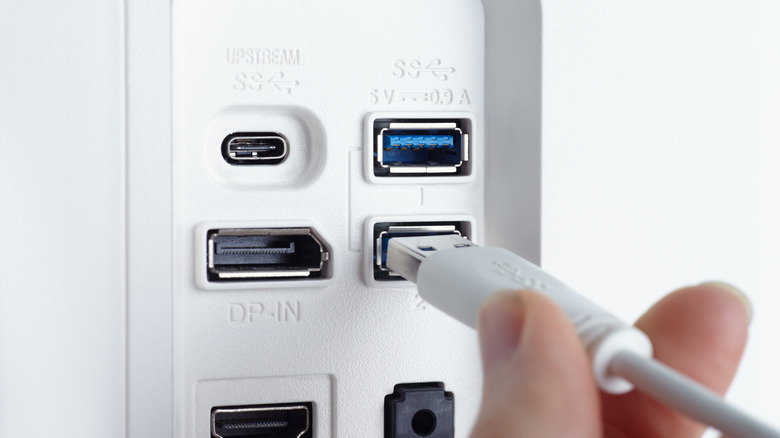
Upstream and downstream USB ports on your monitor are implemented to expand the repertoire of your PC. Whether this is a laptop or a desktop, these ports allow you to add even more peripherals when the port space on your device is running a little low. It makes for a much more convenient USB hub for those who don't need anything more than an easier way to hook up devices like keyboards, mice, or USB-equipped headphones.
While hubs on monitors have been around for quite some time, it's a little difficult to pinpoint the monitor that brought it to the mainstream. In 2004, Apple refreshed its now-discontinued Apple Cinema Display, which featured two FireWire 400 ports, alongside USB 2.0 ports. These days, you'll typically find that these ports are rated at USB 3.0 or above to provide a steady combination of connectivity speeds and power.
What is a USB upstream port on a monitor?
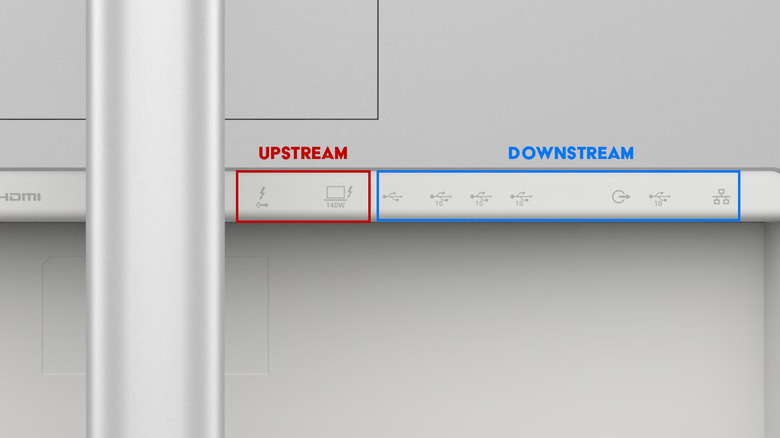
The USB upstream port on the back of your monitor is what initiates the connection between the PC and the USB hub. This will typically be connected either through USB-B to USB-A cables (commonly referred to as printer cables) or USB-C, expanding the capabilities of the device. To identify which is the upstream USB port, it will be indicated by its size if USB-B, as this port is typically bigger than USB-C. If your monitor's upstream port is USB-C, this is usually indicated by a small PC symbol near it.
Tech manufacturers like Apple and Dell have also integrated Thunderbolt, an alternative to USB, which brings with it a steady 40Gbps of transfer speeds for file management, a four times increase over USB 3.1 Gen 2. Some monitor ports will support cross-compatibility with USB-C or USB4 cables, which will lose some of Thunderbolt's benefits, but still result in the hub being powered through what's called the upstream.
What is a downstream USB port on a monitor?
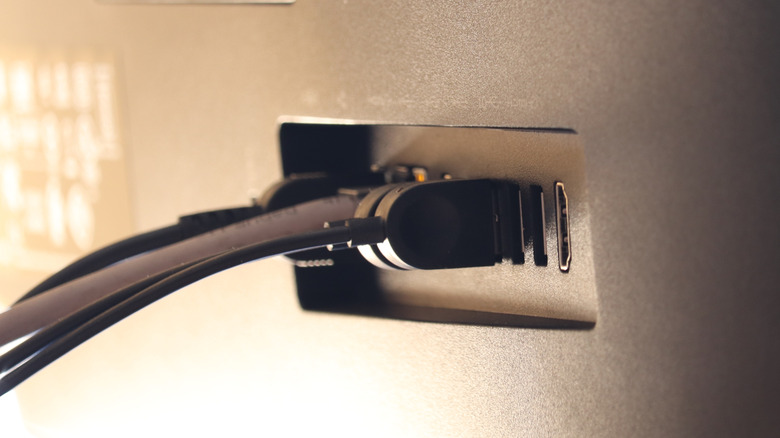
Downstream ports on your monitor's USB hub are the rest of the ports that kick into life when the upstream is connected. These will usually be USB-A or USB-C, with the idea to provide the most compatibility possible with the user's devices. Downstream ports can host a myriad of devices, with keyboards and mice often recommended to free up ports on a desktop or laptop.
Thunderbolt equipped downstream ports can also be used to daisy chain monitors together from one source. With the Thunderbolt cable plugged into the downstream port, this is then hooked into the next monitor's upstream, allowing the device to use both monitors. USB-C does support DisplayPort out, which is how it handles monitors, but USB 3.0 and its follow ups (as well as USB4) don't support this technology. Instead, monitors with hubs that have a downstream set up using USB 3.0 or later will have significantly faster transfer speeds, despite being connected through the hub.