

5 Useful Samsung S Pen Features You Might Not Know About
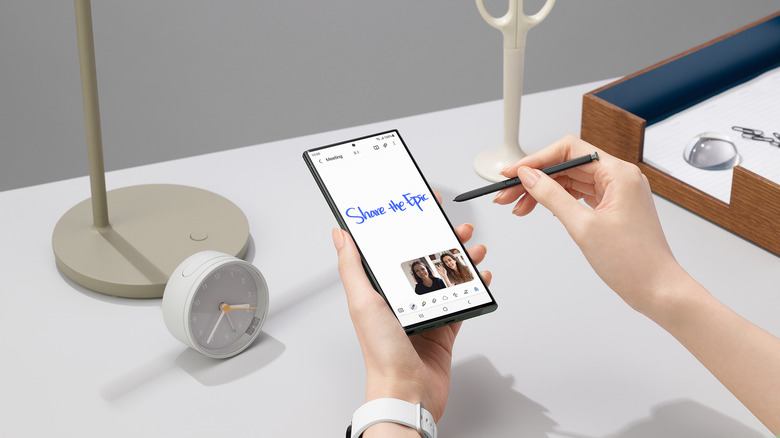
The S Pen isn't technically one of the cool new features on the Galaxy S26 Ultra since it has been around for over a decade. But even so, it remains a major draw for Samsung. When it debuted back in 2011, the S Pen was mainly designed for note-taking. It combined the look and feel of a pencil, pen, highlighter, and brush all into a single device. Over the years, Samsung further enhanced the stylus' note-taking capabilities with all sorts of new tools and AI functionality to turn it into a more versatile writing companion.
But while note-taking is still one of the S Pen's strongest points, it's no longer the only thing it can do. Modern S Pens now go beyond handwriting and drawing, evolving from a simple pen to a full-blown multipurpose stylus. If you're wondering what else you can use the S Pen for, we'll walk you through five useful features you might have missed.
Launch an app from the Air Command menu
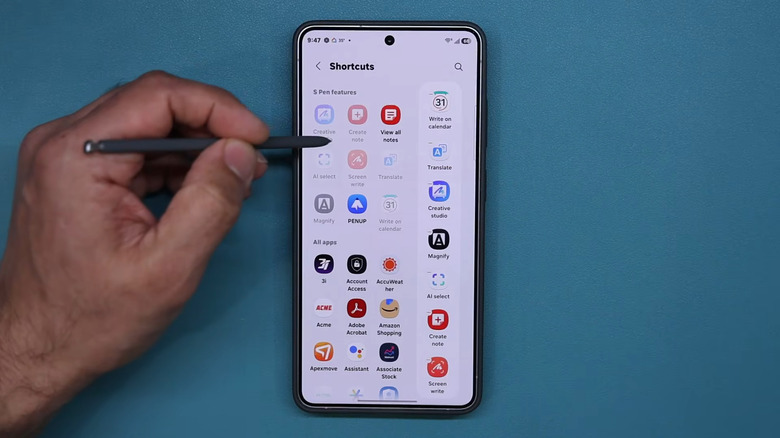
The Air Command menu is what gives your S Pen quick access to a host of tools and apps. Out of the box, it comes complete with some native S Pen tools you can start using right away. But while the default menu is already handy, it isn't set in stone. You can customize it by adding your own set of apps, converting it into a shortcut hub for your frequently used applications. Here's how to add third-party apps to your S Pen's Air Command menu:
- Launch the Settings app.
- Go to Advanced features.
- Tap on S Pen.
- Select Air command at the top.
- Press Shortcuts.
- To remove tools from the Air Command menu in the right side panel, hit the minus icon.
- To include new apps to the menu, go to All apps and select the apps you want to add.
You can only pin a maximum of ten tools and apps to the Air Command menu, so be mindful of your selection. After picking your favorite apps, just go back to the home screen and your settings will automatically be saved. Now, every time you view the Air Command menu either by removing the S Pen from its holder or hovering over the screen, you should see your new app shortcuts. Just tap on one you wish to open.
Draw a circle on your screen to search for that object
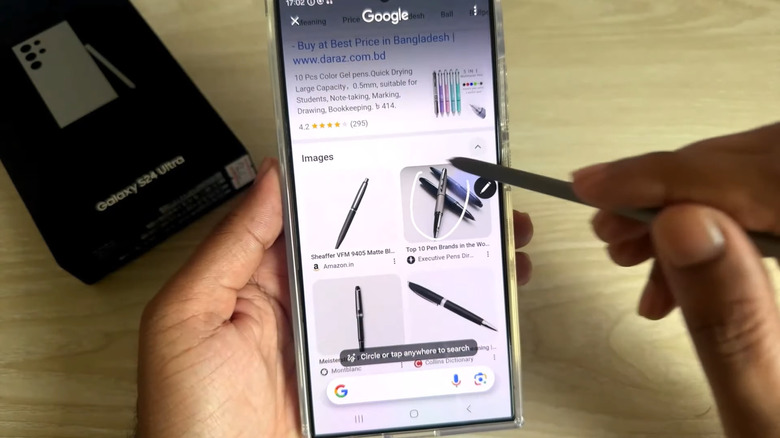
Circle to Search is probably one of the biggest features Android has introduced in recent years. It's particularly helpful when you want to look up the brand of a dress you saw on a celebrity's post, search for the name of a pen you're holding, or translate text from a non-local blog. You can even use Circle to Search to spot scams. Normally, you'd just use your finger for Circle to Search, but what you might not realize is that your S Pen actually supports that gesture as well.
Conveniently, your Galaxy device already comes with Circle to Search turned on by default, so there really isn't any setup required. You can get right to searching. To look up an item on your screen, long-press the home button with your S Pen. Then, just draw a circle around the object you're interested in. To search for a physical item in the real world, launch the Camera app and aim it at that specific object. Afterward, touch and hold the Home button. You can then circle the item shown on the Camera's viewfinder with your S Pen. If drawing a circle takes too much effort, a simple tap on the object can also work.
From here, a Google search panel will automatically pop up for your perusal. You can add a query in the search box for better results.
Pin handwritten reminders to your Lock Screen
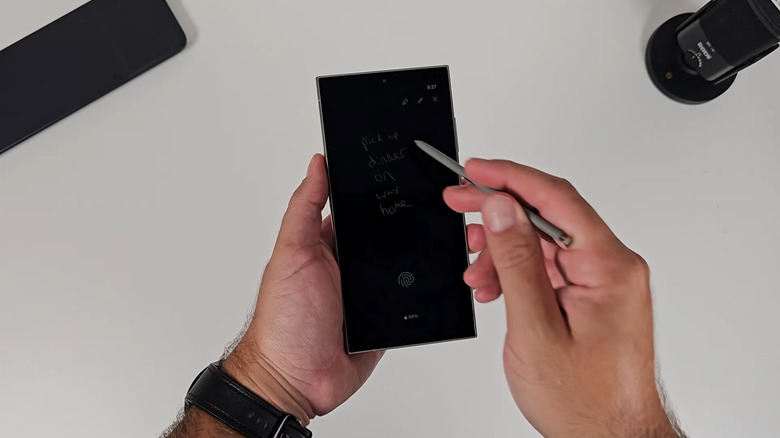
If you've had your S Pen for a while now, then you're already familiar with Screen Off Memos. It lets you open a notepad on your Lock Screen and start taking notes, all without unlocking your Galaxy device. This feature is already turned on by default, so all you have to do to activate it is pull out your S Pen and tap on the screen. From here, you're free to write whatever you need to.
Notes created with Screen Off Memos are readily accessible from the Samsung Notes app. But there's actually a feature that pins them to your Lock Screen instead. This can come in handy when you want to remember where you parked your car or what pantry items you need to buy, and when you'd like to be reminded of an important report due that same day. To pin handwritten notes to your Lock Screen, here's what you need to do:
- Remove your S Pen.
- Tap on the screen.
- Write your note as usual.
- Change the text color and line thickness from the top-left menu.
- Press the pin icon in the upper-right corner.
Your note will then show up on your Always On Display. You're free to edit it by selecting the pen icon, or remove it completely by pressing the X icon twice. Keep in mind that you can only pin one note at a time. If you try pinning a new note while one is already pinned to your display, you'll be prompted to discard the old note first.
Remotely control your camera and music apps
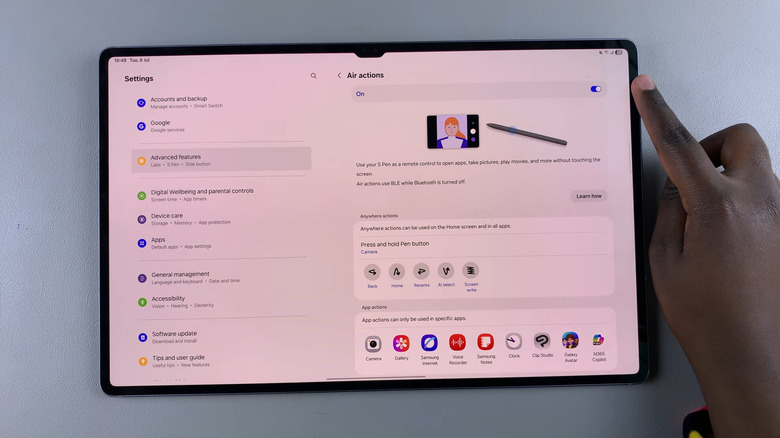
Most of the time, you'll be using your S Pen on your screen, but did you know it's still pretty handy even when it isn't touching your device? This is thanks to the S Pen's Air Action feature that lets you turn the stylus into a remote control for your Camera, Gallery, and music app of choice.
In the Camera app, the S Pen acts as a remote shutter. When you want to take a picture, just press and hold the side button until the Camera app launches. Then, hit it again to snap a photo, or do a double press to open Selfie mode. In the Gallery, the S Pen can help you browse your photos. Pressing once on the S Pen side button will advance to the next item and pressing two times will go back. In a music app like the pre-installed Samsung Music or a third-party app like Spotify, you can use the S Pen to play or pause a song (press once) and skip to the next song (press twice).
Besides controlling apps, your S Pen can navigate your phone with just gestures too. For instance, drawing a V shape in the air will activate AI Select, and drawing an upside down V will take you back to the home screen. These navigation controls can be edited as needed right from the Settings app.
It's important to note that the S Pen's remote control functionality isn't available across all S Pens. It's limited to the S Pens that came with the Tab S7 to S10, Note series, and the S21 Ultra to S24 Ultra. Unfortunately, Samsung removed this feature on the more modern models, including the S26 Ultra, S25 Ultra, and Tab S11 and S10.
Write directly on your calendar
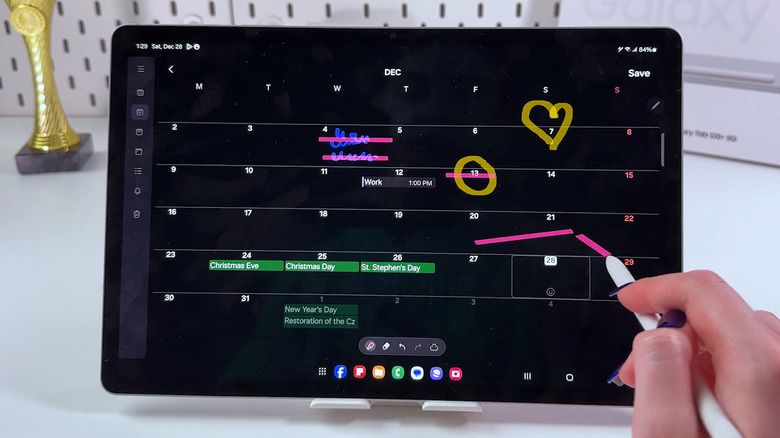
There are plenty of advantages of a digital calendar over a traditional printed one, including convenient automatic reminders and being accessible from anywhere. But sometimes, editing your calendar to include events and to-dos can take too much effort. You have to press all sorts of buttons just to put in "Anna's birthday dinner" or "Meeting with Caleb" on your calendar. Fortunately, your S Pen lets you easily write down events on your digital calendar just like you would on paper. Aptly named Write to Calendar, this is one of the most useful Samsung features still missing on the Google Pixel.
Follow these steps to use the S Pen's Write to Calendar feature:
- Go to the Air Command menu under Settings > Advanced features > S Pen.
- Select Write on calendar. If your Air Command menu doesn't have it by default, press the plus icon and tap Write on calendar under "S Pen features" to add it.
- To change the pen type, size, and color, tap the pen icon at the bottom.
- To annotate the calendar, just start writing events, circle around important dates, cross out dates, draw arrows, and what have you.
- To erase your annotation, tap the eraser icon and brush over the writing.
Once you're done writing on your calendar, just hit the Save button at the top. The Calendar app will automatically exit, but all your handwritten notes and symbols should still be available for viewing later. Take note, though, that on a Galaxy phone, the default calendar view won't display your annotations. To see them, you'd have to go to edit mode by selecting the pen icon at the top. On a Galaxy tablet, the opposite is true. The annotations will stay visible even without opening edit mode.