

Change These 4 Xbox Settings To Instantly Boost Performance
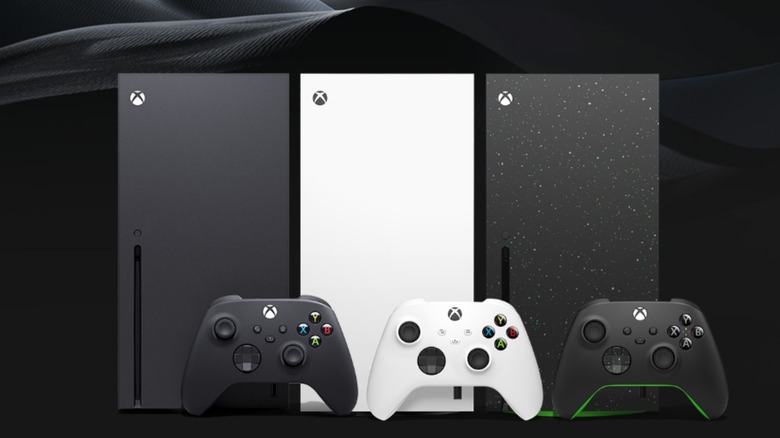
The Xbox Series X|S is capable of things you may not even know about. However, at five and a half years old, the console is starting to show its age. Its successor, currently known by its codename Project Helix, promises greater power, the ability to play PC games, and (likely) AI integration, but alpha units won't get into developers' hands until sometime in 2027. That means it'll probably be a while before we hear more about the next generation of Xbox, and it will be at least a year until the new hardware launches.
Fortunately, there are some simple things you can do to improve your Xbox's performance. By going into the settings of your console or games, you can make simple tweaks that will enhance your overall experience of using the Xbox. Some will improve performance more than others, but they're all worth trying if you want to get the most out of your gaming machine.
Use Ethernet instead of Wi-Fi
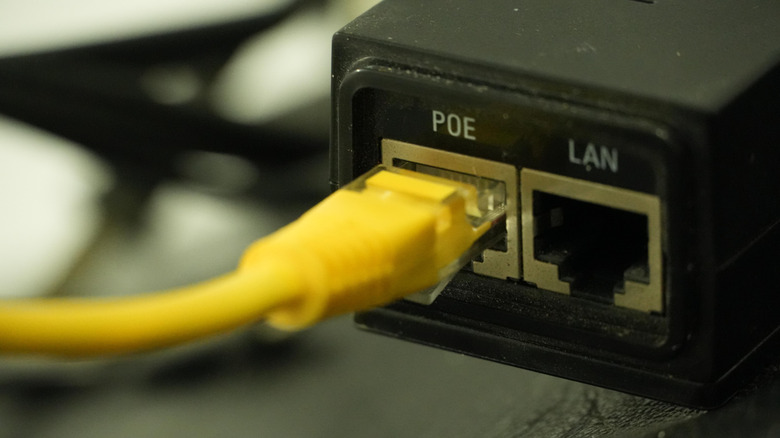
If you currently use Wi-Fi to connect your Xbox to the internet, swap to Ethernet for a much faster connection. Ethernet tends to be faster, more reliable, and more secure, so you'll notice increased download speeds and lower latency compared to Wi-Fi.
While Ethernet is the way to go no matter where you play, it's slightly more important on Xbox due to its Wi-Fi specs. The Xbox Series X|S supports Wi-Fi 5, the same as the PS4 Pro, Xbox One X, and Nintendo Switch. PlayStation outmatches the Xbox here; the PS5 supports Wi-Fi 6, and the PS5 Pro supports Wi-Fi 7, the latest Wi-Fi standard whose successor won't be out until at least 2028. That may not make a huge difference, especially compared to a wired connection, but Xbox's latest-gen console using last-gen tech makes Ethernet all the more important for a speedy and stable connection.
Set up FPS Boost and auto HDR
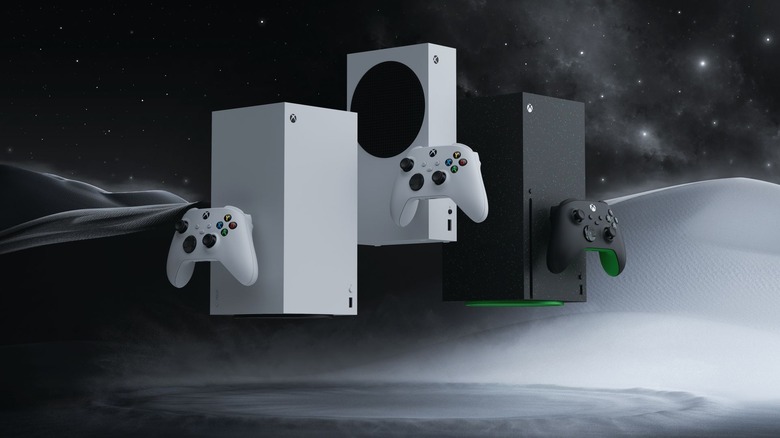
The Xbox Series X|S' backwards compatibility means you can play games from past console generations on the current hardware. Many of those games also get a boost from the Series X|S thanks to Smart Delivery for cross-gen games and FPS boost and auto HDR for the titles that don't have current-gen versions. Most games that support the latter do so automatically, but there are some that require you to manually enable it.
To do this, open My games & apps and find the title you want to boost. Highlight it and press the menu button on your controller (the one with the three horizontal lines). From there, hit Manage game and add-ons, then Compatibility options. That will take you to a menu where you can enable (or disable) FPS boost and auto HDR.
If you have a 120 Hz-capable TV, the Series X|S can support up to 120 FPS on some games. Just go to Profile & system and then to the Settings menu. In there, find TV & display options in the General menu. There, you can select 120 Hz under Refresh rate.
Enable performance mode over graphics mode

This one has to do with individual games rather than your Xbox console itself, but it does make a difference. Many games, especially technically demanding ones like "Cyberpunk 2077" and "Starfield," offer players the option between Graphics and Performance mode. As the name suggests, Graphics mode makes the game look as pretty as possible, prioritizing raytracing, dynamic lighting, and maximizing resolution. However, gameplay is usually capped at 30 FPS, far below the 60 FPS many gamers are used to.
Neither is inherently better than the other, but go with Performance mode if you care about how your game runs over how it looks. This prioritizes frame rate, targeting smoother gameplay. While you'll probably lose 4K resolution and other visual improvements, the benefits generally outweigh the downsides. It makes gameplay feel as fluid as possible, which is especially important if you're playing a game that requires precise controls like an online multiplayer title.
Storage management can improve performance
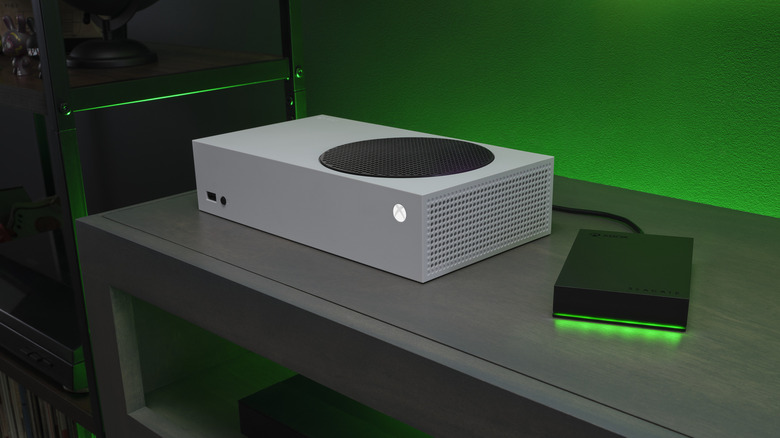
The base Xbox Series X has 1TB of storage, which sounds like a lot, but it fills up pretty quickly. Games like "Call of Duty: Black Ops 7" require hundreds of GB of storage to download, and even though the file sizes are smaller once it's on your console, a single game can still take up a considerable chunk of your internal storage. Add some of the essential Xbox apps to the mix, and you're already out of storage. An external drive can help, but there are some major limitations.
First, games optimized for the Xbox Series X|S must be downloaded to the internal SSD. Even if you do have older games that you want to play on the latest consoles, downloading them to the internal storage will make them run better. This is because internal drives are generally faster than external ones. Xbox's own Storage Expansion Cards can run Series X|S games, but these are expensive, starting at $199.99.
Beyond that, storage impacts console performance more than you may realize. SSD performance is impacted by how full it is, so you'll want to leave at least 10-15% of your storage free. If you opt for external storage, a good option is to keep 25% of its storage free and leave your favorite games on the internal drive.