

You Can Change Your Google Pixel's Flashlight Brightness - Here's How
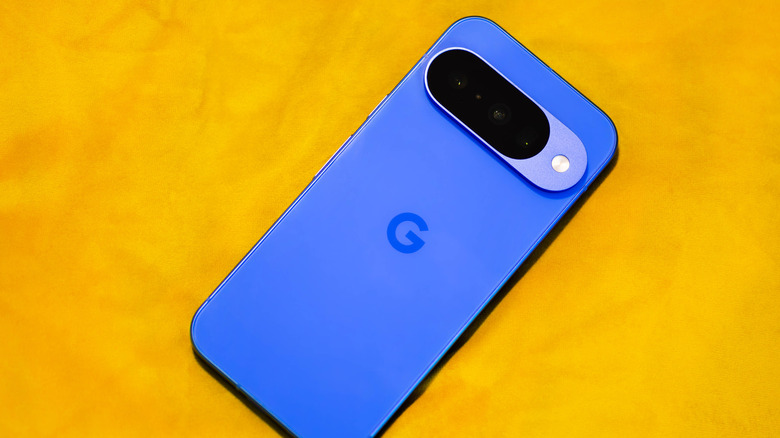
Google Pixel devices have been missing a basic smartphone feature for a while: the ability to change the flashlight's brightness. While Google Pixel alternatives from Samsung and Apple had integrated this feature long ago, Pixel users were stuck with the default intensity. Whether it was too bright or too dim, there wasn't much you could do other than use third-party apps like "Flashlight Tiramisu." And as surprising as it may sound, Pixel phones didn't have their flashlight set to maximum brightness. Instead, it was configured at 50%.
All this has changed now, though. The Android 16 QPR3 update officially introduced a brightness slider, which has been quietly rolling out to users as part of the March 2026 Pixel feature drop. Users no longer have to rely on third-party apps, and can now quickly change the flashlight's brightness level through Quick Settings. Given that the feature is relatively new, there's a lot of confusion about it, especially about how it works and why tapping the flashlight icon launches the flashlight strength slider for some and turns it off for others.
How to adjust flashlight brightness on Google Pixel
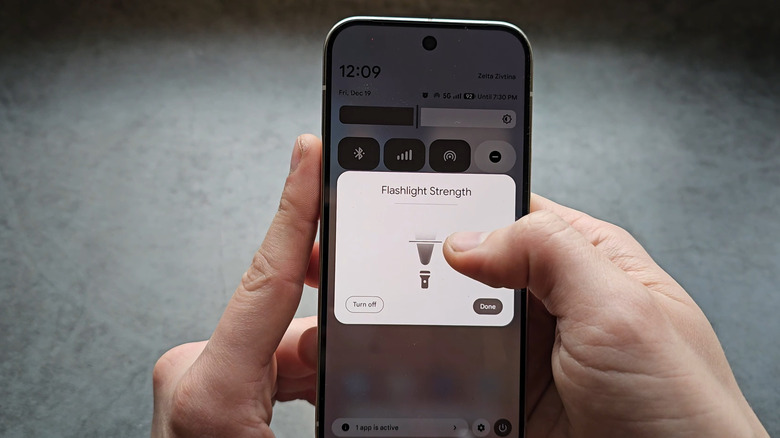
Before you proceed, go to Settings, navigate to Software Updates, then to System Updates, and install the latest available update if you haven't already. Now, open Quick Settings, long-press the flashlight tile, and you should immediately see the "Flashlight Strength" section with a slider underneath. Dragging the slider up increases brightness, while sliding it down decreases it. Additionally, if you turn off the flashlight after adjusting its brightness and then turn it back on, the brightness will remain the same and won't return to the default level.
One key feature to bear in mind: the flashlight tile's behavior depends on its size. If the tile size in Quick Settings is set to 2x1, tapping the word Flashlight on the right side of the tile opens the "Flashlight Strength" menu. Tapping the flashlight icon on the left toggles the flashlight on and off. If you set your flashlight tile to 1x1, tapping it toggles the flashlight on and off, while long-pressing it opens the "Flashlight Strength" menu. To change the tile size, open Quick Settings by pulling down from the top of your screen. Then tap the Edit (pencil) icon, select the tile you want to edit, and drag the tile's sides to resize it.
This latest update might also help users who recently complained about their Pixel 10's flashlight getting hot when in use. Lowering the flashlight intensity may reduce stress on the hardware and prevent overheating, but that might not work for everyone.