

5 Devices Your Nintendo Switch Pro Controller Can Connect To
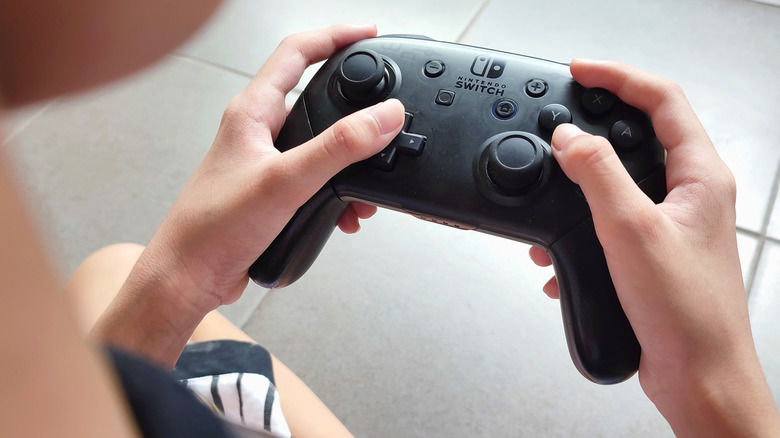
The Nintendo Switch Pro Controller is a great gamepad for the Nintendo Switch. While the Switch comes equipped with the standard Joy-Con controllers, the Pro controller offers a more traditional controller alternative, with approximately 40 hours of battery life and an ergonomic design that makes it more comfortable for long gaming sessions.
Nintendo may have released the newer Nintendo Switch Pro 2 Controller alongside the upgraded Switch 2 console in 2025, but that doesn't mean your original Pro controller should be left to gather dust. Not only is the Nintendo Switch Pro Controller largely compatible with the Switch 2 — saving you from buying a brand-new gamepad — but, like the DualSense, it can also connect to multiple other devices, including PCs, smart TVs, the Steam Deck, and Android and Apple devices. Below, we break down five devices your Nintendo Switch Pro Controller can connect to — and how to do it.
PCs and Laptops
The Nintendo Switch Pro Controller can connect to your PC via a wired or wireless connection. The wired option is the most straightforward: just connect your controller to your computer using a USB-C cable via the port on the top of the gamepad that you typically use to charge it. Once your PC recognizes the device, select it, and you should be good to go.
Alternatively, you can connect your Pro controller to your PC via Bluetooth, assuming your computer has a Bluetooth receiver. To do this, hold the Sync button on the top of the controller until the green lights at the bottom of the gamepad begin to flash (the lights will run back and forth). Next, go to the 'Bluetooth & devices' settings on your PC, select 'Devices', and then 'Add device.' When asked what kind of device you'd like to add, select 'Bluetooth.' Your Nintendo Switch Pro Controller should then appear on the list of available devices, allowing you to pair it with your computer.
Smart TVs
Your Nintendo Switch Pro Controller can also connect to a variety of smart TVs that support Bluetooth. To connect your gamepad, once again hold the Sync button on the top of the controller until its lights flash. Next, you need to access your TV's Bluetooth settings or remote and accessories settings to enable Bluetooth pairing with an external device. This process will vary by make and model, so consult your TV's manual if you're not seeing it. Once your TV is in pairing mode, you should then see the controller appear on your list of available devices; click on it to pair.
The Pro controller is compatible with Apple TVs, Amazon Fire TVs, and devices running Android and Google TV operating systems, including Hisense and Sony. Connecting your Switch Pro controller to your TV is particularly useful if you want to play games on your smart TV through subscription services like Apple Arcade or via streaming apps. However, it's worth noting that Xbox Cloud Gaming doesn't officially support the Nintendo Switch Pro Controller and may require an alternative gamepad, such as the Xbox Wireless Controller or DualShock 4.
Android mobile devices
If you enjoy gaming on your Android tablet or phone, pairing a controller with your device could make your experience more comfortable. The Nintendo Switch Pro Controller can connect to Android devices running Android 10 or later via Bluetooth, with the process similar to connecting to a PC and smart TVs. Hold the Sync button on your controller to enable the gamepad's Bluetooth pairing mode, find 'Bluetooth' under your Android device's connection settings and enable it, select the option to pair a new device, and then you should see the gamepad appear in your list of pairable devices — click the controller when it appears to pair it.
You can then use the gamepad with compatible games and services, such as Amazon Luna. However, the Nintendo Switch Pro Controller isn't necessarily as widely compatible as other gaming controllers, such as the DualSense and Xbox Wireless Controller. In addition to not being officially supported by Xbox Cloud Gaming, the gamepad is not officially supported by "Fortnite" on Android, so make sure to check that the games and apps you use will work with the controller first.
iPhones and iPads
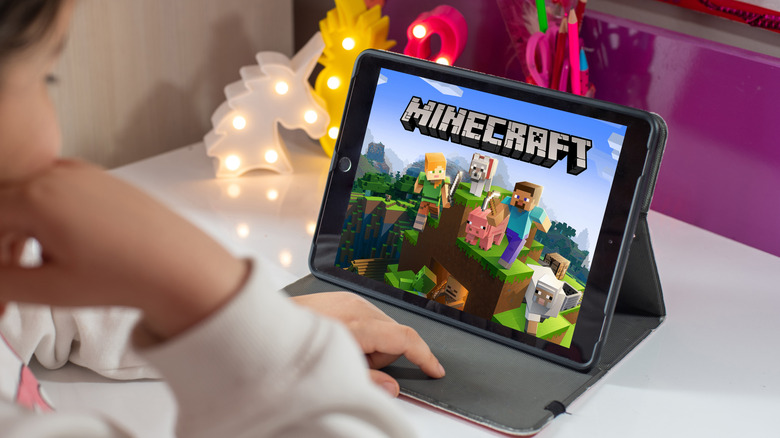
If you use an iPad or iPhone for on-the-go gaming, the process is again very similar to connecting your Pro Controller to an Android device. Repeat the steps to enable Bluetooth pairing on your Nintendo Switch Pro Controller. Next, go to 'Settings' on your iPhone or iPad, navigate to 'Bluetooth,' and then toggle your Bluetooth on. Scroll down, and you should soon see your Pro Controller appear under the list of 'My Devices' or 'Other Devices' — when it does, select it to pair the controller with your device.
Connecting your Nintendo Switch Pro Controller to an iPad or iPhone is particularly useful when paired with Apple Arcade, Apple's game subscription service, as it offers you a comfortable gaming experience and more precise controls than touch screen controls offer — which you'll be glad of in shooters. However, only Apple Arcade games that display a controller icon on their store page will support controllers, so be sure to check before you start playing.
Steam Deck
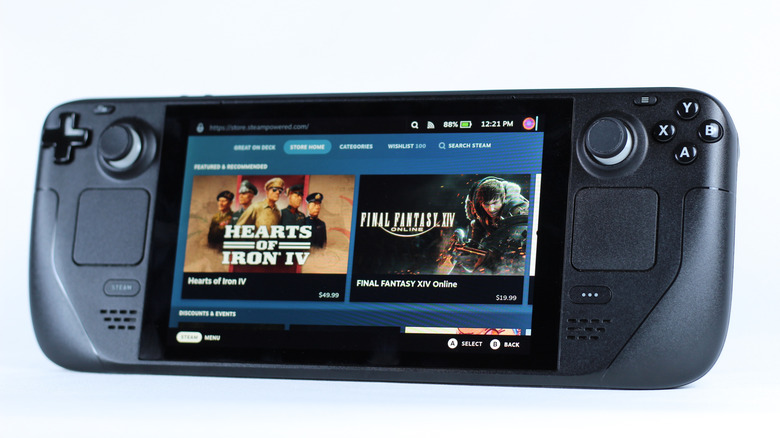
The Nintendo Switch Pro 2 Controller may be one of the best controllers for the Steam Deck, but the original Pro Controller is a great alternative for those who don't want to shell out for a new gamepad.
To connect the Nintendo Switch Pro Controller to your Steam Deck via Bluetooth, enable the gamepad's Bluetooth pairing by holding the Sync button. Then, on your Steam Deck, navigate to 'Bluetooth' under the settings menu. Toggle Bluetooth on, and the Pro controller should appear under the list of 'Available to Pair' devices. Click it to pair your controller to the Steam Deck.
Once the two are paired, you can then navigate to'Controller' settings on your Steam Deck to adjust your gamepad's button layout, game rumble, and other features to your liking. You don't have to do this, but it's worth it if you want to tweak the Switch Pro Controller's performance or remap its buttons to better suit your needs.