

5 Of The Best Google Chrome Extensions You've Been Missing Out On In 2026
In 2026, Google Chrome is more than just a tool for browsing the internet. It's become an essential productivity hub for many, allowing them to execute entire workflows within websites like Gmail, Google Docs, Zapier, and Asana without needing a desktop app. When coupled with the right extensions, working in Chrome can become even more efficient and comfortable. While it makes sense to stick to the essential extensions, there are some gems that you might not have discovered beyond installing the standard note-takers, password managers, ad blockers, screen recorders, and web clippers.
Chrome has over 100,000 extensions, so it can be a little difficult to keep up when you're in the mood to explore. With a little help, you can discover something you never thought you needed. There are extensions that add dark mode to every site, help you insert regularly used text snippets, block time-wasting websites, protect your anonymity online and bypass geo-restrictions, and even manage all the extensions you've already installed.
While they aren't life-changing tools, they do a good job of solving a wide range of problems that plague modern workflows and browsing experiences. You should not miss out on installing them. Since they're Chrome extensions, they will work on other Chromium-based browsers, including Microsoft Edge, Opera, and Brave.
Dark Reader
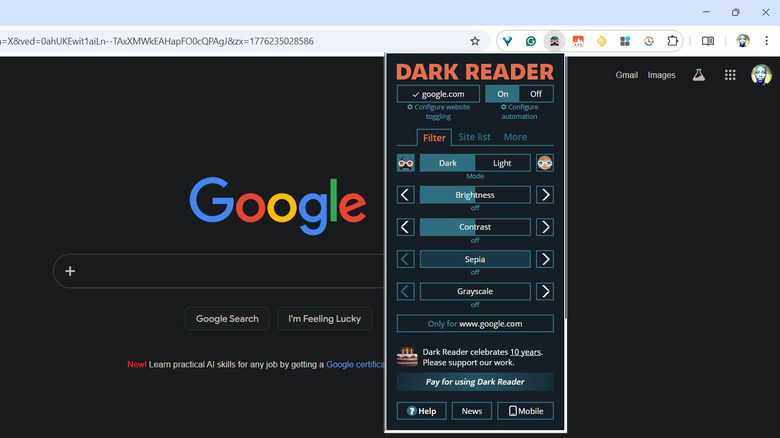
You'd think dark mode would be standard for every reputable website in 2026, considering white backgrounds are glare-inducing and can cause eye strain. Dark mode can reduce glare by making the screen less bright. This makes everything easier on the eyes, especially in low-light conditions. If you find that the majority of the websites you visit are hurting your eyes, try Dark Reader.
Once you turn on Dark Reader, the website's background becomes black, and the text becomes white, instantly creating a dark mode as if it were seamlessly integrated into the webpage to begin with. When you toggle the extension off, the website returns to normal. If a website only has dark mode, you can also switch it to a light theme if that is much more comfortable for you. It also has filters for further adjusting your level of eye comfort, allowing you to tweak brightness, contrast, sepia, and grayscale.
You can also automate when dark mode turns on or off, in case you're prone to forgetting when you need it. This is especially useful if you tend to browse during specific times of the day, such as in the evening when you're under artificial light. Try to have it on with the sepia dialed all the way up if you're using it before bed to reduce the amount of blue light exposure. Doing this can help with sleep since blue light can disrupt the sleep cycle by suppressing melatonin — the body's sleep hormone.
Text Blaze
Repetitive typing is a part of many people's lives, whether they're inserting a template into a text document, formulas in a spreadsheet, or a signature in an email. It's tedious work, but it's important because it ensures consistency. One way to make it easier is to save that repetitive text in programs like Sticky Notes on Windows or Stickies on a Mac and then copy and paste it where it's needed. However, those are still extra steps you don't need to take, especially with an extension like Text Blaze around.
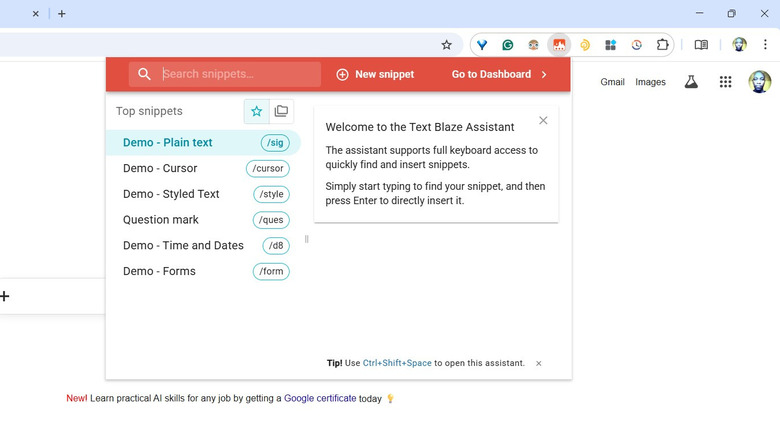
Text Blaze allows you to insert snippets of text using a slash shortcut. It can save you hours in the long run by eliminating repetitive typing from your daily routine. The way it works is simple. Suppose you're constantly typing your signature in emails. You may even make mistakes sometimes because doing things manually is inherently error-prone. You can create a new snippet for it in Text Blaze and assign it a shortcut like "/sign" — the forward slash at the beginning is a necessary prefix for all shortcuts. Whenever you type that shortcut in a text area, it will be automatically replaced with the email signature you specified.
You can also insert various things into the snippets, including dates, tables, formulas, and images. If you have Text Blaze Pro, you can use forms to trigger a pop-up so you can fill in certain fields (e.g., name, date, and phone number) before inserting the snippet into your text.
StayFocusd
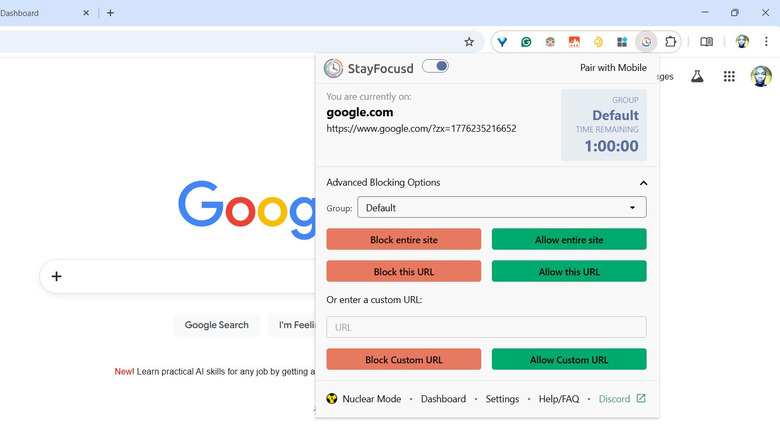
If you find yourself constantly doomscrolling on social media or watching YouTube Shorts or TikTok on your computer when you're supposed to be working, StayFocusd can help. You can easily add websites to a blocklist with a timer that only runs when you're actively viewing those pages. Once the time runs out, the websites are blocked, forcing you to be mindful of your time on them. You can specify what aspect of the website you want to block. For instance, you can block all of it, a single webpage, a subdomain, images, or videos.
StayFocusd allows you to set the days when it's active, in case you want to exclude weekends. You can also set how long it runs if, for instance, you only want to use it during work hours (e.g., 9 a.m. to 5 p.m.). If doomscrolling gets too good, you might be tempted to just remove sites from the blocklist to circumvent the block. If you know you're prone to doing that, you can make it hard by enabling Require Challenge. This locks the settings, requiring you to solve a difficult challenge before you can change them, making it an effective deterrent.
If you really need to concentrate, you can turn on the Nuclear Option, which blocks access to all sites for the specified hours on the days it's active. Once you enable this option, it cannot be undone — you just have to wait for the timer to run out.
Mango VPN
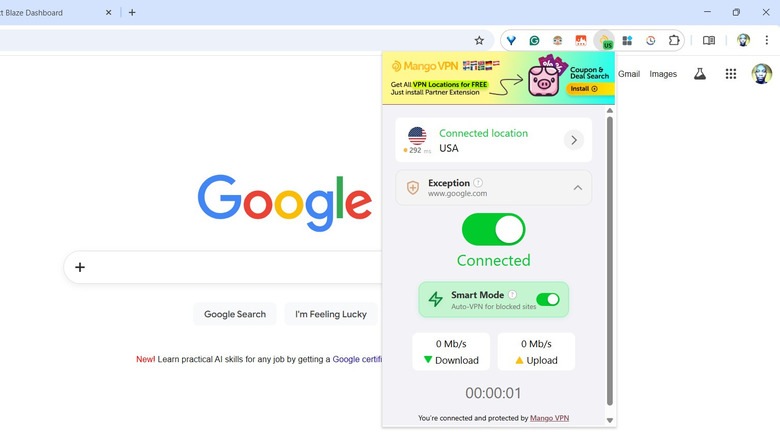
There are plenty of clever ways to use a VPN these days. For instance, if there's Netflix content available in another country but not yours, just switch to the server in that country and you'll have access to it. It also becomes a necessary tool when you're connecting to a public Wi-Fi, since it can encrypt your data before it hits the wider internet, making it useless to anyone who intercepts it while in transit. While many VPNs require you to create an account, Mango VPN doesn't — you can just add it to Chrome and start using it.
While there's a paid tier, the developers say the free version will remain that way forever. With the free version, you can access nine server locations, including the United States, Brazil, Switzerland, and France. There are also no limits on the bandwidth usage, meaning you can use it without worrying about artificial caps. You can enable Smart Mode so the VPN only turns on when you access blocked sites. The paid tier costs $4 per month, and it adds more server locations, increases speed, and gives you access to premium support.
Extension Manager
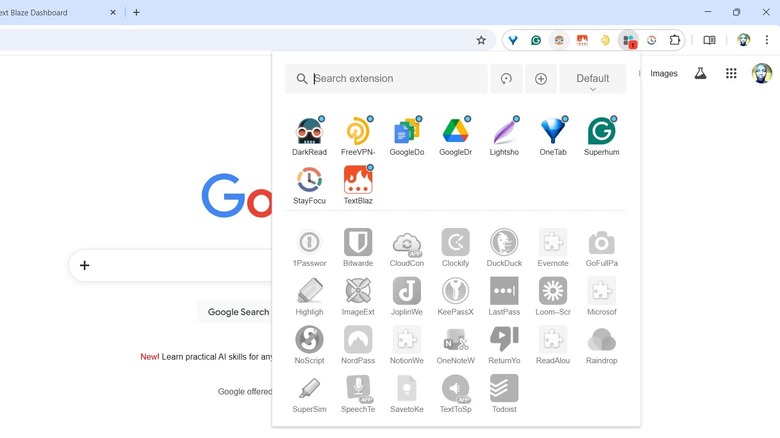
When you click the puzzle icon in the top-right corner of Chrome, all you're able to do is pin and unpin extensions if they're enabled. But with Extension Manager, you can actually manage them from the toolbar. You don't have to click the puzzle icon and then select "Manage Extensions" in the pop-up to access the Extensions page — although you might need it when you want to tweak an extension's shortcuts. Once you click Extension Manager's icon in the toolbar, you get a dropdown with all your extensions listed, even the ones that have been disabled.
To disable an extension, you just need to click it, and doing the same again undoes it. Disabled extensions will appear at the bottom and be grayed out. When you hover the mouse pointer over an extension, you'll see additional options like "Lock," "Uninstall," "Options," and "Homepage."
You can even group extensions into descriptive categories like "Productivity," "Creativity," or "Google." Once you select a group, only the extensions that were added to it will be enabled, and the rest will be disabled. This allows you to only have the extensions you need enabled at any given time, which is good for performance because having too many extensions on, especially the resource-heavy ones, can slow down Google Chrome's performance. Also, if you have too many extensions, consider uninstalling some of them to speed up Google Chrome.