

5 Essential Tips For Cleaning And Maintaining Your PC
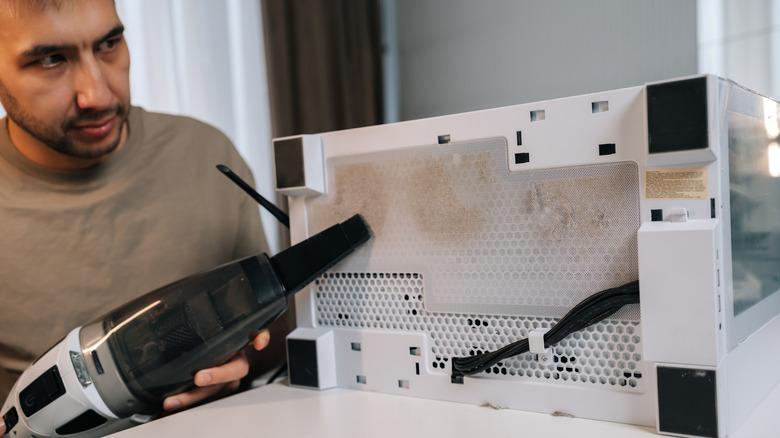
In the modern world, a personal computer is one of the most vital devices you can own, serving as a nexus for both your professional work and personal entertainment. PCs and their peripherals, including monitors and keyboards, may seem fairly robust, but they're actually quite vulnerable to various small problems that could, as a whole, impact your overall usage of them. As a PC owner, it's on you to maintain a comprehensive cleaning and upkeep regimen, from regularly dusting the vents to clearing out old, unnecessary files.
Keeping your PC in top shape isn't just about avoiding sketchy websites or not dropping crumbs into your keyboard, though those are both important. Both your PC's physical and digital elements endure constant rigors, like dust in the vents and large files slowing down processes, which together can cause your PC's proverbial clock to run out faster than it should. With vigilant cleaning and maintenance, you can ensure that your PC has a long, happy life, serving all of your needs to its utmost capability.
Dust the case and fans regularly
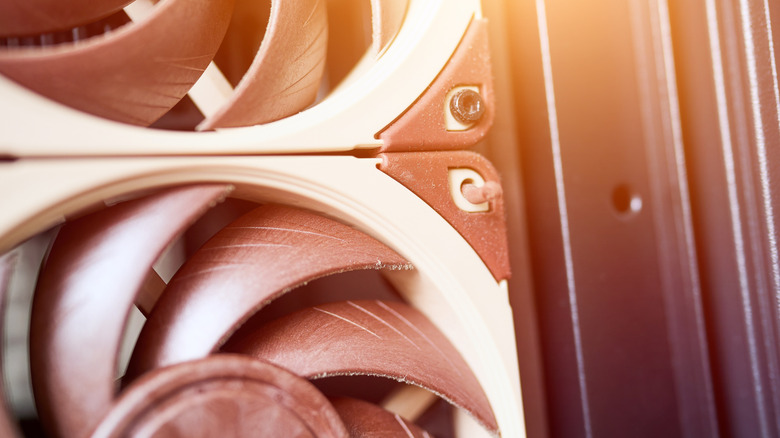
The first and foremost task on the checklist for caring for your PC is to battle the scourge of dust. No matter where you place your case, whether on a desk or on the floor, it will steadily accumulate dust in its fans, vents, and ports. As dust clogs your PC's vents, its ability to dissipate heat will be diminished, slowing its processes and putting it at risk of overheating. To prevent this from happening, you should make a habit of regularly cleaning dust out of your PC. Once a month would be ideal, but at the very least, try to clean it out every three to six months.
Actually removing dust, thankfully, isn't that difficult. Just get a can of compressed air, power down and unplug your PC, and deliver careful blasts into any exterior ports and vents, while also removing any surface dust from the sides of the case with a microfiber cloth. Many PC cases have dust filters attached to the top and/or bottom, so make sure to clean those out. For a more thorough clean, remove the side panel and use your compressed air to clear dust from the interior fans and heatsinks. You can also use a soft brush to physically remove dust on these components, but don't use a brush on delicate components like the motherboard or RAM.
Keep your keyboard clean of physical debris
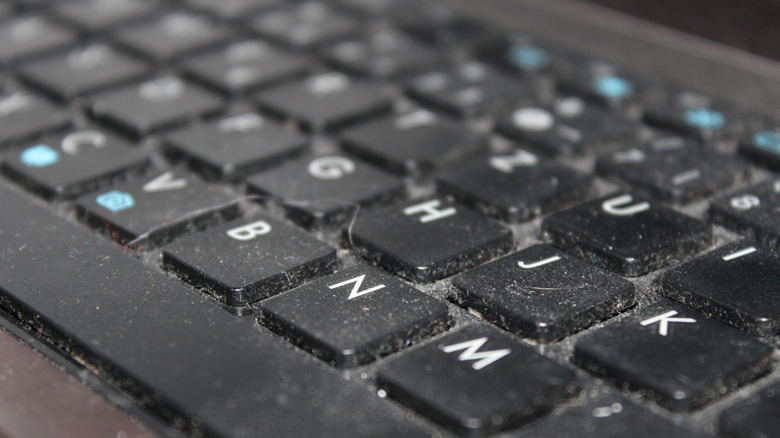
Your keyboard is your primary means of interfacing with your PC, and as such, it's one of the biggest magnets for dust, grit, and the occasional dropped snack crumb. Besides being unsightly and unpleasant, accumulated particulates in your keyboard can get lodged in individual key switches, hampering their effectiveness and diminishing the keyboard's overall lifespan. If you have a buy-it-for-life-quality gadget like a hot-swappable mechanical keyboard, you could replace damaged or broken switches, but before that, just give your keyboard a monthly cleaning.
A basic keyboard cleaning doesn't require any particular tools or know-how. Just disconnect it from your PC, hold it over a garbage can or towel, flip it over, and give it a few firm shakes. If there are any large, solid particulates in or around the keys, they should dislodge them. For the more stubborn bits like dust, pull out the compressed air again. Work the straw of the can under your keys and fire off a few quick bursts to shake stubborn, caked-on dust loose. You can also use a dedicated keyboard brush to physically fish dust and particulates out from the keys if the air doesn't remove them all. Wipe down the keys with a microfiber cloth to remove any ambient oil, and you're good for a while.
Wipe down your monitor or laptop screen
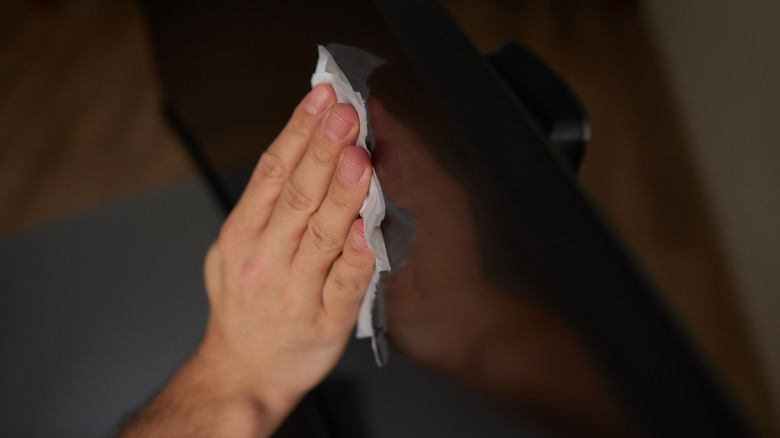
Compared to the bulky, boxy CRT monitors of the past, the current flat-screen PC monitors are substantially higher-definition. They are not, however, nearly as robust as the bulky monitors, with even the slightest smudge on their liquid-crystal displays potentially leading to permanent, distracting damage. The best thing you can do for your monitor is avoid touching the screen altogether, but it will still gather dust and smudges on its own, so you should make time to keep your computer screen clean in the best way, at least once every month or two.
To clean your monitor, first power it down and unplug it from both your PC and its power source. After that, grab a soft microfiber cloth and gently run it over the screen's surface, using just enough pressure to remove dust and oil without marring it. If you've got a particularly stubborn smudge or scuff on the screen, you can dampen your cloth with a very small amount of clean water, then wipe it again. Don't soak the cloth, and don't spray water or cleaners directly onto the screen, as the moisture could seep into the monitor's internal components and damage them. You should also refrain from using abrasive cleaning tools and solutions, such as paper towels, tissues, Windex, or hand sanitizer. Those will damage your monitor well before they clean it.
Back up critical files, delete old, unnecessary data

Caring for your PC isn't just about cleaning gunk out of its physical components and peripherals; it's also about optimizing its internal processes. A lot of data and files pass through your PC during regular use, with most of it taking up residence on your local storage, often without your notice. There's only so much storage space on your PC, and if it's clogged up with random, meaningless files, your PC will eventually run out of space for the files and programs you actually care about.
Whenever you can remember to, you should delete old, unnecessary files. Your downloads folder, for example, is a common culprit for junk data, as days or even weeks' worth of assorted files can accumulate there without your notice. Drop anything you don't need in the Recycling Bin, and make sure to empty it so files are deleted rather than taking up space in your Recycle Bin. Large files and programs in particular should be removed if you don't need them. Hefty video games, especially, should be deleted if you're not actively playing them. You can always just re-download them later.
On the other hand, if you have important files, such as personal documents or work materials, you should back them up so you don't lose them. Use a cloud-based service or an external storage drive to make copies of your vital files, so you still have access to them in the event of an emergency.
Thermal paste may need reapplying after several years
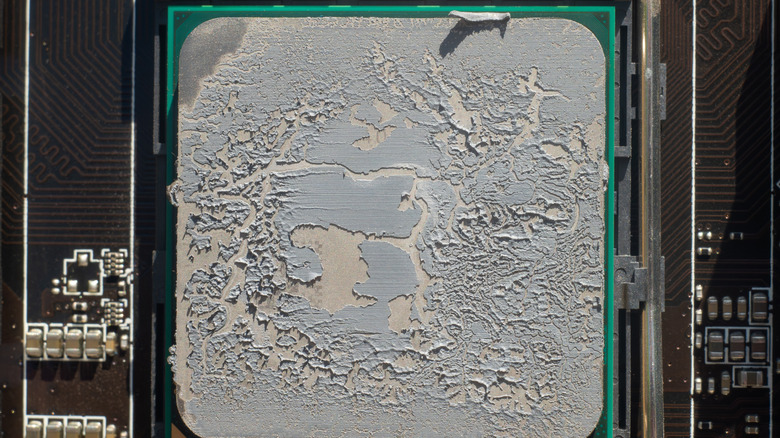
The older a PC gets, the more upkeep it may require, not unlike your own body. If you've been pushing your PC's capabilities regularly for several years, the thermal paste in its heatsinks may start to dry out and flake, reducing its ability to safely dissipate heat. If you notice your PC running noticeably hotter than usual, it may be time to reapply thermal paste. Thermal paste usually lasts a fairly long time once opened, but you should keep an eye out for heightened temperatures after owning a PC for at least a couple of years.
Replacing thermal paste is a more advanced procedure than regular PC upkeep, and it does require a working understanding of your PC's internal components and how to handle them safely. This includes removing heatsinks from the CPU and GPU, cleaning off the old paste with isopropyl alcohol and a lint-free cloth, and using a paste applicator to apply fresh thermal paste. If you aren't 100% confident in your ability to do this, take your PC to a trusted repair shop and pay to have it done for you. It's a worthwhile investment for ensuring your PC's health and longevity.