

Your iPhone's Messages App Has A Hidden Translation Feature You're Probably Not Using
Since introducing Apple Intelligence in June 2024 for iPhone 15 Pro or later, Apple has added various AI features that iPhone users can't get enough of, including writing tools and image generation. One of the most useful is Live Translation, which was one of the many new Apple Intelligence features introduced in iOS 26. This tool uses AI to translate text messages, video and audio calls, and even in-person conversations.
Live Translation in the Messages app is especially useful if you travel a lot or have friends or professional contacts who would prefer to communicate in their native language. Since it was introduced in September 2025, the feature has received high praise, with John-Anthony Disotto of TechRadar calling it "one of the best iOS 26 features, full stop" and saying it quickly and seamlessly removes the language barrier with his relatives. That said, others have pointed out that many international text conversations take place through third-party messaging apps like WhatsApp, limiting Live Translation's usefulness as a feature tied to Messages. In any case, Live Translation makes it easy for iPhone users to communicate with one another, regardless of whether they share a language. Here's how to use this underrated Messages app feature.
How to use Apple Intelligence's Live Translation in the Messages app
To use Live Translation, you need to first make sure Apple Intelligence is turned on. Again, these features are only available on newer models, so first make sure you have an iPhone that supports Apple Intelligence. If you do have a compatible device and the feature still isn't working, make sure the phone is running the latest version of iOS.
From there, go to the Messages app and select the conversation that you want to use Live Translation with. Tap the person's name on top of the screen, and scroll down until you see the Automatic Translate option. This will let you know if your iPhone has detected messages in other languages, but you can also hit Choose Other Language to select it yourself. Keep in mind that, while Apple plans to expand its offerings in future updates, Live Translation is only available (in beta) for the following languages as of April 2026:
- English
- Danish
- Dutch
- French
- German
- Italian
- Norwegian
- Portuguese
- Spanish
- Swedish
- Turkish
- Chinese (Simplified)
- Chinese (Traditional)
- Japanese
- Korean
- Vietnamese
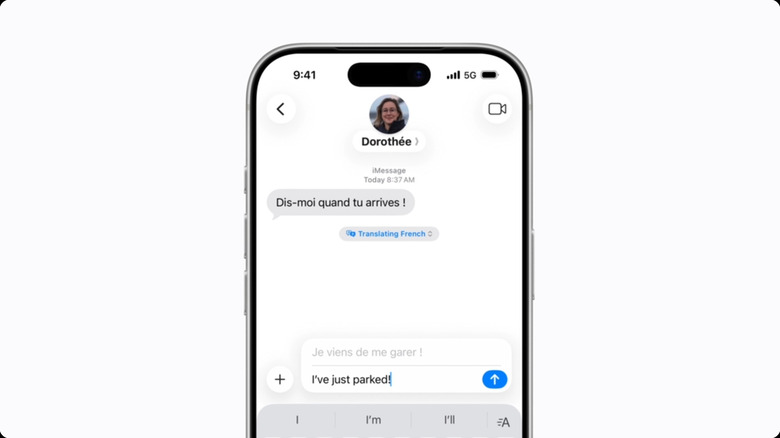
If the language you've selected isn't already installed, it may take a few minutes to download. Once that's set up, you'll be able to send and receive messages with Live Translation. When you type, you'll see the translated text before you hit send, and the phone will display both sent and received texts in both languages for both parties. You can even use it to translate group chats by following the same steps. And, if you're an AirPods user, you can use your AirPods' Live Translation feature to translate in-person conversations.