

Why Your Bluetooth Headphones Sound So Much Worse On Calls (And How To Fix It)

If you have a set of Bluetooth headphones that sound worse as soon as you join a call in Discord, Zoom, or Microsoft Teams, it's often not your device or headphones that are to blame, but the underlying Bluetooth technology. To understand this, you first need to know about the two commonly used Bluetooth audio profiles, A2DP (Advanced Audio Distribution Profile) and HSP/HFP (Headset/Hands-free Profile). A2DP is designed for high-quality audio playback, while HSP/HFP is bi-directional in nature, allowing both audio playback and input. Keep in mind that the latter, though ideal for calls, doesn't deliver the best sound quality.
When you are listening to something or watching a video, the A2DP profile is used by default, but when on a call, it automatically switches to HSP/HFP. This also means that the audio switches from stereo to mono, disabling any spatial effects. That's why the audio quality degrades almost instantly.
Although Bluetooth connectivity and audio transmission have improved significantly over the years, this remains a major drawback. And while manufacturers have been trying to find ways around it, there's little they can do if the headphones are to be designed for both communication and playback. But there are ways you can fix it with more modern protocols or bypass the problem with simple workarounds.
Fixing Bluetooth headphones on Windows
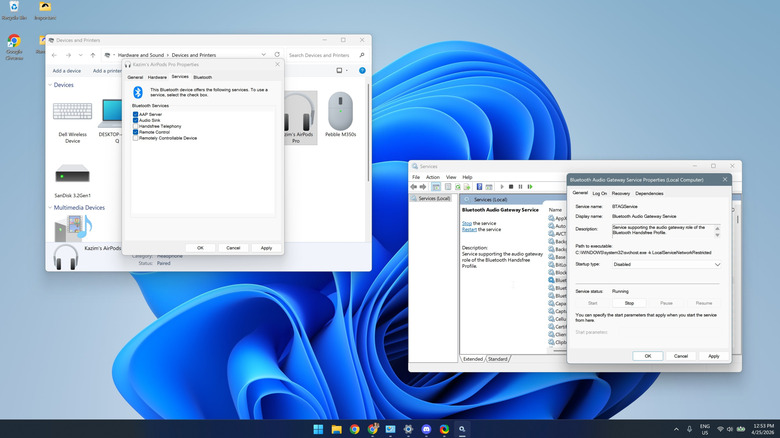
There are some changes you can make on the OS-level to fix the audio quality in calls. The easiest is to disable the services your Bluetooth headphones rely on. To do that, open Settings > Bluetooth & devices > Devices > More devices and printer settings at the bottom. In the Control Panel window that opens, right-click on your headphones, select Properties > go to the Services tab > uncheck Handsfree Telephony and Remotely Controllable Device, and save the changes.
If these keep turning back on, disable the "Bluetooth Audio Gateway Service." For that, launch the Services utility using the "services.msc" command in the Run utility. Now, find Bluetooth Audio Gateway Service, right-click it and select Properties. Choose Disabled from the dropdown menu and click Stop if the service is running, then save the changes. Keep in mind that this disables Handsfree Telephony across all audio devices.
Microsoft has also tried fixing this Bluetooth issue by introducing modern profiles like Telephony and Media Audio Profile (TMAP) in addition to A2DP and HFP/HSP. It's available for Windows 11 22H2 and newer versions, and both your PC and the headphones should support the functionality. If they do, you can enable "Bluetooth LE Audio" under Device settings after going to Settings > Bluetooth & devices > Devices.
Switching to a dedicated microphone helps
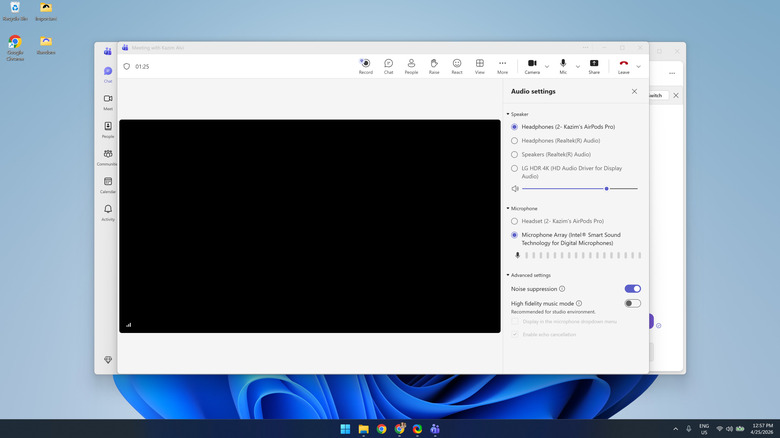
When software-level changes don't help, there's another quick trick to fix low-quality audio in calls. And this works across devices. All you need to do is switch to another microphone during the call through the app's built-in settings. For instance, you could change the audio input device to your laptop's built-in microphone or the one on your webcam if available. By doing so, you allow the headphones to regain the high-quality audio that it loses when also being used as a microphone. Remember, switching audio input devices is easier on PCs than smartphones, so you may run into some issues on the latter.
Alternatively, switching to wired headphones works as well. Wired headphones are generally more reliable and better at audio transmission. That's one of the reasons audiophiles choose wired headphones over wireless ones. Remember, that's something you only have to worry about while on a call and when the built-in settings don't fix the audio quality because for most people, changing the audio input should do the trick. Others can simply change the input device and work around the problem.